While following driving or cycling directions, you can add places to stop along your route.
You can add up to 14 stops on a route and create a multistop driving route before you leave. You can also change the starting point or destination, or switch the two. And on an iPad with Wi-Fi + Cellular, you can even add stops on the way while following directions, and your route is updated so the chosen destination is the next stop.
Here’s how to change or add stops to your route in Maps on iPad.
Note: Turn-by-turn spoken directions aren’t available in all countries or regions.
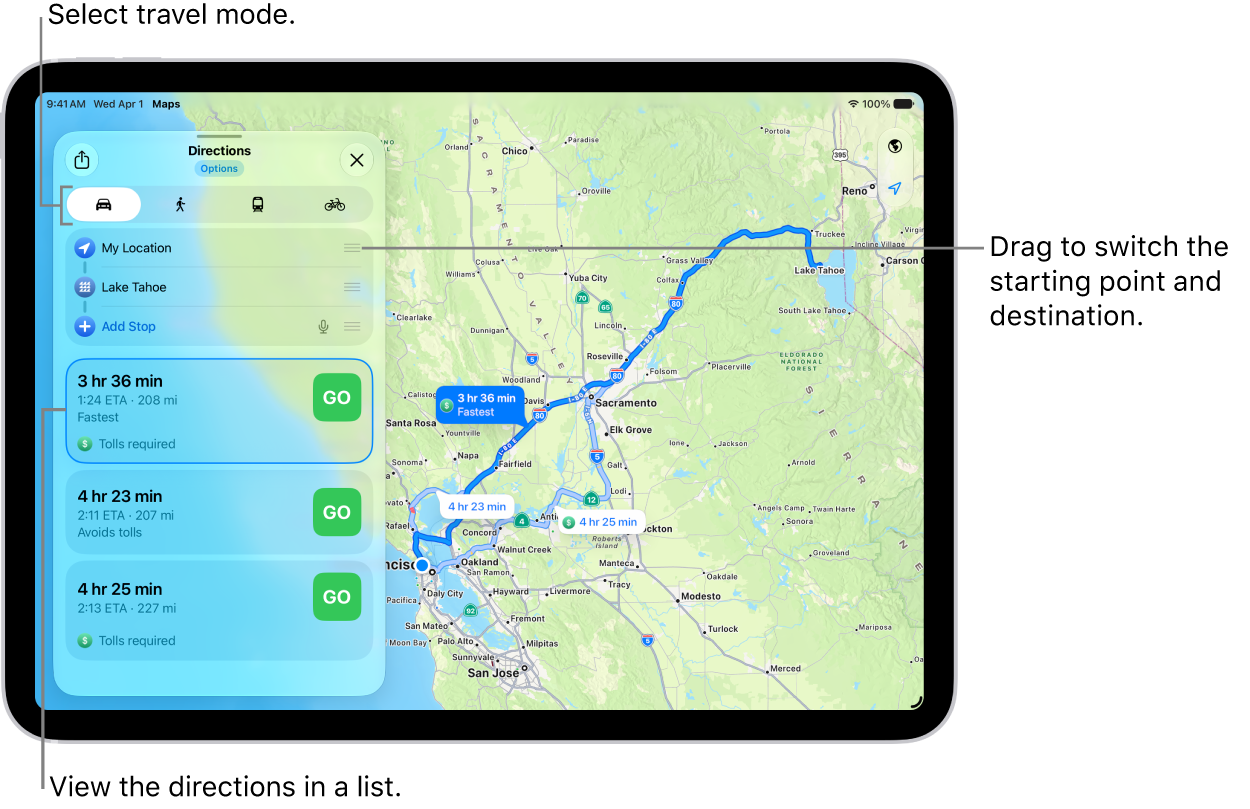
Change the starting point or destination
- Go to the Maps app on your iPad.
- Get directions.
- Do one of the following:
- Switch the starting point and destination: Touch and hold the Reorder button for the starting location and then drag it below the destination.
- Choose a different starting point or destination: In the Directions list, tap either the start or destination and then use the search field or a recent search result to find and select a different location.
Create a multistop driving route
You can add up to 14 stops along your route.
- Open the Maps app on your iPad.
- Get driving directions, then do one of the following:
- Tap Add Stop, then search for the place you want to stop.
- Zoom in and move the map, tap a place (for example, a landmark or business), then tap Add Stop in the place card.
- To reorder the stops, touch and hold the Reorder button for the stop. Then drag it to a new position in the list.
Add a stop while following driving or cycling directions
If your iPad has Wi-Fi + Cellular, you can add stops while you’re following directions to your destination.
- Open the Maps app on your iPad.
- Get driving or cycling directions and tap Go.
- Tap the route card at the bottom of the screen.
- Tap Add Stop and then tap a category (or, if you’re looking at driving directions, search for the place you want to stop).
-
Select a place to stop. Tap Add or Add Stop.
Your route is updated, and the chosen destination is the next stop.
If you’re cycling and you decide not to take the detour, tap Resume Route at the top of the screen.
Delete a stop from your driving directions
- Open the Maps app on your iPad.
- Create a multistop driving route.
- Do one of the following:
- Before you tap Go: Swipe left on any stops you want to delete and tap Delete.
- After you tap Go: Tap the route card at the bottom of the screen. Tap the Delete button next to the stop.
End directions before you arrive
Siri: Ask Siri something like, “Stop navigating.” Learn how to use Siri.
Or without using Siri:
- Open the Maps app on your iPad.
- Tap the card at the bottom of the screen and tap End Route.
See also