On supported models, you can use the built-in flashlight to light your way or get a better view of something. It’s in Control Center. You can also turn it on or off with Siri, and change the brightness of the flashlight, too.
Use Control Center to turn the flashlight on or off
- Open Control Center.
-
Tap the Flashlight button to turn the flashlight on; tap it again to turn it off.
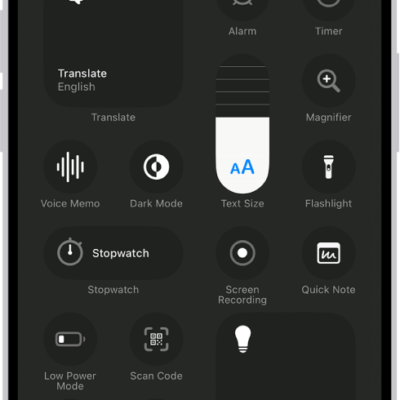
Note: If you don’t see the Flashlight button in Control Center (on a supported model), you can add it. See Customize controls.
Use Siri to turn the flashlight on or off
You can use Siri to turn the flashlight on or off.
Siri: Ask Siri something like, “Siri, turn on the flashlight.” Learn how to use Siri.
Change the brightness of the flashlight
- Open Control Center.
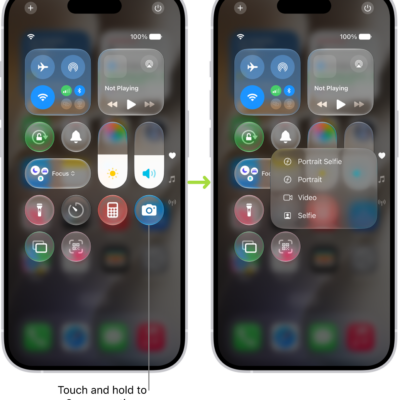
- Touch and hold the Flashlight button in Control Center. Slide your finger up or down on the control to adjust the brightness.
See also
Tag: Control Center