In the Podcasts app, you can play video and audio podcasts. You can change the playback speed, see what’s playing next, watch or listen to an episode when you’re offline, set a sleep timer, and use other playback controls.
You can also navigate episodes by chapter, discover content mentioned in an episode, and access links shared by podcast creators. Video podcasts even have their own controls in full-screen video mode.
Quick tip: In the car, you can listen to podcasts with CarPlay. Vehicle displays that support it also let you watch video podcasts when you’re not driving.
Play a podcast
- Start the Podcasts app on your iPhone.
- Do one of the following:
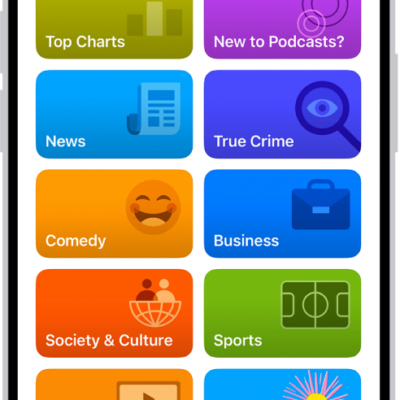
- Find a podcast: Search or browse for an episode.
- Choose a recently played podcast: Tap Home, then scroll to the Recently Played section.
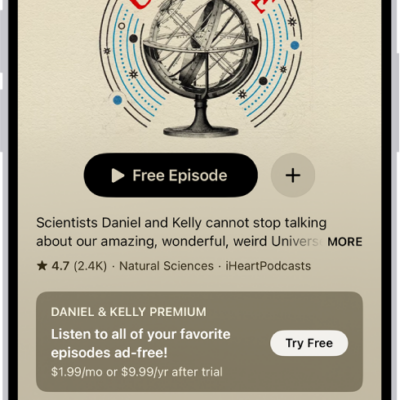
- Tap the Play button below an episode title.
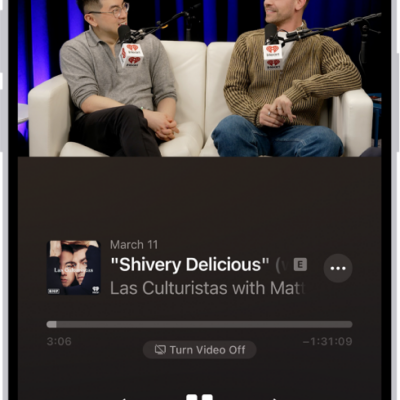
Audio episodes appear in the MiniPlayer, where you can pause, resume playing, or skip ahead. Unless you’ve turned video off in the player, video episodes open directly in the Now Playing screen.
Open the Now Playing screen
- Start the Podcasts app on your iPhone.
- Play a podcast.
- If you’re playing an audio podcast, tap the MiniPlayer at the bottom of the screen to open the Now Playing screen.
- In the Now Playing screen, do any of the following:
- Pause playback: Tap the Pause button.
- Jump to a specific time: Drag the slider above the playback controls.
- Switch between video and audio modes: While playing a video podcast, tap Turn Video Off or Turn Video On.
- Adjust the volume: Touch and hold the volume bar and then slide your finger left or right.
- Change the playback speed: Tap the Playback Speed button (or the current playback speed) and then select a speed, or swipe left or right to adjust the speed. You can also touch and hold the Playback Speed button (or the current playback speed) and then slide your finger up or down to choose a speed.
- Hear voices more clearly: Tap the Playback Speed button (or the current playback speed), then tap Enhance Dialogue.
- Skip back or forward: Tap the Skip Back button to jump back 15 seconds or the Skip Forward button to jump ahead 30 seconds.
- Jump to a chapter: When chapters are available, tap the Playing Next button, tap the Down arrow next to the name of the current chapter, and choose the chapter you want to play. You can also drag the slider above the playback controls to navigate between chapters, or open the transcript and tap the chapter.
- Explore other media mentioned in an episode: When a podcast mentions content that’s available in apps such as Music, Apple TV, Books, Podcasts, or News,, it appears as a link. Tap the mentioned item in the player or transcript to view details or access the content.
- Show or hide the episode transcript: If the View Transcript button or the Hide Transcript button appears, tap the button.
- Play the video or audio on another device: Tap the AirPlay button.
- Show or hide the queue: Tap the Playing Next button.
- Access more options: Tap the More button.
- Set a sleep timer: Tap the Sleep Timer button and then choose an option.
Use controls in full-screen video mode
Watching a video podcast? You can expand it to fill the whole screen for an immersive viewing experience.
- Start the Podcasts app on your iPhone.
- Play a video podcast.
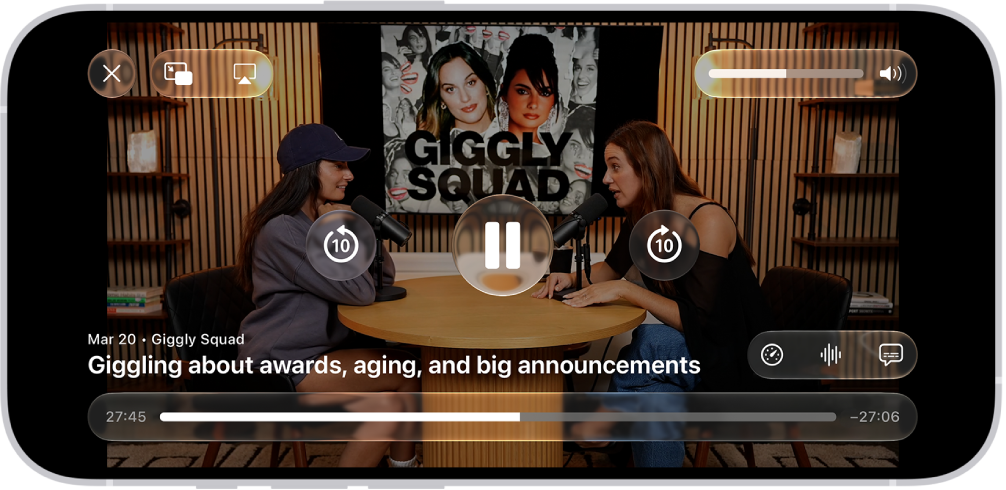
- Tap the video thumbnail to expand the video to full screen.
- Do any of the following:
- Change the playback speed: Touch and hold the Playback Speed button and then slide your finger up or down to choose a speed.
- Choose options for subtitles: If you see the Captions button, tap it and choose an option.
- Stream sound to another device: Tap the AirPlay button.
- Highlight or copy text that appears in the video: Tap the More button, then tap Show Text. Optionally, tap Copy All to copy the text to the Clipboard.
- Switch to picture-in-picture view: Tap the Picture-in-Picture Start button.
- Exit full-screen video mode: Tap the Close button.
Access episode links
- Start the Podcasts app on your iPhone.
- Search or browse for an episode.
- On the episode page, tap a highlighted link to open the content.
Choose what to play next
To watch or listen to episodes later, add them to your queue.
- Start the Podcasts app on your iPhone.
- Find a podcast.
- Tap the More button for an episode and choose Play Next or Add to Queue.
- Tap the Playing Next button in the Now Playing screen. If you don’t see the Playing Next button, tap the MiniPlayer near the bottom of the screen to open the Now Playing screen.
- In the Queue section, do any of the following:
- Play an episode: Tap the episode. The next episode in the queue plays immediately after the previous episode finishes.
- Reorder episodes: Drag the Reorder button to move an episode up or down in the list.
- Remove an episode from the queue: Swipe left on the episode, then tap Remove.
- Remove all episodes from the queue: Tap Clear.
If you watch or listen to multiple episodes of a show in a row, additional episodes appear in the Continue Playing section of the Now Playing screen. These episodes play after the ones you added to the Queue section, so you can easily pick up where you left off in a show. You can also tap an episode in Continue Playing to start watching or listening right away.