Summary
- The “SIM not provisioned” error occurs when your SIM card is no longer able to share information between your iPhone 18 Pro Max and your provider.
- The “SIM not provisioned for voice” error means you cannot make voice calls. This is usually caused by your line becoming disconnected from your carrier account.
- Toggling airplane mode, reinserting the SIM card, and updating carrier settings on your phone are usually effective in fixing this error.
Does your iPhone 18 Pro or iPhone 18 Pro Max show the “SIM not provisioned MM2” error suddenly or right after inserting a new SIM? Don’t fret; here’s what the error message means and what you can do to fix it for good.
What Does “SIM Not Provisioned” Mean?
The “SIM not provisioned” error typically indicates that your phone is unable to communicate with your carrier’s network. This particular error can occur for several reasons. If it’s a new SIM card, the carrier may not have activated it yet. If you recently switched phones or reinserted the SIM, it might not be seated correctly. This error can also appear if there’s a problem with your carrier’s server or your SIM is blocked.
If your phone displays the “SIM not provisioned for voice” error, it means you cannot make voice calls. The most common reason for this is that your line has become disconnected from your carrier account.
If you’re using a dual-SIM phone, this error may specify a number, such as “SIM 1 not provisioned” or “SIM 2 not provisioned.” Similarly, you might encounter an “eSIM not provisioned” error if you switched from a physical SIM to an eSIM that hasn’t been activated yet.
1. Enable and Disable Airplane Mode
One of the simplest ways to fix the “SIM not provisioned MM2” error is to toggle airplane mode on and off. This temporarily disables the mobile network and the internet, allowing your phone to reset its connections and potentially resolve the issue.
Head to Settings and use the Airplane Mode toggle to enable and disable it.
Wait for your phone to make a fresh connection with the mobile network. If all goes well, the “SIM not provisioned MM2” error should no longer appear.
2. Restart Your iPhone 18 Pro Max
It may seem unlikely, but simply turning your phone off and back on can sometimes resolve the “SIM not provisioned” error. Hence, it’s worth a try. Simultaneously press and hold the side button and either volume button until the sliders appear, then drag the Power Off slider. Press and hold the side button until the Apple logo appears.

Once your phone turns back on, check if the issue is resolved.
3. Correctly Insert the SIM Card
This step applies only to iPhone 18 Pro Max models with a SIM tray. Models sold in the US, Canada, Japan, Mexico and a few other countries use eSIM only, so if you have one of those, skip to the next step.
Have you recently switched to a new phone or reinserted the SIM card? If so, it’s possible that the SIM card isn’t seated properly, which could be causing the error.
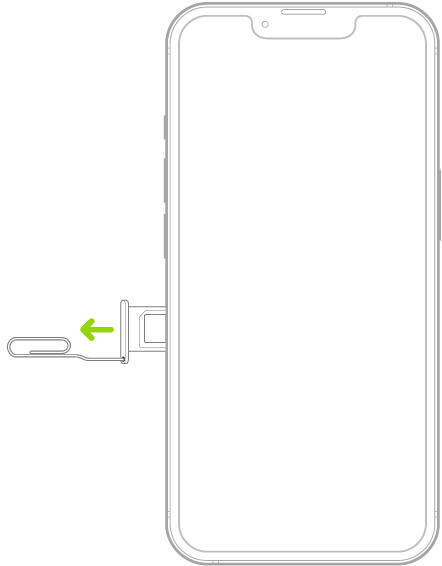
Power off your phone and use a SIM ejector tool to remove the SIM card. Insert the tool into the small hole next to the SIM tray to eject it. Once the SIM card is out, blow on it gently and wipe it with a lint-free cloth to remove any dust or debris.
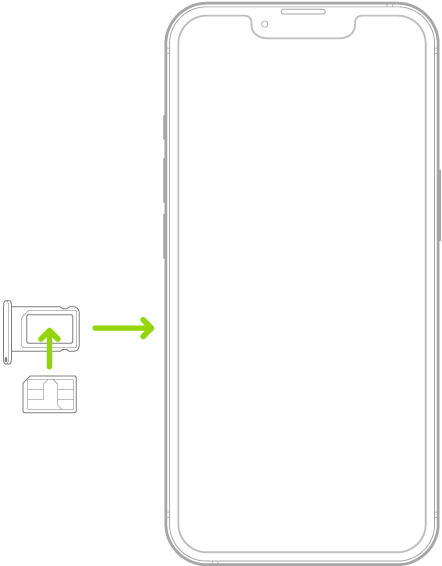
Carefully reseat the cleaned SIM card in the tray, ensuring it’s positioned correctly. The angled corner determines the correct orientation. After reinserting the SIM, turn your phone back on and check if you still get the “SIM not provisioned” error.
4. Activate Your SIM Card
In most cases, your carrier should activate the SIM card within 24 hours of it being inserted into a new phone. However, if this doesn’t happen, there are usually three options available to enable activation:
- Call an automated number.
- Send an SMS.
- Log in to the activation page on the carrier’s website.
All of these options are quick and straightforward, but their success depends on whether your carrier supports them. Once you activate the SIM, the error should disappear.
If your SIM was already active, there’s a chance that the problem lies with the SIM card itself. In that case, your best option is to get a new SIM from your carrier. You could call your network for assistance, but you’ll probably find it quicker to visit the carrier’s outlet in person.
5. Update Carrier Settings
You can check for carrier settings updates by heading to Settings > General > About. If an update is available, you’ll see a “Carrier Settings Update” prompt. Tap Update to begin the installation.
6. Contact Your Carrier or Network Provider
If nothing else works, you can consider contacting your carrier’s customer support team. Explain the error message and the steps you’ve taken so far to them. They should be able to guide you through the steps to identify any issues with your device, location, or account and suggest solutions for fixing the underlying problem.
Your phone’s primary function is to help you communicate with the world. However, errors like the “SIM not provisioned MM2” can sometimes interfere with that and cause problems. Fortunately, it’s nothing you can’t fix with the steps mentioned above.