









When you move to a new iPhone 18 Pro Max you don’t want to spend ages setting everything up from scratch to get the apps, data and settings just the way you like them. That’s why restoring from a backup is so convenient: one quick tap, a bit of a wait, and you’re good to go.
The same is true if a phone malfunctions badly, or is bricked. Knowing you can wipe the iPhone and recover your photos, documents and data easily from an iCloud or a computer backup is reassuring.
A backup is also an insurance that, should your iPhone be lost or stolen, you won’t lose everything on it. It’s easier to replace the device than the memories and other data stored on it.
Yes, backups are an essential part of the modern digital life. But knowing how to restore an iPhone 18 Pro Max from that backup is just as important. Read on for our complete guide.
Step 1: Find your iPhone backup
First things first: make sure you’ve got a backup that you can restore from. Crucially, this backup needs to be recent enough to include the apps and data you want to keep, and/or sufficiently old that it happened before the technical problem if you are trying to fix a faulty iPhone.
There are two places you may find a backup, as long as you are making backups. One is iCloud, to which you may need to subscribe to get enough space. The other method depends on whether you are using a Mac or a PC: on a Mac iPhone backups are made via the Finder (in macOS Catalina and later) and on a PC (and older versions of macOS) they are made via iTunes.
To see iCloud backups follow these steps:
- Open Settings on your iPhone.
-
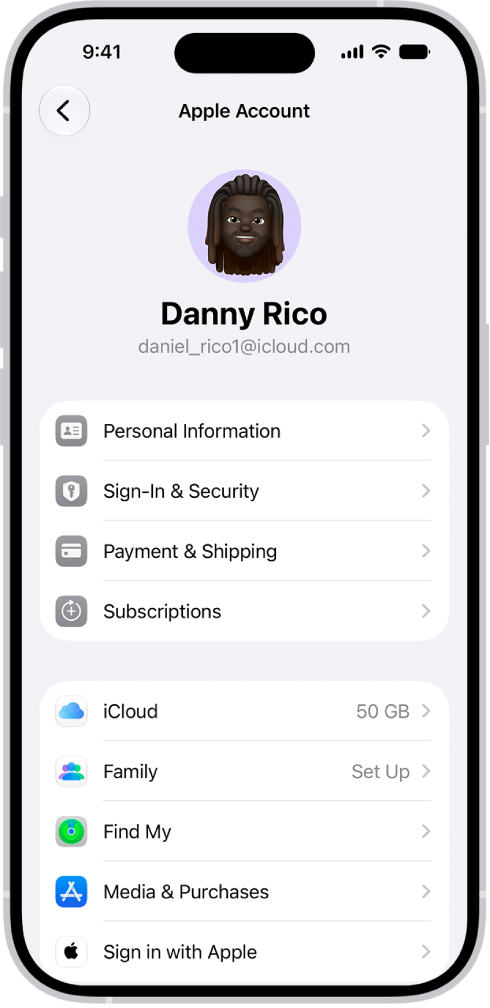
Tap your name/face at the top.
-
Now tap iCloud.
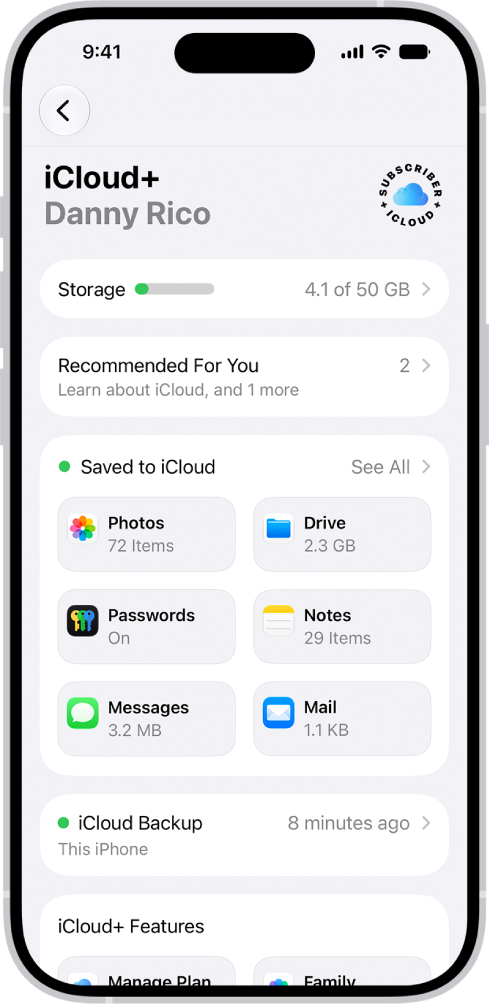
- Tap iCloud Backup, then tap your iPhone (This iPhone).
Computer backups
To see backups made on a Mac follow these steps:
- Plug in your iPhone.
- Open the Finder.
- Click on your device in the sidebar.
- In the General tab click Manage Backups.
- If there are any backups you will see them here. (You’ll also see if iCloud backups are being made).
The process is similar in iTunes:
- Open iTunes.
- Click iTunes in the top bar and select Preferences.
- Select the tab labelled Devices. The date and time of each backup is listed.
Should I back up first?
If you are wanting to make a backup that you can recover to a new iPhone, and you’re not sure you’ve got a sufficiently recent backup, play it safe by doing another backup of the old device right now.
If you are hoping to solve an issue with your iPhone 18 Pro or iPhone 18 Pro Max that started recently and you have an old iPhone backup you can recover don’t back up your iPhone, the old backup may be your best bet in getting your iPhone working again. This applies if you want to recover your iPhone to a time before you installed a beta version of iOS.
Step 2: Wipe your iPhone
If you are just recovering the backup to a brand-new iPhone, or one that has already been wiped you can skip this step.
However, if you are trying to troubleshoot an issue with your iPhone, want to remove a beta, or if you want to wipe the iPhone you have to pass it on to a new owner, you’ll need to wipe it first. You can’t restore an iCloud backup to an iPhone 18 Pro Max without erasing the contents first.
This process is easier if you are recovering an old backup to an iPhone that is running the same version of iOS that you intend to run. It gets a lot harder if you are running a beta version of iOS–in which case you may need to plug it into a Mac, force the iPhone into recovery mode and restore it that way.
Normally resetting your iPhone so that you can recover a recent backup is a simple process and hopefully one of these two options will work:
On an iPhone:
- Open Settings.
- General.
- Transfer or Reset iPhone. Erase All Content and Settings.
- Erase and then work through the various steps.
- Your iPhone should restart with the Welcome screen if this process has worked.
On a Mac:
A second option is to plug your iPhone into your Mac and restore it from the Finder.
- Open the Finder.
- Click on your iPhone in the left-hand column.
- Click on Restore iPhone.
- Click on Don’t Back Up.
- Click on Restore.
- Your iPhone should restart with the Welcome screen if this process has worked.
On a Mac using Recovery Mode:
Here’s how to put your iPhone into recovery mode so you can wipe it (if the above options don’t work):
- Plug your iPhone into your Mac.
- Open the Finder.
- You may see a message that indicates you need to download an update to access the iPhone, in our experience the said software was unavailable from the software update server, so don’t worry about this.
- Press and release the Volume Up button. Press and release the Volume Down button. Press and hold the Side button. Keep holding the Side button until you see the recovery mode screen.
- On your Mac you should now see a message indicating that there is a problem with the iPhone that requires it to be updated or restored. Click on Restore.
- You will see a warning: “Are you sure you want to restore the iPhone…” Click on Restore and Update.
- Click Agree on the next screen that details the license agreement.
- Just note that there’s only about 15 minutes before your iPhone will exit recovery mode, at which point you will have to enter recovery mode again.
- Your iPhone should restart with the Welcome screen if this process has worked.
Step 3: Restore your iPhone from a backup
Now you have wiped your iPhone 18 Pro Max you can get on with the process of recovering it from your backup. Or, if you have a brand new iPhone, you can follow these steps to set it up as a clone of your old iPhone with all your data just as you left it.
How to recover from an iCloud backup
We’ll start off with how to recover from an iCloud backup:
- Swipe up from the Welcome screen.
- Tap on English (or your language) and select your country or region.
- Tap Set Up Manually.
- Work through the various steps until you get to the Transfer Your Apps & Data screen and tap on Restore from iCloud Backup. Check the date to make sure it’s the backup you want.
- Log into your Apple Account and wait while your device signs in.
- Now choose an iCloud backup from before you downloaded the beta. Click on Show more backups to find an older one if you don’t see it.
- Wait while the Restore from iCloud takes place, which could take a while.
The device will need to be connected to Wi-Fi throughout the process, and it can take a while, depending on how much data needs to be restored. It’s also likely that you’ll be asked to log in again so that any purchased items from the App Store or iTunes Music can be downloaded.
When the core elements of the backup are finished you’ll be able to use the handset again, but you might notice that apps and other data continue to install in the background. This is perfectly normal.
How to recover from a Finder/iTunes backup
Whether you are using the Finder on a Mac running macOS Catalina or later, or iTunes on an older macOS or PC, the process for recovering the iPhone backup is similar.
- You need to plug it into a Mac or PC.
- If you’ve not connected the device to this particular computer before, you’ll see the ‘Welcome to Your New iPhone’ page.
- Click continue and then agree to sync your iPhone.
- With this completed, you’ll be taken to the device summary page in the Finder/iTunes, which includes various options for backing up and restoring your device.
- In the Backups section you’ll see a button marked Restore Backup (as long as you have one). Click this.
- If Find My is switched on then you’ll see a message telling you that it needs to be turned off before you can proceed. To do this, open Settings on your iPhone and tap your name/face at the top of the screen, then tap Find My. Tap Find My iPhone, move the toggle switch to off, enter your password to confirm, then return to iTunes on your Mac or PC.
- After clicking Restore Backup a popup should appear with the current iterations available. Select the one you want, then click the Restore button.
- Now your iPhone will run through its automated restoration process. iTunes will let you know when the update is complete, then you can disconnect the iPhone and go about your business with your data safely on board.


