









Does your iPhone 18 Pro or iPhone 18 Pro Max say Security Lockout? Looking at your iPhone and seeing that it is locked out can be gut wrenching. Many might not know what happened or what to do next.
Luckily, there are a few ways to restore your iPhone and prevent it happening again. Even if you don’t fully understand what happened, this guide will show you what to do next.
Why Does iPhone 18 Pro Max Say Security Lockout?
Most iPhones become unavailable after too many failed unlock attempts. If you enter the wrong passcode four times in a row, you’ll be locked out of your device, and you’ll see the iPhone Unavailable or Security Lockout screen.
Sometimes, this can happen without you realizing it, if your device is in a bag and getting knocked around.
If you set up your iPhone to be erased after 10 failed login attempts, a tenth failed attempt will erase your device. If not, you will need to either restore or erase your device to access it again.
While a Security Lockout on your iPhone 18 Pro Max can be annoying, there are several things you can do to get back in and start using your device again. They mostly involve erasing your device and restoring the latest backup.
If you forget your passcode, try Passcode Reset first. If you can’t use Passcode Reset, you can then reset your iPhone without a computer to regain access to your Apple device.
From your iPhone’s Lock Screen, try to enter your passcode until the iPhone Unavailable screen appears. When you’re able to, tap Forgot Passcode? and follow the onscreen instructions. The Forgot Passcode? button only appears if you have an active cellular or Wi-Fi connection and have Find My turned on. This process erases the data currently on your iPhone.
Reset Your iPhone With a Computer
One of the easiest ways to fix an unavailable device is with Finder on a Mac (or the Apple Devices app on a Windows PC). If you use your iPhone with a computer frequently, you might have a backup on file and can quickly restore your device and get it running correctly again.
To restore your iPhone with a computer, simply connect your device to your computer using the USB cable. Then open up Finder or the Apple Devices app and you will see your device in the sidebar. To access your iPhone after you forget your passcode, you must reset your device. This process erases the data currently on your iPhone.
Note: Some users will be automatically asked to restore after plugging in an unavailable device. Some users will also only see a Restore iPhone option if they don’t have a backup on file.
If you don’t have a backup on file on your computer, there are other places you might have a backup, like on iCloud. However, you will need to restore your device first before you can restore the backup.
Erase Your iPhone Using iCloud
If you don’t have access to a computer, there are ways to erase your iPhone 18 Pro Max without having to plug it in. This option also works for those who don’t have any backups available anyway and just want to reset their phone quickly.
If you use iCloud, you can log in and erase your iPhone there. Simply head to icloud.com/find and log in to your account. In Find Devices, select Erase iPhone.
Once this is done, you can use your iPhone again immediately, but you’ll need to restore a backup to get all your data back. Since iCloud is frequently used, your contacts and photos will automatically restore. Once you sign in to your iCloud account again, your device will take care of the rest.
After this, your device is ready to use again.
If you had an iCloud backup saved, when you set up your device and log in with your Apple Account, you will see an option to restore using an iCloud backup. This will make your iPhone exactly the way it was when the backup was saved.
Restore an iPhone Using Recovery Mode
If you don’t use a computer or iCloud to back up your device, you will need to put your iPhone 18 Pro Max into Recovery Mode to use it again. This should be tried last, as it will erase everything on your iPhone and you won’t be able to get anything back.
Recovery Mode is essentially a way to erase your iPhone and start over. You will need a computer to do this.
First, you will need to plug your device into your computer with a USB cable and open Finder or the Apple Devices app on your computer. Once this is done, force your device to enter Recovery Mode.
To enter Recovery Mode, you need to press the volume up button, followed by the volume down button, and then hold the Side button until the device enters Recovery Mode. Remember to keep holding the button when the logo appears. You will see a computer icon, indicating that your device is in recovery mode. Once this appears, you can let go.
Please remember that the device must be plugged in for this to work. Some users might also get a notification saying that a device has been detected but could not be identified. If this comes up, keep holding the button, and eventually it will enter Recovery Mode.
Once your device is in Recovery Mode, it will appear on your computer and you will get a notification saying that there is a problem with the device and it needs to be updated or restored.
When this appears, hit Restore and your device will be wiped. It may take a long time for it to restore (sometimes a few hours), but once it is done, your device will be ready to use again.
Contact Apple for More Support
If for some reason your device can’t be restored using any of the methods above, or if you have a broken button that won’t allow you to put it in Recovery Mode, the last resort would be to contact Apple.
To do this, head over to Apple Support to get assistance. While it can be difficult for Apple to assist in these cases, Apple does offer this support link for these very instances and rarely can help you recover your device if you can prove you own it.
This option usually only works for those who purchased an iPhone directly from Apple, but it is worth a try.
Preventing Future Issues
The simplest way to prevent a Security Lockout on your iPhone 18 Pro Max is by using a password that is easy to remember. Also, take advantage of other security features such as Face ID to make it easy to unlock your phone.
If you’re finding that your device is frequently becoming unavailable in a pocket or backpack, consider turning on Auto-Lock. With Auto-Lock on, your device screen will lock after 30 seconds, and previously entered digits on the pin pad will be erased.
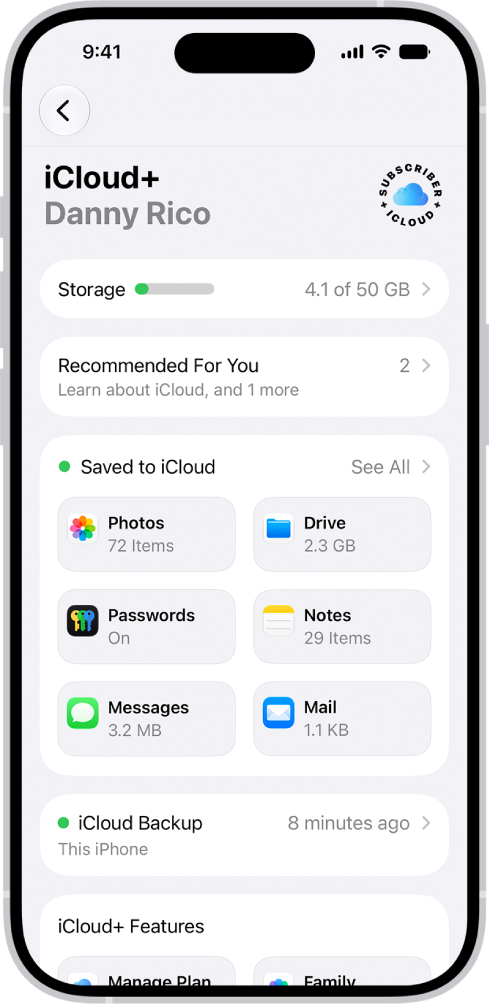
By using iCloud, you can back up your device frequently and prevent having to lose everything when you do need to reset your device. This is very simple to set up. Open the Settings and at the very top, you can sign in to iCloud using your Apple Account.
If you already have an Apple Account, be sure to head to the iCloud settings to make sure Photos and iCloud Backup are on.
You can also set up your device to be erased after 10 failed login attempts. Simply go to Face ID & Passcode and enter your password. At the very bottom, you will see a setting called Erase Data. Tap this to enable this feature. Just be sure you have backups ready to go!
Getting Your iPhone 18 Pro Max Out of Security Lockout
Having one of your devices locked out can be annoying at first, but thankfully there are many ways to recover your device and restore it. While some data might be lost, you will gain access to your phone again, having learned a lesson to make sure this won’t happen in the future. After all, a wiped device is better than no device.


