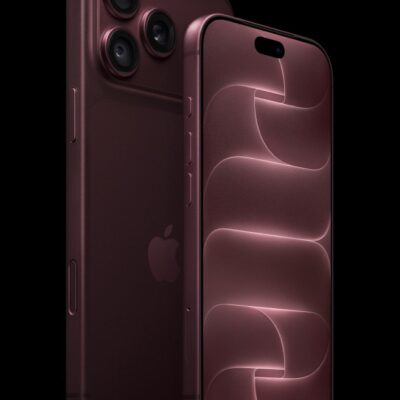
If Siri often struggles to recognize your voice or you just can’t get “Hey Siri” to work, you can reset Siri on your iPhone 18 Pro Max. Doing this allows you to retrain Siri to recognize your voice better. We’ll teach you how to do it.
Resetting Siri on Your iPhone
Unfortunately, Apple doesn’t offer a “Reset” button just for Siri. However, you can use a simple toggle in the iOS Settings app to reset Siri when needed. Follow these steps:
- Open the Settings app on your iPhone 18 Pro or iPhone 18 Pro Max.
- Scroll down and select Siri.
- Tap Requests and select the Off option.
- Now, wait for a few seconds and select either the “Hey Siri” or “Siri” or “Hey Siri” option according to your preference.
- When you do so, you’ll be prompted to set up Siri from scratch. Tap Continue and repeat the phrases that appear on your screen one by one.
You’ll have to repeat five phrases to retrain Siri to recognize your voice. Once you’ve repeated the last phrase, you’ll see a “Siri Is Ready” screen. Tap Done and continue using Siri as you normally would.
This is one of the many troubleshooting steps to follow when Siri isn’t working on your Apple device. You can use this as a last-resort step when tweaking other Siri settings doesn’t fix the issue.
Once you reset and train Siri to recognize your voice again, you should have no trouble invoking Apple’s virtual assistant using the “Siri” or “Hey Siri” trigger phrase.