Summary
- The “iMessage is Signed Out” alert is a sign of misconfigured iMessage settings.
- Most people get this error because they accidentally disabled the service, signed out of their Apple Account, or haven’t linked their phone number yet.
- Server-side issues and software bugs can also sometimes cause this pop-up.
Do you get the “iMessage is Signed Out” pop-up whenever you open a thread in your iPhone’s Messages app? If so, you won’t be able to send or receive blue text bubbles unless you fix it. We’ll walk you through some troubleshooting steps.
Make Sure iMessage Is Enabled
Often, the reason you get the “iMessage is Signed Out” error is pretty simple: you may have accidentally disabled iMessage on your iPhone 18 Pro or iPhone 18 Pro Max. To check this, go to Settings > Apps > Messages on your iPhone and make sure iMessage is toggled on.
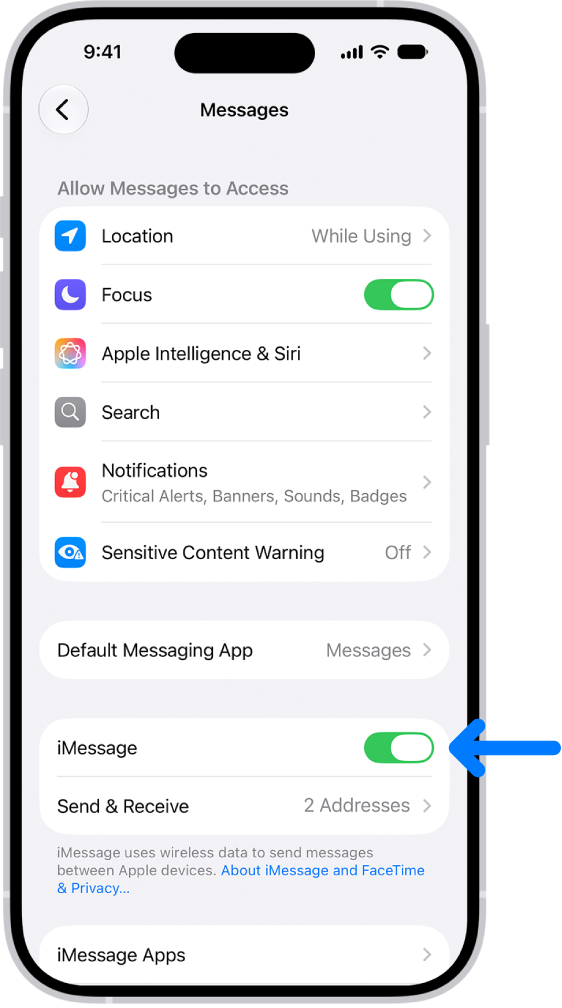
If it’s already enabled: toggle it off, wait a few seconds, and toggle it back on again to force your iPhone to reactivate the service and sign back into iMessage.
You can also access this menu by simply tapping the Settings option in the “iMessage is Signed Out” alert.
Check Your iMessage Addresses
The next step is to review your iMessage addresses and make sure that either your phone number or Apple Account email address is selected, which is needed for iMessage to work properly. You can run into this issue if you swap SIMs often or sign out of your Apple Account on your iPhone.
Note: iPhone 18 Pro Max models purchased in the United States can only be activated with an eSIM.
Head to Settings > Apps > Messages and look for the Send & Receive option below the iMessage toggle. If you see “No Addresses” next to it, that’s exactly why you’re getting the “iMessage is Signed Out” error on your iPhone 18 Pro or iPhone 18 Pro Max.
Tap Send & Receive and select Use your Apple Account for iMessage. When you get a pop-up, tap Sign In to log in with the Apple Account linked to your iPhone. However, if you want to use another account, select Use Other Apple Account instead.
If your phone number appears in this menu, make sure that’s selected too. You need SMS messaging to activate your phone number with iMessage and FaceTime. By default, iMessage will start new conversations using your phone number, but you can change this to your Apple Account email address from the same menu.
Make sure that your time zone is set correctly. In the Settings app, tap General. Then tap Date & Time.
Check Apple’s Server Status for iMessage
If you’re still getting the “iMessage is Signed Out” pop-up when you open a thread in Messages, it’s possible that Apple’s iMessage servers are temporarily down. You can quickly check this by heading to Apple’s System Status page.
If you notice a yellow indicator (instead of green) next to iMessage on this page, it means Apple’s servers are down. You’ll have to patiently wait until Apple fixes it to send and receive iMessage texts again.
General Fixes: Restart, Update, and More
The above troubleshooting steps should help you get rid of the “iMessage is Signed Out” alert on your iPhone 18 Pro Max in most cases. However, you can try some generic fixes for iMessage if you’re still having problems.
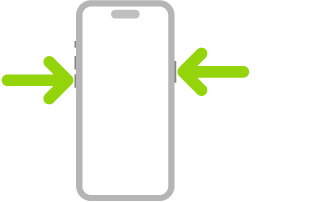
Try restarting your iPhone, as it can help resolve minor software glitches like this. Simultaneously press and hold the side button and either volume button until the sliders appear, then drag the Power Off slider. Press and hold the side button until the Apple logo appears. Consider updating your iPhone if a new iOS version is available, as firmware bugs can also cause the “iMessage is Signed Out” error.
Remember that iMessage requires an internet connection to work. If you’re having trouble connecting to a Wi-Fi or cellular network to use iMessage, consider resetting your iPhone’s network settings.
If none of the fixes we suggested worked, it’s time to contact Apple Support for expert assistance. It’s easy to get tech support for your iPhone with the Apple Support app, but you can also visit Apple’s Contact Support page if you want to talk to an agent quickly.
From my experience, the “iMessage is Signed Out” pop-up appeared the moment I signed out of my Apple Account and unchecked my phone number for the service. As mentioned earlier, this error can also occur if you swapped the SIM card or switched to a new eSIM. However, if iMessage is affected due to other factors like connectivity, server issues, and software bugs, the general fixes above can prove to be valuable.