









Trying to find an app on your iPhone’s Home Screen, but all your app icons seem to have suddenly disappeared? See Apps Missing on iPhone 18 Pro Max. Whether it’s a matter of insufficient storage or software glitches, this can be quite an annoyance, especially when you’re in a rush. Fortunately, you have your options to resolve this issue quickly.
1. Free Up Your iPhone’s Storage Space
In most cases, app icons tend to disappear due to insufficient storage. If you’ve been getting the “iPhone Storage Full” message, we recommend heading to Settings > General > iPhone Storage and checking how much free storage your iPhone 18 Pro Max currently has. As a rule of thumb, it’s a good idea to have at least 5GB of free storage to ensure no hiccups.
Once you open the iPhone Storage page, you’ll be able to view how much storage each app consumes. Here, you can either delete an app entirely or offload it, which will remove it from your device without erasing its data.
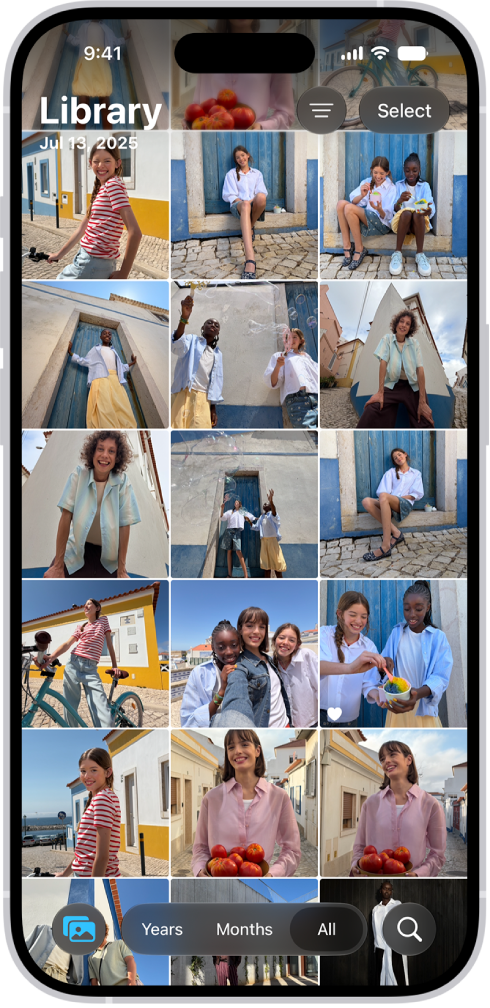
Similarly, we also recommend heading to the Photos app and deleting any unnecessary images or videos you may have. Alternatively, it’s a good idea to consider using cloud storage services like iCloud, Google Drive, or Dropbox to store your photos, videos, and documents to free up physical storage space and get your app icons back on your iPhone 18 Pro Max.
2. Check Selected Home Screen Pages for Focus
If you use Focus profiles often to maximize your productivity, you may have configured it to allow certain Home Screen pages. While customizing your Home Screens and filtering out any apps that hinder your productivity can be a great way to focus on your tasks, it can also be the root cause of your apps disappearing.
If you’re currently using a Focus mode and are unable to find an app, follow the steps below:
-
Go to Settings and tap Focus.
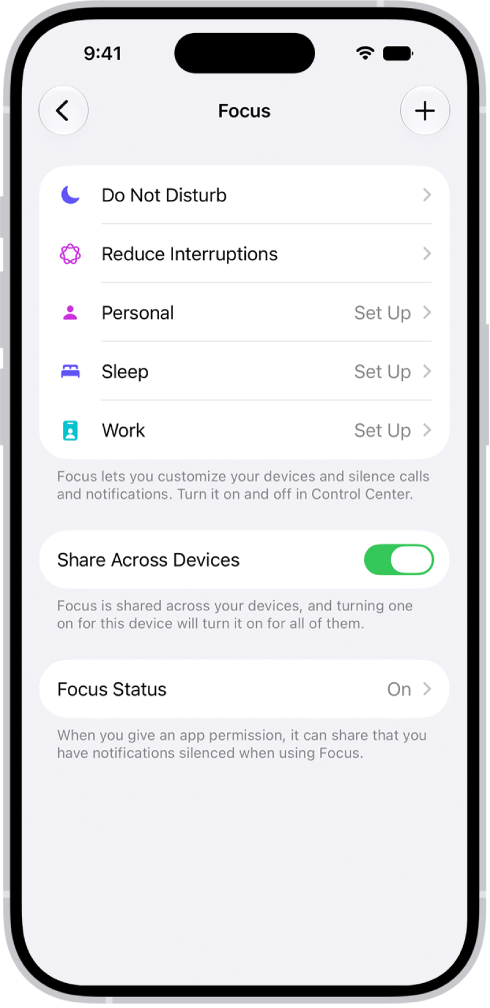
- Now, choose the Focus profile you’re currently using, then tap Customize Focus.
- Under Customize Screens, tap Choose Home Screen, since the issue lies with your iPhone’s Home Screen.
- Now, check if you’ve accidentally deselected the Home Screen page that houses the missing apps. If that’s the case, simply select the page.
3. Reset Your Home Screen Layout
While this isn’t always ideal, reverting to your iPhone’s default settings is sometimes the best idea. Resetting your iPhone’s Home Screen layout removes any custom folders and widgets you may have added. Doing this will also rearrange all the apps you’ve installed alphabetically, as well as re-install any of the default Apple apps you may have deleted.
Here’s how to reset the Home Screen layout in iOS:
- Launch the Settings app and tap General.
- Now, scroll down to the bottom and tap Transfer or Reset iPhone.
- Tap Reset and select Reset Home Screen Layout from the pop-up menu that appears.
- To confirm, tap Reset Home Screen.
4. Restart Your iPhone 18 Pro Max
A system reboot ends all background processes and clears your device’s cache. Restarting your smartphone can fix most problems, especially OS-related glitches like this one.
You can easily restart your iPhone 18 Pro or iPhone 18 Pro Max even if its buttons are broken. However, unlike Android, iOS doesn’t offer a restart option. So, you’ll have to power it off and turn it back on manually. Simultaneously press and hold the side button and either volume button until the sliders appear, then drag the Power Off slider. Press and hold the side button until the Apple logo appears.

Get Your iPhone App Icons Back
Hopefully, the troubleshooting fixes above helped bring your app icons back. If all fails, your best bet may be factory resetting your iPhone 18 Pro Max. While erasing your device is not ideal, it restores your iPhone to its default state and is a clear-cut way of solving most software glitches.


