









iPhones often run out of storage space. One quick fix is to delete all or most of your messages from your iPhone 18 Pro or iPhone 18 Pro Max: using the method outlined below we reduced the space taken by the Messages app from 2.2GB to just 112MB.
How do you quickly delete all messages from an iPhone?
Our iPhone was carrying 2.2GB of messages because it was set (as a default) to Keep Messages “Forever”. Follow these simple steps to clear all messages from your iPhone 18 Pro Max at once.
- Open the Settings app.
- Tap Apps, then tap Messages.
- Under Message History, tap where it says Keep Messages.
- There are three options: 30 Days, 1 Year, and Forever: choose the first or second option.
- Confirm that you want to delete the old messages and attachments by tapping the Delete button.
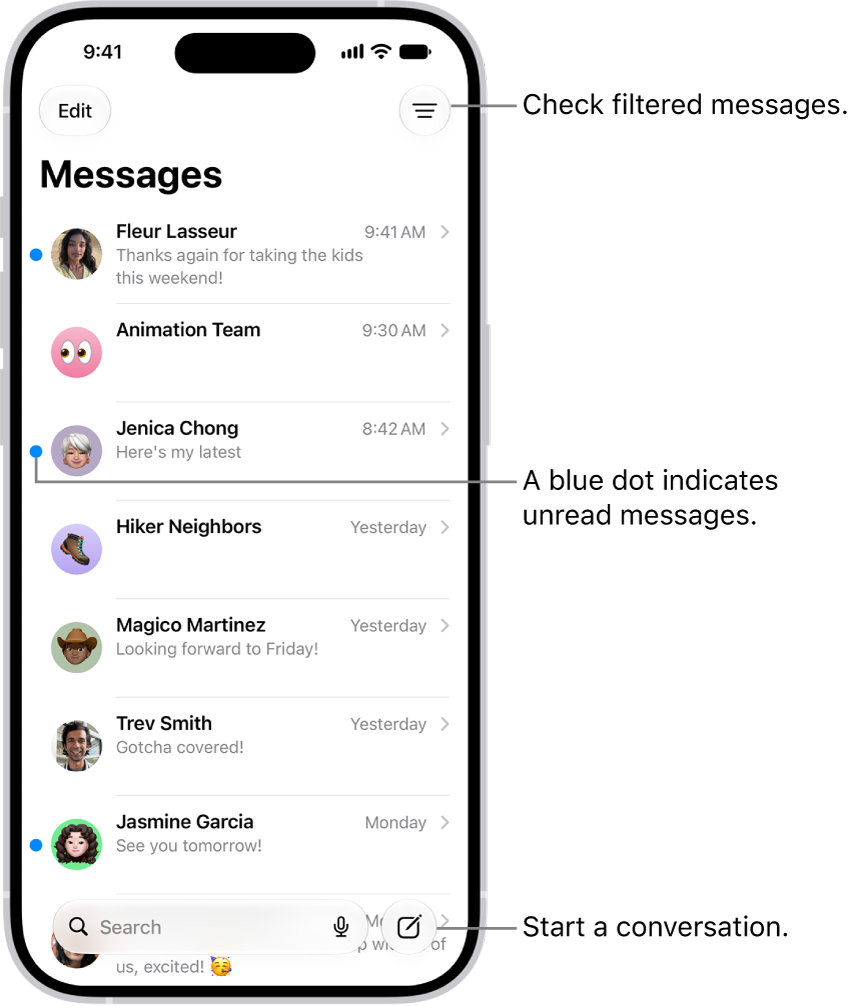
If you select the 30-day option you’ll delete the majority of messages on your iPhone 18 Pro Max and make substantial storage savings. If you want to finish the job, you can open the Messages app. At the top of the conversation list, tap Edit. Tap Select Messages, then select conversations you want to delete.
We selected 1 Year – down to 885MB.
Finally, we selected to Keep Messages for just 30 days, and reduced the storage space taken up by Messages to just 112MB!


