









Can’t connect to the App Store to download apps on your iPhone 18 Pro Max? Is your device refusing to sign in? Or are you having problems downloading an app or an update to an app?
These are quite common problems, sadly. But more happily, there are plenty of simple solutions you can try. We recommend you work through the following steps to try and fix the problem.
1. Check if the App Store is down
From time to time Apple suffers from a server outage. It could be that the App Store is down and nobody can access it.
The quickest way of finding out is to check Apple’s System Status page, which lists problems with all of the company’s online services; the App Store is first on the list. Note that if the problem occurred very recently it may not have been noticed yet: the site’s update frequency is in the order of minutes, not seconds.
If that comes up blank, a search for relevant terms on X can often be a good way of finding out if people are sharing your pain.
If the store is down, this is both bad news and good news. There’s not much you can do to solve the problem, but on the other hand you can just sit back and wait for Apple to solve it, which should happen quickly.
2. Check your web connection
It’s an obvious one, but you need to be online to access the App Store.
Make sure you’re connected to the internet – visit Google, for example.
3. Try another Wi-Fi network
Even if the Wi-Fi network is working there may be a restriction on it that is stopping you from accessing the App Store. Work networks, for instance, may be set up to block certain sites and services to preserve bandwidth.
Try using an alternative Wi-Fi network and see if that fixes the problem.
4. Are you set to download over cellular?
Perhaps you aren’t on a Wi-Fi network at all. If you are accessing the App Store over your cellular connection, that may be the root of your issue.
While using your mobile network connection shouldn’t stop you from accessing the App Store entirely, if your iPhone 18 Pro or iPhone 18 Pro Max is set to only download apps over Wi-Fi you won’t be able to download apps over a cellular connection.
Try connecting to a reliable Wi-Fi network and see if this allows downloads to go ahead. Or, as long as you can spare the data, open the Settings app and tap Cellular. Make sure the slider beside App Store is set to on (green).
While we’re on this topic, there is a separate option that dictates whether your device can automatically download app updates as soon as they appear on the App Store, as long as your iPhone is connected to the internet via Wi-Fi. This could be a handy setting if you are frequently finding apps aren’t working because they need to be updated. But it could prove annoying if you have a lot of apps and feel that your iPhone is always downloading updates (and wasting battery life doing so). Go to Settings > Apps > App Store, and turn on App Updates.
There is even a setting that allows your iPhone to use mobile data to automatically download app updates. Before you turn this on beware that it could mean that your iPhone uses a lot of data downloading updates. If you think that the risk of using up data is worth it, go to Settings > Apps > App Store, and turn on Cellular Data.
5. Have you run out of data?
Even if your settings allow you to download apps over a cellular connection, your data allowance for the month may be maxed out.
It’s a good idea to check the terms of your contract to see how much data you’re allowed and to find out the date on which your data allowance is reset.
If you know this information you can reset the Cellular Data statistics on your iPhone in Settings > Cellular, on that day of the month and at least keep tabs on how much data you are using, and which apps are the biggest data swallowers.
If it turns out you need more data then you might have to pay for more.
6. Is the app no longer supported?
It’s possible that you’re trying to update an app that is out of date and no longer supported by iOS. Try downloading a different app to see if this is what’s causing the update to fail.
Try searching for the app in the App Store, if it isn’t showing up it’s likely that it’s been removed.
7. Is the app too large to download over cellular?
A final note for those unable to download apps: remember that iOS stops you downloading really large apps over a cellular connection, so check the size of the file. Go to Settings, tap Apps, tap App Store, then tap App Downloads below Cellular Data and choose Always Allow.
8. Try logging out and logging in again
Okay, let’s try some simple resets to see if this jogs the App Store into working. First, try logging out and then log back into the App Store on your iPhone 18 Pro Max – that should fix it:
-
Go to Settings, tap your name, then tap Media & Purchases.
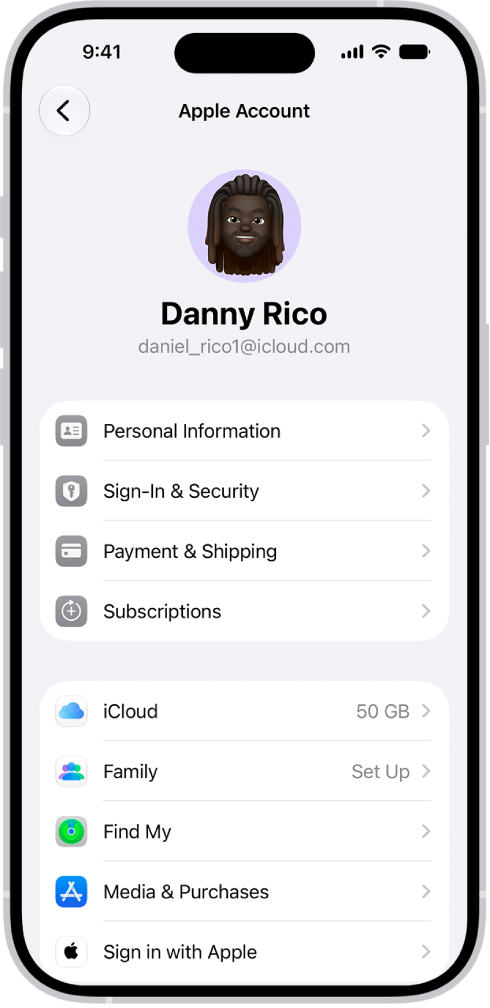
- Tap Sign Out.
- Log in again using your Apple Account and password.
9. Clear your memory
Perhaps it’s a memory issue. To quit the app, open the App Switcher, swipe right to find the app, then swipe up on the app. Reopen it and see if that fixes the problem.
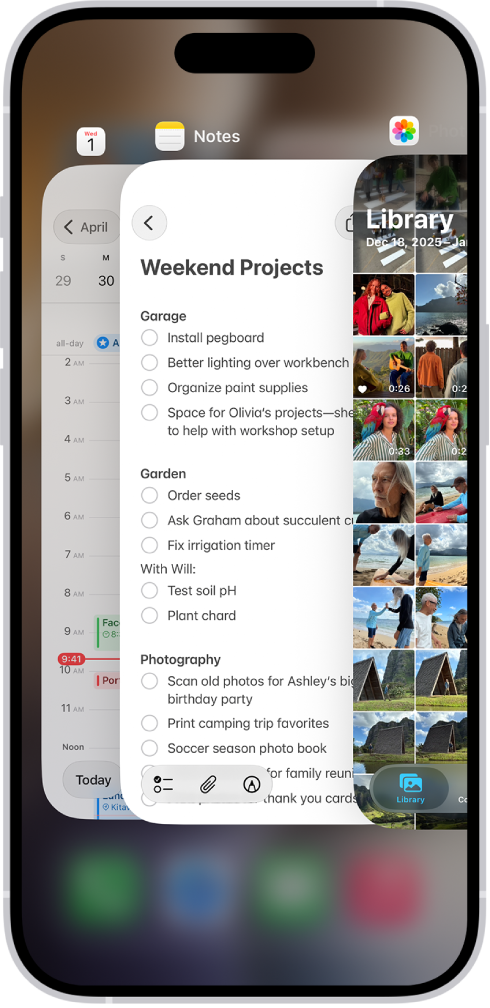
If it doesn’t, close all open apps and turn your phone on and off again to clear the memory.
10. Force-refresh the App Store
If you’re trying to get updates to load you can force a refresh by dragging down on the screen until a spinning icon appears.
11. Check your Date & Time settings
Your Date & Time settings are unexpectedly relevant to this issue, because the App Store uses them to check on your location (probably).
Go to Settings > General > Date & Time and turn on Set Time Automatically. (This setting means that if you travel from, say, London to San Francisco, as soon as your iPhone recognises it is in a new territory it will automatically change the time accordingly.)
12. Reset your network settings
Try resetting your network settings. Go to Settings > General > Transfer or Reset iPhone > Reset > Reset Network Settings and see if that fixes the problem.
13. Update your software
There might be a known issue with the way the App Store is accessed by your iPhone 18 Pro Max that has been fixed in an update to iOS, so it’s worth checking you’re on the latest version.
Go to Settings > General > Software Update and see if there are any available updates.
14. Contact Apple
If all else fails you could contact Apple and seek further advice.


