









The Lock Screen with its support for Depth Effect improves the appearance of your wallpaper.
However, you may wonder why Depth Effect does not work when selecting a wallpaper on your iPhone 18 Pro Max. This guide will show you how to fix Depth Effect on your iPhone’s Lock Screen if it isn’t working.
What Is Depth Effect on the Lock Screen?
To distinguish between the subject and the background, your iPhone employs AI-based image processing. As a result, the Lock Screen has a multi-layered effect.
The primary subject comes to the foreground, and the clock moves between the foreground and background, making the subject stand out. However, depending on the subject’s placement, a small portion of the Lock Screen clock is cut off.
For instance, if you choose a wallpaper with yourself in the foreground and a great background, the Lock Screen clock will be between you and the background.
Requirements for Lock Screen Depth Effect on iPhone
Before troubleshooting Depth Effect on your iPhone 18 Pro or iPhone 18 Pro Max, ensure you’ve met the prerequisites. What you’ll need for Depth Effect to work on your iPhone is as follows:
- A suitable wallpaper with prominent foreground
Troubleshooting Tips to Fix Depth Effect Not Working on iOS Lock Screen
If you have met all the Depth Effect’s requirements and cannot get it to work, try these troubleshooting tips to ensure it works again.
1. Update Your iPhone 18 Pro Max
Since Depth Effect is a software feature, it can be buggy. Sometimes, Apple releases fix for these bugs with the latest iOS updates, which is one of the reasons why you need to update iOS on your iPhone.
So it’s best to check for updates and install them on your iPhone. Here’s how to check for the latest iOS version and install it on your iPhone:
- Open Settings on your iPhone.
- Navigate to General > Software Update.
- Tap Update Now if there is a new update available.
Wait for it to finish and select Install once it downloads the update. Your iPhone will restart and install the latest iOS update. Once restarted, check if Depth Effect is working or not.
If there’s no new update available on your iPhone, try the following fixes.
2. Enable Depth Effect on the Lock Screen
You might have disabled the Depth Effect option even if you have set the suitable wallpaper on your Lock Screen. Depth Effect won’t work if you have disabled the option. Here’s how to turn it on:
- Open Settings.
-
Select Wallpaper and tap Customize under the Lock Screen wallpaper.
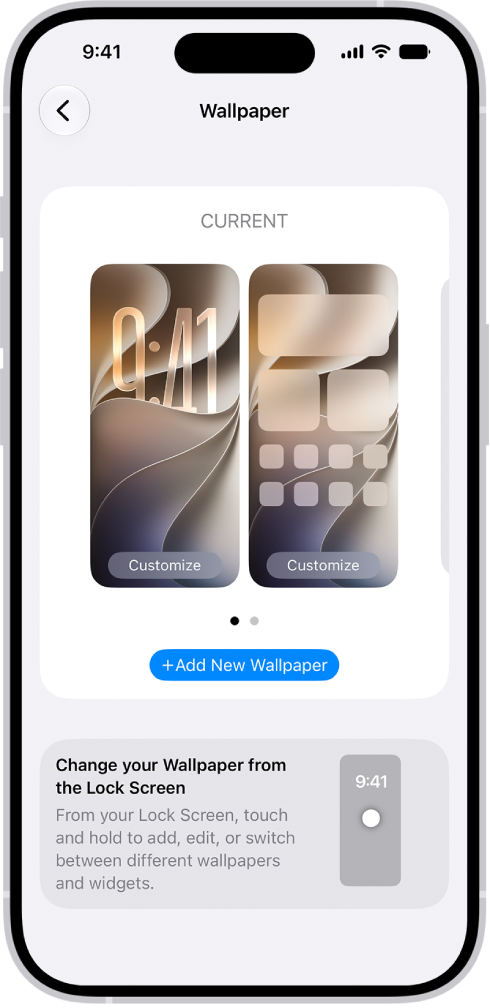
- Hit the three-dot menu on the bottom right and select Depth Effect from the context menu.
- Tap Done once enabled.
Depth Effect should work on your iPhone’s Lock Screen wallpaper if you have had it disabled before.
3. Remove Lock Screen Widgets
If you place any widgets on your Lock Screen, Depth Effect will not work. You’ll have to remove the widgets from the Lock Screen and here’s how:
- Open the Settings app.
- Go to Wallpaper and select Customize under the Lock Screen.
- Tap on any widget and then the minus (-) icon to remove a widget on the Lock Screen.
- Hit Done once you’ve removed all the Lock Screen widgets.
Removing the Lock Screen widgets should automatically enable the Depth Effect feature. If not, allow the Depth Effect option from the Lock Screen.
4. Try a Different Lock Screen Wallpaper
You’ll need a wallpaper with a subject that can reach the clock on the Lock Screen. Also, the wallpaper should have an acceptable resolution for the Depth Effect feature to work.
Some wallpapers, even with a prominent and clear foreground subject, might not work with Depth Effect. In such cases, it’s best to switch to a different wallpaper.
However, if you want to stick with your current wallpaper, you must make some changes. You can use online tools to blur parts of the image, especially the background, to make the foreground more eminent.
Try setting the edited wallpaper, and Depth Effect should start working now. If not, you should switch to a different wallpaper.
Alternatively, you can search Google for some amazing Depth Effect wallpapers. However, check the r/deptheffectwallpaper Reddit community for some sure-shot wallpapers that work with Depth Effect.
5. Check the Wallpaper’s File Format
For some reason, the Depth Effect feature in iOS doesn’t work well with PNG formats. It currently supports only the JPEG and HEIC formats without any issues. If you don’t know how to check your wallpaper’s file format, follow these instructions:
- Open the Photos app on your iPhone.
-
Select the photo whose file format you want to check.
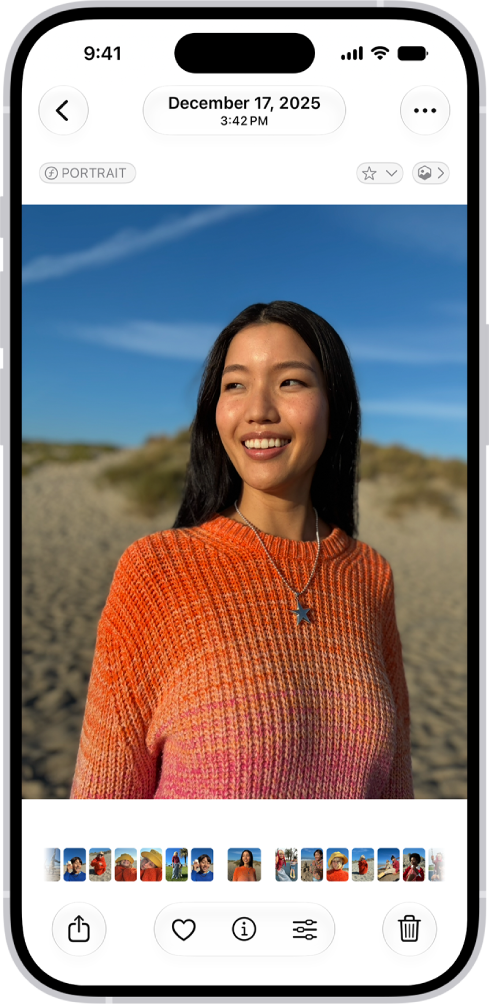
- Tap the Info (i) button at the bottom or swipe up on the image.
You’ll find the file format right next to the metadata of the image under the Adjust option. If you see PNG as the file format, converting the PNG image to JPG on your iPhone would be ideal.
6. Reposition the Wallpaper Subject
The wallpaper should automatically switch to Depth Effect once you pick a suitable wallpaper. However, it doesn’t always work like that. iOS might fail to separate foreground from background, given that it’s an AI algorithm.
Sometimes, you’ll need to reposition the wallpaper carefully for Depth Effect to work. Here’s how you can move your current Lock Screen wallpaper:
- Open Settings on your iPhone.
- Navigate to Wallpaper and then Customize under the Lock Screen wallpaper.
-
Drag the wallpaper with two fingers slowly until it’s right below the Lock Screen clock.
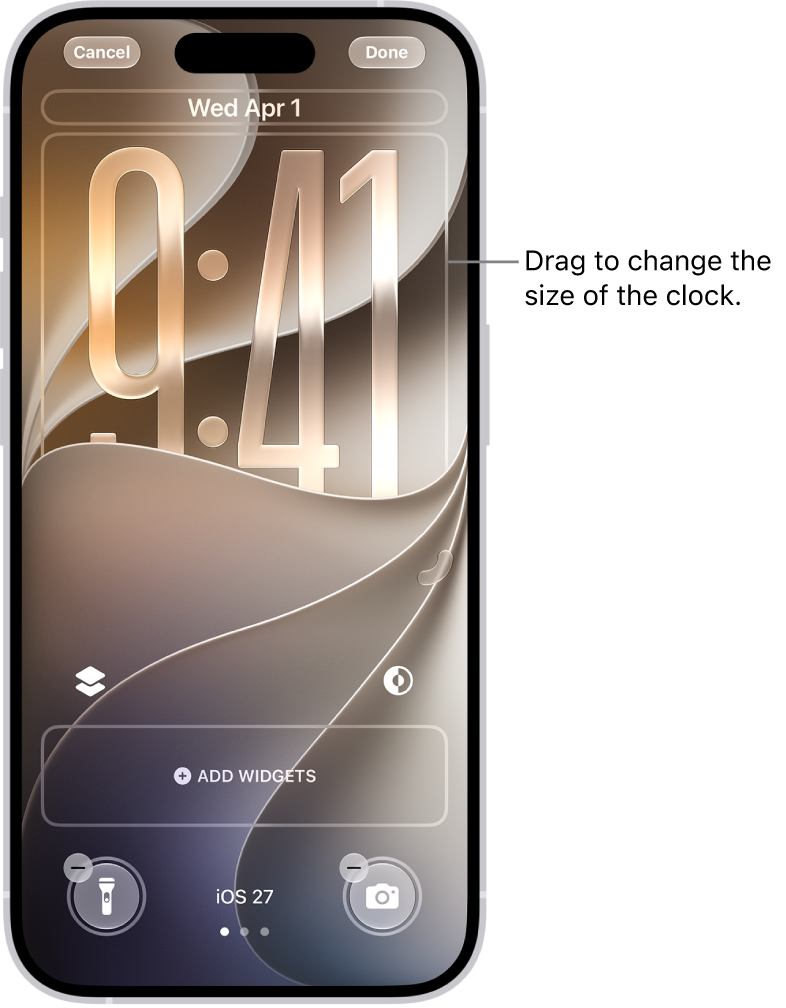
As a result, Depth Effect should start working itself. If not, you’ll have to look for a better wallpaper for Depth Effect.
7. Restart Your iPhone
Restarting or rebooting is the best way to fix a software bug on any device. As a last resort, you should restart your iPhone 18 Pro Max to see if it fixes the issue. Simultaneously press and hold the side button and either volume button until the sliders appear, then drag the Power Off slider. Press and hold the side button until the Apple logo appears. Fortunately, there are ways to restart your iPhone, even if the buttons aren’t working.

After restarting your iPhone, Depth Effect should be working perfectly. If it isn’t working still, trying different wallpapers is your best choice.
Use Depth Effect on Your iPhone 18 Pro Max Without Problems
We hope you finally got Depth Effect to work with your iPhone wallpaper. It’s an excellent way to redefine your Lock Screen, making it unique to iPhones. Furthermore, Depth Effect works with multiple image formats and filters.
However, it’s not perfect and might possess issues like these for some time. So, you must ensure that you have chosen a suitable wallpaper for Depth Effect.


