









If you’re receiving notifications of missed calls yet didn’t hear your iPhone 18 Pro or iPhone 18 Pro Max ringing for incoming calls earlier, it’s likely due to misconfigured settings, software bugs, or hardware problems. When these issues persist, continuing to unknowingly miss important family and work calls is never good.
But don’t worry. We’ll walk you through the solutions so that you won’t miss a call this way again. Let’s look at what you can do when your iPhone can receive calls but doesn’t seem to ring at the time the call comes in.
1. Test Your iPhone’s Speakers
The first step is to test your iPhone’s speakers to rule out hardware issues. Open YouTube or any other music app and play something. Use the Volume Up button on the side of your device to increase the volume level.
Once you’re confident that the speaker is working, the likely reasons your iPhone 18 Pro or iPhone 18 Pro Max doesn’t ring are bad settings or temporary software glitches.
2. Turn Off Silent Mode
If your iPhone 18 Pro Max is set to Silent mode, it won’t ring when you get a call. Press and hold the Action button to turn Silent mode on. Press and hold the Action button again to turn Silent mode off.
If your Action button isn’t set to Silent mode, go to the Settings app on your iPhone, tap Sounds & Haptics, then turn Silent mode on or off.
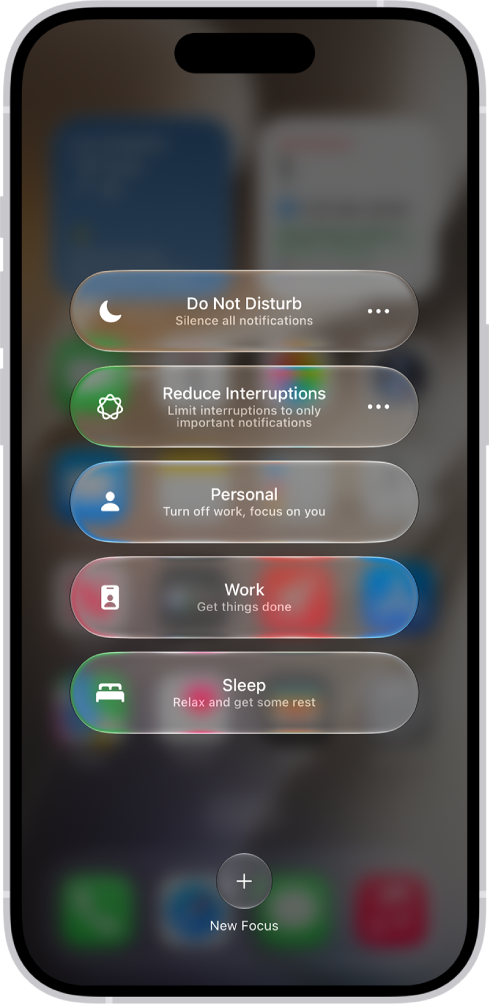
Check your Focus settings: Your calls may be silenced if you turned on a Focus Mode, like Do Not Disturb. You can check this by opening Control Center. You can also check this by going to Settings > Focus.
You can also choose to silence calls from unknown callers and send them directly to voicemail.
- Go to the Settings app on your iPhone.
- Tap Apps, then tap Phone.
- Choose one of the following:
- Never: Call Screening is turned off and your iPhone will ring when you receive a call from an unsaved number.
- Ask Reason for Calling: Calls from unknown numbers will be asked for more information before iPhone rings.
- Silence: Calls from unsaved numbers will be silenced, sent to voicemail, and appear in the Recents list.
3. Disconnect Bluetooth Audio Devices
If you leave wireless audio devices like AirPods connected to your iPhone, your incoming call ringtone may play through these instead of the phone’s speakers. This mostly happens with third-party earbuds that don’t automatically sense when you’re wearing them.
You can disconnect all wireless devices by opening the Control Center and tapping the Bluetooth icon. Your Bluetooth accessories and devices disconnect from your iPhone until the next day.
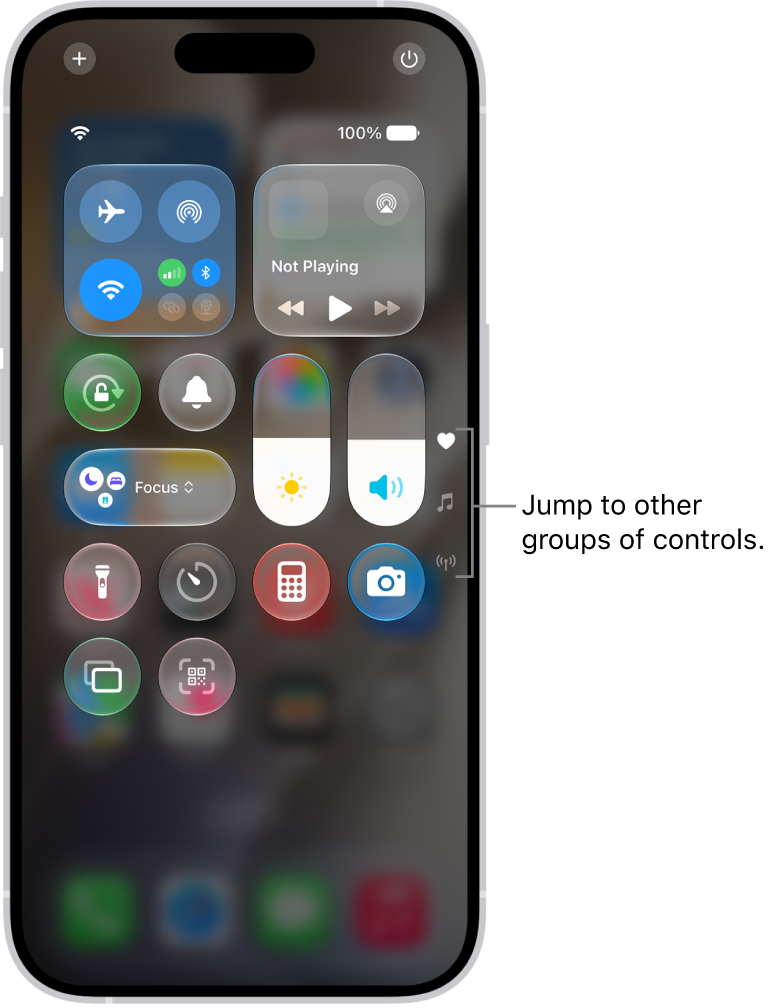
To disconnect devices individually instead, head to Settings > Bluetooth. Tap the Info (i) button next to the device and tap Disconnect. Once your Bluetooth devices are disconnected, incoming calls should play via your iPhone’s speakers.
4. Turn the Ringtone Volume Up
If your ringtone volume is too low, you may not hear a call coming in if your iPhone is in your bag. So, it may appear that your iPhone didn’t ring at all. You can quickly fix this by increasing the ring volume. Here’s how:
- Open Settings and tap Sounds & Haptics.
-
Drag the Ringtone slider to the right. The further right it is, the louder your ringtone will be.
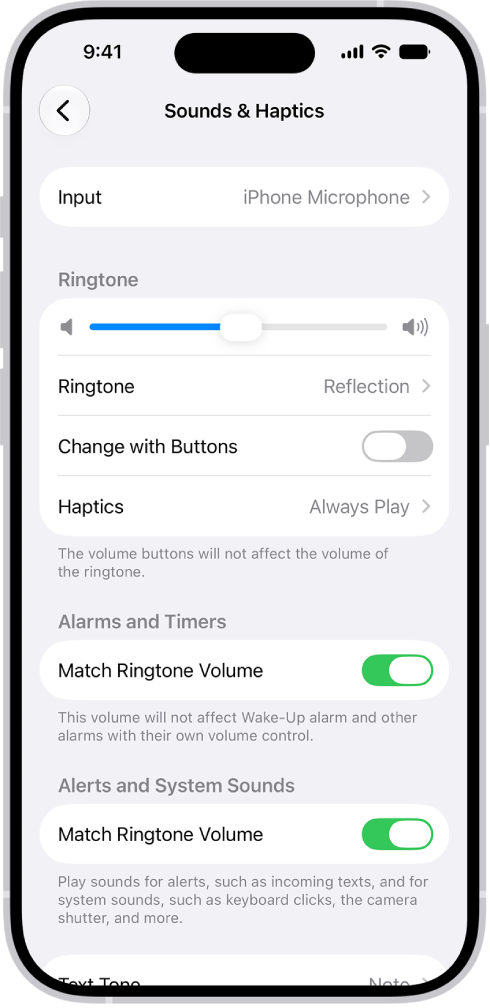
On the same page, you might also want to toggle off Change with Buttons. Doing so will prevent you from accidentally lowering the ringtone volume when you’re changing the volume in gaming or video apps. When this option is disabled, the volume buttons only change the volume for media, not your ringtone.
5. Choose a Different or Louder Ringtone
Sometimes, you might miss phone calls because your ringtone isn’t loud or piercing enough. In this case, you should try out other ringtones and use the one that’s the easiest to hear.
Follow these steps to change your iPhone’s ringtone:
- Open Settings and tap Sounds & Haptics.
- Tap Ringtone.
- From here, tap to hear the different tones. When you’ve found one that suits you, hit Back.
6. Check for Custom Contact Ringtones
The ringtone you set above applies to all contacts unless you’ve added a custom tone to someone. If you miss calls from only certain people, follow these steps to ensure their custom tone is clear:
- Open the Phone app and go to the Contacts tab.
- Select a contact, tap Edit, tap Ringtone, then choose a ringtone.
7. Restart Your iPhone 18 Pro Max
Restarting your device is a simple and effective way to fix common issues without much trouble. If your phone doesn’t ring even after trying the above solutions, restart your iPhone by manually turning it off and back on. Simultaneously press and hold the side button and either volume button until the sliders appear, then drag the Power Off slider. Press and hold the side button until the Apple logo appears.

Fortunately, it’s easy to restart your iPhone, even if its buttons are broken.
8. Enable Cellular Data or Connect to a Wi-Fi Network
This particular solution applies if you’re receiving notifications of missed calls on apps like WhatsApp and Messenger, yet found that your iPhone did not ring at all when the caller was contacting you.
Such messenger apps require an active internet connection to work. Therefore, if your iPhone isn’t connected, the apps will only inform you that you have missed calls when your device has an internet connection later.
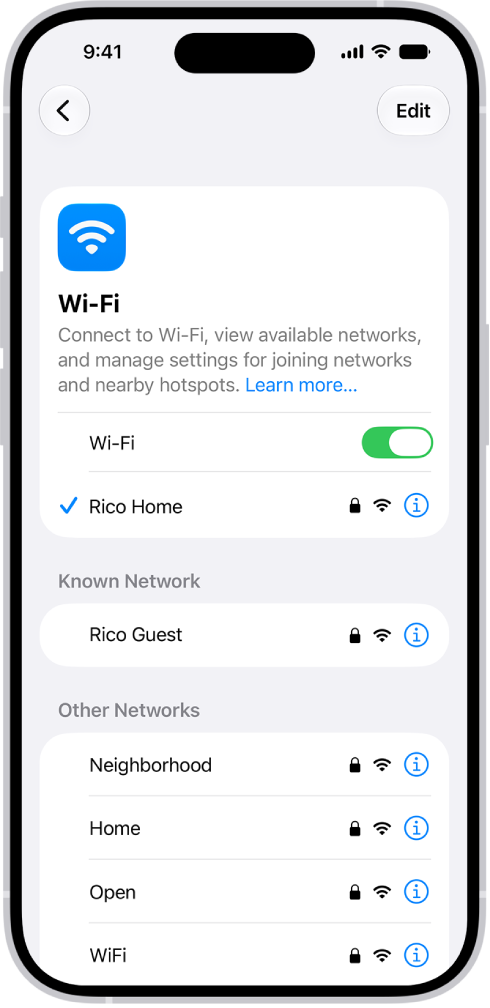
If you frequently use third-party apps for texts and calls, it’s best to enable mobile data or connect your iPhone to a Wi-Fi network throughout the day. In the Control Center, tap the Cellular Data toggle. It turns green when enabled. For a Wi-Fi connection, go to Settings > Wi-Fi and select an available network to connect.
9. Fix an iPhone Stuck in Headphone Mode
In rare situations, your iPhone may incorrectly think it is still connected to wired earphones, even though it isn’t. As a result, there may be no sound from the built-in speakers when you play media or receive phone calls.
To get out of this inconvenience, fix an iPhone stuck in headphone mode.
10. Try Turning Off Calls on Other Devices
If you own other Apple devices and have opted to receive iPhone calls on your Mac, consider turning this feature off to see if it fixes the ring issue for you. See How to Stop iPad Ringing When iPhone 18 Pro Max Rings. Here’s how:
- On your iPhone, open Settings, tap Apps, then tap Phone.
- Tap Calls on Other Devices.
- Toggle off Allow Calls on Other Devices.
11. Update Your iPhone and Reset All Settings
By this point, one or more of the above solutions should work if your iPhone 18 Pro Max has been receiving calls but not ringing. But in case you’re still having problems, make sure you update your iPhone.
Go to Settings > General > Software Update to see if a new iOS version is available for your device. Additionally, update your iPhone apps like WhatsApp and Zoom to ensure app-specific bugs aren’t causing the issue.
Finally, if nothing else works, open Settings > General > Transfer or Reset iPhone > Reset > Reset All Settings. This won’t erase personal data like music, photos, and apps. However, all the settings you’ve changed, like Wi-Fi, your Home Screen layout, notifications, and more, will return to default.
It’s a bit of a hassle, but it confirms that no settings prevent your iPhone from ringing when you get a call or text.
Hopefully, Your iPhone Rings Perfectly Now!
The problem with your iPhone 18 Pro Max not ringing should be fixed by now, ensuring you don’t miss any future calls or texts. To check, ask a friend or family member to call you, or try calling yourself from a Google Voice number instead.
However, if the issue persists, it’s best to contact your mobile carrier or Apple Support for assistance.


