









One of the apps most used by iPhone owners is iMessage. This is because it’s a great way to keep in touch with friends and family, while being able to access messages across all of your Apple devices, be it an iPhone, an iPad, or even a Mac.
In this article we show how to get the service up and running on iPhone 18 Pro Max.
What is iMessage?
Essentially, it’s Apple’s own instant messaging service, allowing users to send text or multimedia content to others with Apple devices. Instead of needing a telephone number, as you’ll find with the likes of WhatsApp, it works via your iCloud account, which is why you can send and receive messages from your iPad and Mac as well as your iPhone.
One of its other advantages is compatibility with Memoji and Animoji, alongside various apps that can be plugged into the platform. In some regions you can even send money to recipients via Apple Cash in iMessage.
Enabling iMessage on iPhone
When you initially set up your iPhone 18 Pro Max you would have been asked to create or use an existing iCloud account. Providing you did so, then half of the job is already done, as you’ll need an iCloud account for iMessages to work.
It’s very likely that iMessages was already turned on during the setup process, but there’s no harm in being thorough. Go to the Settings app on your iPhone. Tap Apps, then tap Messages.
You’ll see a new page with an option at the top to enable iMessage. Tap on the button to the right of the name so that the background turns green.
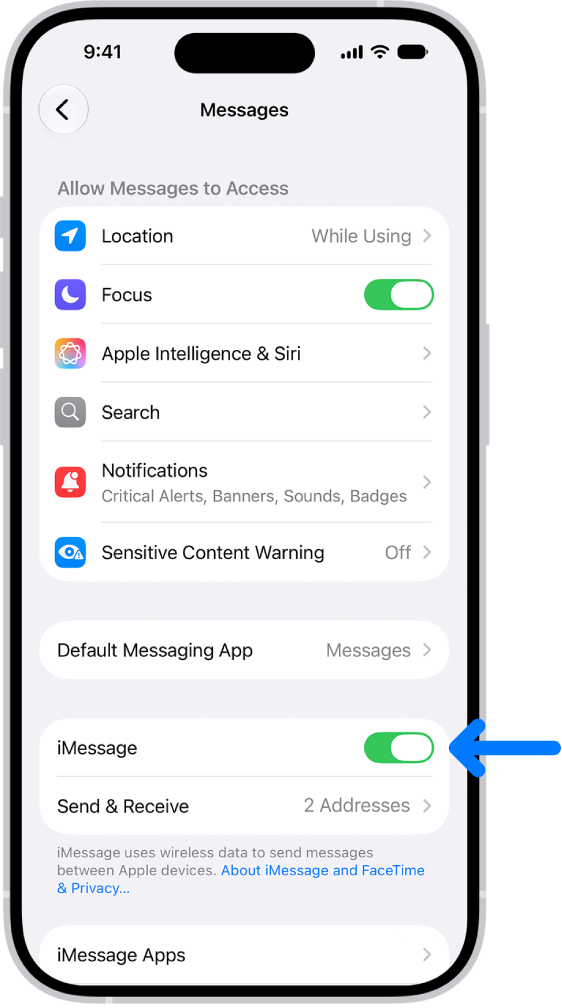
The service will now activate, which means you should also see dialog boxes appear on your iPad or Mac asking if you want your iPhone number to be added to iMessage and FaceTime.
Click Yes and now any messages sent to your iPhone 18 Pro or iPhone 18 Pro Max via iMessage will also sync with your other devices.


