Buying and setting up a new iPhone 18 Pro or iPhone 18 Pro Max is a pleasant experience, but there are some headaches. One potential problem is when you realise that your friends’ calls, texts and iMessages are still being directed to the old device – either as well as, or even worse instead of, your new device. This could be embarrassing if you’ve sold the old device or passed it on to a loved one.
In this article we go through the various problems associated with old iPhones picking up calls, texts and iMessages, and a series of solutions to fix them.
Stop messages being sent to old devices
The easiest way to stop an old iPhone getting your new messages and calls – and absolutely the one you should follow if you’re selling it – is to completely wipe the device. This will remove all your accounts and settings as well as apps and files.
Open the Settings app and go to General. Swipe down and tap Transfer or Reset iPhone > Erase All Content and Settings, enter your Apple Account and password – this is important for this process to work – then confirm. (Note that it’s wise to turn off Find My iPhone before wiping, too, although this isn’t strictly relevant to this discussion.)
If you want to keep most of your settings intact, however, then you can stop messages being delivered by going to Settings (while the old SIM is still in the phone) and going to Apps > Messages > Send & Receive. Tap your Apple Account at the top and sign out.
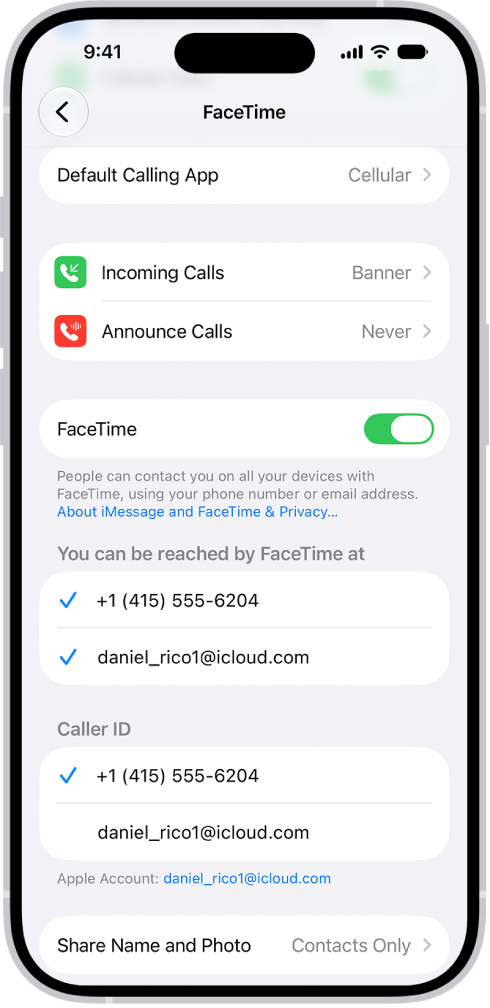
To stop FaceTime calls coming through, do the same thing via Settings > Apps > FaceTime – again, tap your Apple Account and sign out.