









Dealing with an iPhone 18 Pro or iPhone 18 Pro Max stuck in headphone mode can be frustrating, as it prevents sound from playing through the speakers, even after disconnecting your headphones. Fortunately, it’s not difficult to turn off the headphone mode on your iPhone with the solutions below.
1. Disconnect Your Bluetooth Headphones
Your iPhone allows you to disconnect or unpair your Bluetooth devices, such as headphones, through the Settings app. If your iPhone appears to be stuck connected to Bluetooth headphones, use these steps to disconnect it:
- Open the Settings app and tap on Bluetooth.
- Tap the More Info button next to your Bluetooth headphones.
- Select Disconnect. Alternatively, you can select the Forget This Device option to unpair the headphones.
2. Plug and Unplug Your Wired Headphones
Temporary iOS glitches can sometimes mess up your iPhone’s headphone detection mechanism and prevent it from detecting the removal of headphones. If it’s just a one-off glitch, simply plugging and unplugging your headphones will help you fix the problem.
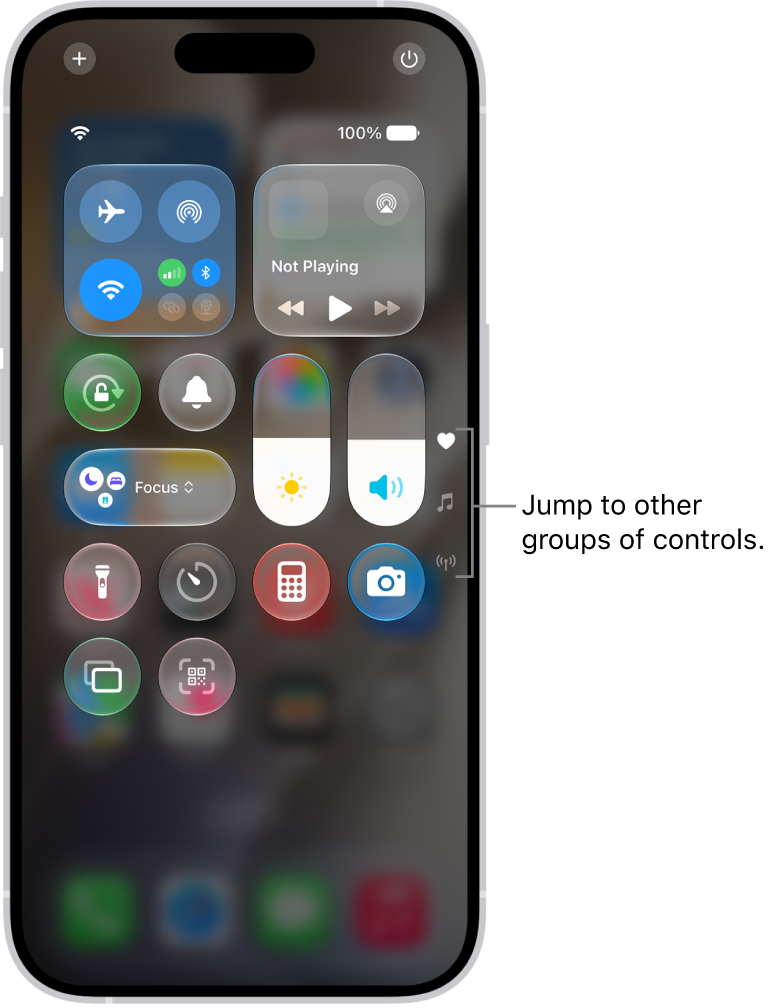
Plug your headphones into your iPhone’s USB-C connector, and then disconnect them. After that, open the Control Center on your iPhone by swiping down from the top-right corner and check if the headphone icon still appears in the volume slider.
3. Change the Audio Output
When listening to music or watching videos, your iPhone 18 Pro Max lets you choose between different audio output devices. Open the Control Center, then tap the AirPlay button in the top-right corner of the music player card. Select iPhone from the list to set it as the audio output device.
4. Clean the USB-C Connector
Accumulation of dirt, dust, or lint within your iPhone’s USB-C port can lead the device to incorrectly detect headphones as plugged in, even when they’re not. Inspect the port on your iPhone for any debris. If you find any, you’ll need to clean it out.
Use a soft, slightly damp, lint-free cloth—for example, a lens cloth. Avoid getting moisture in openings.
Apple advises against using compressed air and aerosol sprays for cleaning your iPhone, so it’s best to avoid them. Also, it’s important to be gentle when cleaning the port to avoid damaging internal components.
5. Check for Water Damage
If you can’t find any debris in the ports, but your device is still stuck in headphone mode, it might be a sign of a water-damaged iPhone. This could happen from something as obvious as spilling coffee over your iPhone or as subtle as sweat dripping down your headphone cable.
If you’re unsure, check your iPhone’s Liquid Contact Indicators (LCIs) to get a better idea of whether it has suffered water damage or not. Open the SIM card tray and look for a small sticker inside. Its color is normally white or silver, but if your iPhone has come in contact with water, the LCI should appear red or pink.
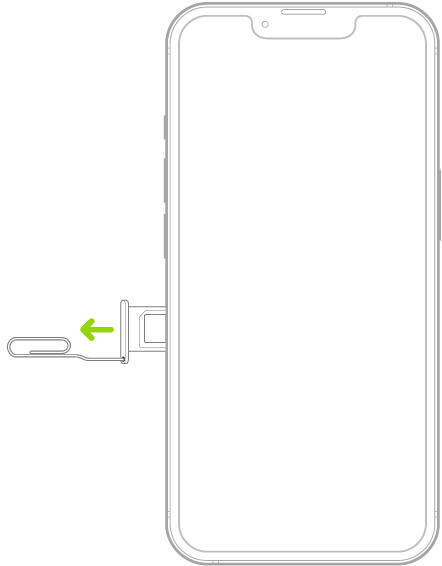
Note: iPhone 18 Pro Max models purchased in the United States can only be activated with an eSIM.
Apple Support document confirms that eSIM-only iPhones don’t have Liquid Contact Indicators on the outside. They’re located internally, so you’ll need to disassemble your device to find it. However, we don’t recommend doing this.
If your iPhone has suffered water damage recently, it’s better to act quickly and get the water out to prevent further damage. Avoid using rice to dry your iPhone because it may worsen the situation by leaving harmful residue or further obstructing the ports.
6. Install iOS Updates
There’s an odd chance your iPhone 18 Pro Max has become stuck in headphone mode because of a software problem. If that’s the case, it shouldn’t take long for Apple to release a fix via a software update.
Go to Settings > General > Software Update to check for new updates. If any updates are available, download and install them on your iPhone.
7. Restart Your iPhone 18 Pro Max
This may sound cliche, but restarting your iPhone can take care of any temporary issues that may have caused it to become stuck in headphone mode. Hence, don’t skip this step.
Press and hold the Side button with one of the Volume buttons until the power slider appears. Drag the slider to your right and wait for your iPhone to turn off completely. Then, press and hold the Side button again to turn it back on. After that, check if your iPhone outputs audio through its built-in speakers.

8. Factory Reset Your iPhone
If installing iOS updates proves ineffective, you can consider factory resetting your iPhone. This process will erase all data and revert settings to their factory default values, essentially restoring your iPhone to its original state.
Make sure you back up your iPhone first to protect your valuable data. Go to the Settings app on your iPhone. Tap General, then tap Transfer or Reset iPhone. Tap Erase All Content and Settings.
If nothing seems to work and your iPhone is still under warranty, you can make an Apple Store appointment to have your iPhone checked and repaired by a technician. If it’s a software issue, Apple will cover the repair cost as long as your iPhone’s still under warranty.
However, if physical damage is the culprit, Apple will charge a hefty sum unless you’ve purchased an AppleCare+ warranty, which covers accidental damage. Don’t try to save money by getting it fixed at a third-party repair shop, as that will void your warranty.


