









Most of the faults your iPhone 18 Pro Max software will develop can be solved with a few tricks or by resetting it using Recovery mode. On rare occasions, however, those options may not work. Before you search for the nearest Apple repair center, you should try to restore your iPhone using DFU mode instead.
In this article, we’ll check out how to put your iPhone in DFU mode and also how to exit this mode.
What Is DFU Mode?
DFU stands for Device Firmware Update, and this is a special mode built into the Apple mobile operating system (iOS). It is an advanced recovery mode, as it fixes problems that are found in the firmware as well as the software.
In this mode, your iPhone is powered on, but your operating system isn’t booted up, so you can alter the operating system. Here, your device will interact with the Finder on a Mac or the Apple Devices app on a Windows computer without it automatically updating your iOS version.
Using DFU mode, you can update from a beta version and jailbreak your iPhone—or un-jailbreak your iPhone.
This is a useful last-resort fix to rule out software problems, and it’s an effective way to restore a device that is stuck on Apple’s logo, buggy, or unresponsive. Entering this mode is tricky, though, as it requires precise timing and multiple steps.
But don’t fret. If you follow the detailed instructions in the sections below, you’ll be able to use DFU mode successfully.
Does DFU Mode Delete iPhone Data?
Unfortunately, if you use this mode to install something or restore your device, all of your iPhone’s data will be erased.
It completely erases your iPhone, erasing all of your videos, photos, messages, apps, and even the previously configured settings. When you’re finished with this mode, you’ll have to reset your device to use it. We recommend backing up your files before entering DFU mode, then restoring them after the process.
How to Enter DFU Mode on Your iPhone
Before you begin:
- Back up your iPhone if possible, as a DFU restore will erase your iPhone data.
- Install the latest version of the Apple Devices app or macOS on your Windows or Mac.
- Do not disconnect your iPhone when the Finder or the Apple Devices app is actively reinstalling the system software and firmware.
- Do not try to use DFU mode to restore a device that is water damaged, as this simply won’t work.
It is necessary to note that using DFU mode to jailbreak your device can cause damage and void the warranty.
Entering DFU mode involves a combination of pressing, holding, and releasing different buttons on your iPhone. You will also need a compatible USB cable to connect the device to a Mac or a Windows PC running the latest version of macOS or the Apple Devices app.
How to Enter DFU Mode on an iPhone
Follow these steps to enter DFU mode on an iPhone 18 Pro or iPhone 18 Pro Max:
- Connect your iPhone to a Windows PC or Mac with the USB cable.
- Open the Finder or the Apple Devices app.
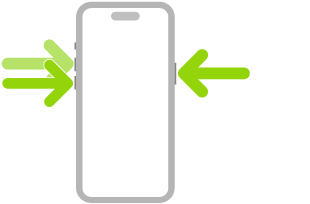
- Press and quickly release the Volume up button.
- Press and quickly release the Volume down button.
- Press and hold the Side button for about 10 seconds until the screen goes black.
- Keep holding the Side button and also press the Volume down button for about 5 seconds.
- Release the Side button, but continue holding the Volume down button.
- Release the Volume down button when you see Finder has detected an iPhone in recovery mode message.
- Click on Restore iPhone to install a new OS.
If your iPhone displays an image of a computer and a cable, then you have to repeat the process. It should show a blank, black screen.
How to Exit DFU Mode
If you are done with your update, or you mistakenly entered DFU mode on your iPhone, these are the steps to exit it.
How to Exit DFU Mode on an iPhone 18 Pro Max
Quickly press the Volume up button, and then quickly press the Volume down button, then hold the Side button until the Apple logo appears on your phone screen.
DFU Is Powerful, But Not Perfect
A DFU restore is not the ultimate fix for all iPhone problems. Some issues may be plain hardware faults and cannot be fixed with system software or firmware restore. If your iPhone stubbornly refuses to enter DFU mode, or the issues persist after performing a reset, consider seeking a professional repair instead.


