









Unfortunately Wi-Fi, 3G/4G or other problems often prevent a smartphone from getting online.
In this article we explain what to do when the internet isn’t working on your iPhone 18 Pro Max, either via cellular data or Wi-Fi (or occasionally both). First we work out whether the problem lies with 3G/4G, with Wi-Fi or with your network provider; or a particular app or service and then we work through the possible solutions for each scenario. We recommend that you follow the advice in the order given, as the steps get slowly more difficult.
We finish up with a few steps to try if the problem appears not to be affecting the Wi-Fi or the cellular connection, but lie with the device itself.
What’s the problem?
The first step when fixing a problem is to find out what the problem is. We need to isolate the malfunctioning part of the equation so we can focus on that.
First of all let’s make sure that you really can’t access the internet at all. Try to do this a few different ways: refresh Mail and see if you get any new emails; open X; browse a few listings in the App Store; try to open new web pages in any additional web browsers you’ve got as well as Safari.
If you’re able to do other things that require internet access but still can’t open web pages in Safari, the problem is with Safari, not with your connection. Jump to the ‘Safari not working’ section below. (On the other hand, if Safari is fine but some random app is refusing to connect, then that app is the problem, and you should try closing it down and restarting, checking for an update and contacting the app maker’s support facility.)
Apps not working?
It’s possible that there is no problem with your internet connection. The problem may lie with the app or apps you are attempting to use.
From time to time Apple’s iCloud, FaceTime, App Store and Messages and other services also go offline.
Of course when your main apps stop working it’s likely that the first conclusion will be that you have no Wi-Fi or 4G connection, but with this kind of circumstance in mind it is worth checking to see if your favourite services are in fact down. You should check a site such as DownDetector to see if any service you use is offline.
Wi-Fi or 3G/4G?
Assuming the internet connection really isn’t working, we need to find out if the problem is with the Wi-Fi, 3G/4G or something else.
This is usually an easy diagnostic to run.
First of all, are you at home, or in another location which supplies Wi-Fi? Have you entered a password for the local Wi-Fi network? In other words, should there be Wi-Fi right now?
The icons in the status bar provide information about iPhone.
If it’s the familiar ‘Wi-Fi’ icon, with three concentric quarter-circles, then hey presto, you’re on Wi-Fi. If not, you might see 4G or 3G, which should ensure a good connection; or GPRS or Edge (or E), which probably won’t, but you may still able to load up the odd web page if you’re patient. If none of these signals appear, you’re not accessing the internet at all.
(Incidentally, if you see a little plane icon, you’re in Airplane mode, which by default cuts off internet access. Swipe down from the top-right edge to open Control Center. Tap the plane icon to turn the mode off, and hopefully the problem will be solved.)
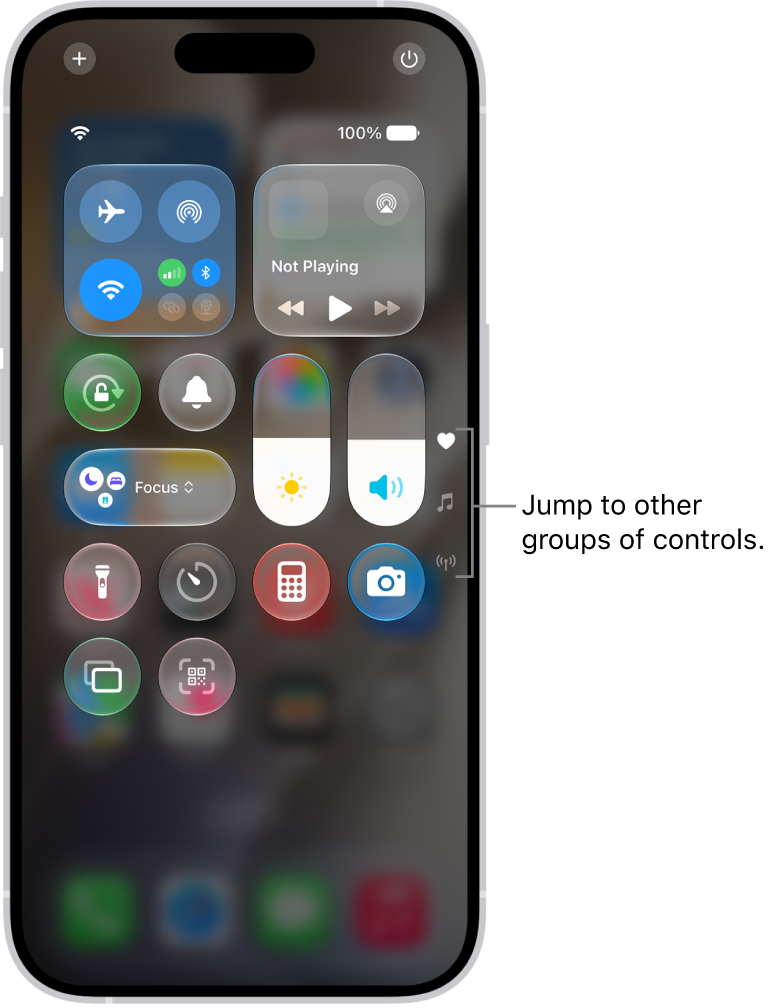
If you’re expecting Wi-Fi and it’s not appearing, or the Wi-Fi icon is showing but you’re not able to get online, then you’ve got a Wi-Fi problem of some kind. Jump to the ‘Wi-Fi not working’ section.
If you’re away from Wi-Fi access and expecting to get online via 3G or 4G, but those icons aren’t showing up, or if they are but you can’t get online, then that’s the source of the fuss. Jump to the 3G/4G not working section.
And if you’re on GPRS or Edge and aren’t particularly expecting to get a Wi-Fi, 3G or 4G signal, then that’s why you’re struggling to get online. Those kinds of connection are very slow! You can either live with that, or move to an area with a better cellular signal, or a Wi-Fi network you can access.
Safari not working?
Safari can be a tricky app! Here are some troubleshooting steps to try:
Clear website data
Be warned that this method will get rid of your history and cookies, so you may have to re-enter some data, and some frequently visited websites may take longer to open the next time. But it can really help.
Open the Settings app and tap Apps > Safari > Clear History and Website Data, then Clear History.
Check for an iOS update
Normally when an app starts malfunctioning, we’d say to check for an update – a bug might have appeared, and the developer will push out the fix in a (free) update.
You can’t update Safari for iOS, however. It’s part of iOS, really, so if you want the latest version you need to update iOS as a whole.
Open the Settings app and tap General > Software Update. If a newer version of iOS is available for your device you’ll be able to download and install it here.
Close down Safari
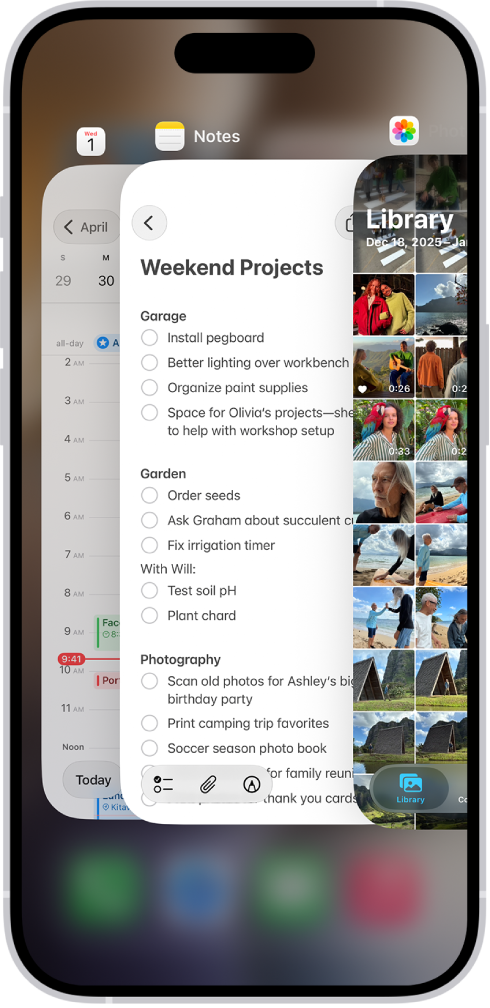
To quit the app, open the App Switcher, swipe right to find the app, then swipe up on the app. Now find the app and tap to restart.
Restart your iPhone 18 Pro Max
Simultaneously press and hold the side button and either volume button until the sliders appear, then drag the Power Off slider. Give it a minute or two, then press and hold the side button again until the Apple icon appears, and the iPhone will restart.

3G/4G not working
Simple stuff first.
Check mobile data is switched on
Go to Settings > Cellular and check that the slider next to Cellular Data is green. If it’s not, tap it.
Data roaming
Are you on a trip? If you’re travelling internationally, your iPhone needs to be set up for data roaming. Go to Settings > Cellular > Cellular Data Options, and check that Data Roaming is set to on.
Cellular deadspots
There isn’t 100 percent coverage of even 3G, let alone 4G – or even 5G! – and plenty of rural areas in particular struggle to get a good connection. Some cellular black spots are extremely localised, and if you’re lucky you may just need to stroll down the street a bit.
Data limits
Have you reached your monthly data limit? Remember that monthly data cycles don’t necessarily begin and end on the first or last of the month, but on the day when you started your contract.
Sadly it’s not easy to track data usage limits on iPhone 18 Pro or iPhone 18 Pro Max. If you go to Settings > Cellular and scroll down you can see your Mobile Data Usage, but if you’ve never reset this number it could be unhelpfully enormous. Our advice is to get in the habit of resetting it every month.
Those looking for something a little more comprehensive should take a look at Data Usage, a 49p/99c app we’ve been using ourselves for several years to keep track of our monthly data usage.
Restart your iPhone
Simultaneously press and hold the side button and either volume button until the sliders appear, then drag the Power Off slider. Give it a minute or two, then press and hold the side button again until the Apple icon appears, and the iPhone will restart.
Check your SIM
Use the provided SIM-tray tool to take out your SIM, then try to reinsert it. It’s possible that will solve the problem. More likely, you might find that the SIM itself is somehow out of shape or broken. If that is the case you should contact your carrier.
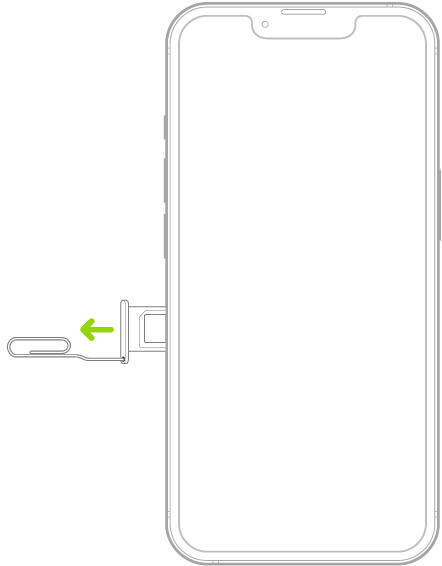
Note: iPhone 18 Pro Max models purchased in the United States can only be activated with an eSIM.
Carrier settings
The next thing to try is to check that your carrier settings are up to date. This is slightly troublesome as such updates are delivered over the internet, and your phone is offline. But it is more than likely that you got the update before your phone went offline. So go to Settings > General > About. If there is an update loaded to go you will be prompted to install it.
You can check what version of the carrier settings your phone is running by tapping Settings > General > About and looking next to “Carrier”.
Call the carrier
If you can’t identify a problem at your end, it’s possible that your network provider is experiencing outages. If you’re not sure, the simplest way to find out if your provider is having an outage is to ask them, in multiple ways if possible. Send the company an email and a tweet, give them a phone call (although if there is a problem the switchboard will probably be jammed) and look for any kind of status report on the official website.
Hopefully the provider will know of any problems in your area, with your account specifically or with the network at large, and will be in the best position to offer remedies, a timeframe of when the problem is likely to be fixed, and any compensation you’ll be able to claim. If the network is down you may be obliged to use Wi-Fi until it’s fixed.
Wi-Fi not working
Broadly speaking, this is a similar but less complicated situation than that of an iPhone 18 Pro Max for which 3G and 4G won’t work. First we will check all the basics, then we will reboot.
So, go to Settings > Wi-Fi. Check that (a) the Wi-Fi slider is in the ‘on’ (green) position and (b) that you are connected to a network local to you that you recognise, and that has good connectivity. You shouldn’t connect to unknown networks anyway, but if you are doing so now is a good time to unhook.
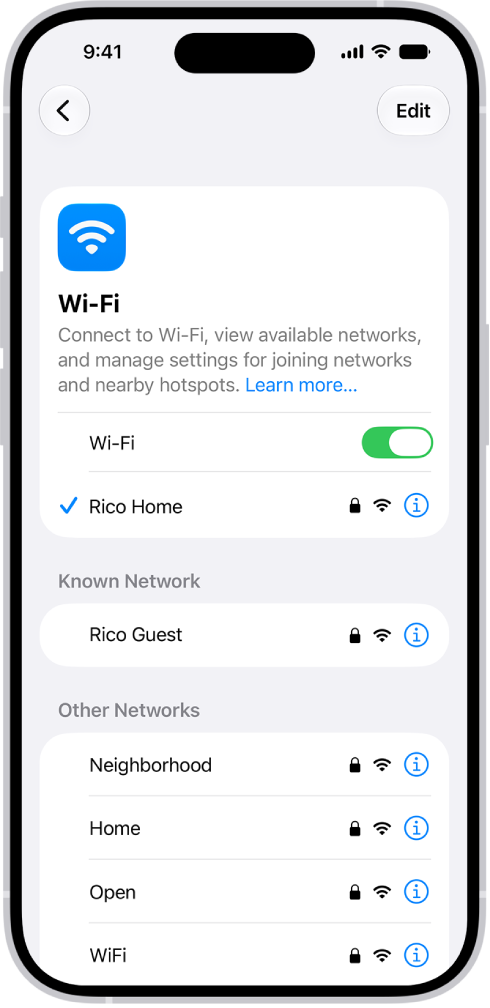
If all of these things are working correctly, just sanity check the connection by connecting another device to it and opening up a web page. If that can’t connect either then the problem is with the network, not the phone, and you need to check router settings or get on to your broadband provider.
Still not able to get online? Forget the network, and reboot your phone. Once it’s back up and running, go to Settings > Wi-Fi, and rejoin the network.
If you have VPN or security software installed:
- Uninstall the software.
- Restart your device.
- Test the Wi-Fi connection.
If uninstalling the security or VPN software fixes the issue, but you must use the software, contact your VPN manager or security software provider.
Reset network settings only if other solutions fail.
- Go to the Settings app on your iPhone.
- Tap General, tap Transfer or Reset iPhone, then tap Reset.
- Tap Reset Network Settings.
This resets all Wi-Fi networks and passwords, cellular settings, and VPN and APN settings.
Other solutions to try
Okay. We’ll be honest: we hoped this would be fixed by now. Now we really are trying to reset things in the hope that it kicks out a bug.
The last thing to try is to back up and restore your iPhone. Using the charging cable for your iPhone, connect iPhone to the USB port on your computer. In the Finder sidebar on your Mac, select your iPhone. Click Restore iPhone, then click Restore to confirm. But don’t take this the wrong way – we hope you didn’t get this far.
Hopefully our problem is now solved. If all else fails, there might be an issue with your iPhone 18 Pro Max and you need to find your nearest Apple Store or Apple Reseller, and get an expert to take a look.

