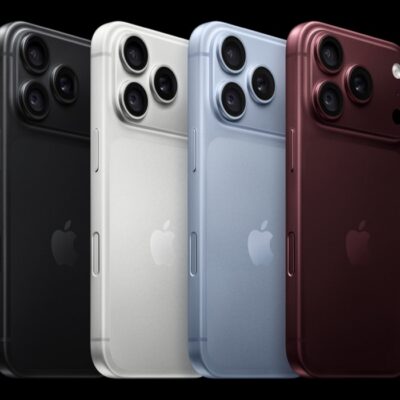
If iMessage isn’t working, you’ll see text messages appearing in green bubbles instead of blue ones on your iPhone 18 Pro or iPhone 18 Pro Max. Worse than that, you might not be able to send or receive messages at all.
Whatever the cause, you can figure out how to fix iMessage problems on your device by following the troubleshooting steps below.
1. Test iMessage by Sending Texts to Multiple People
Before you assume the worst, it can’t hurt to examine the problem. Are you sure iMessage isn’t working with everyone, or is it just not working when you message one contact? Try sending iMessages to a few different people who you know use iMessage to find out if it works for any of them.
If you’re having trouble with iMessage when sending messages to a single contact, the problem is probably on their end. On the other hand, if iMessage isn’t working with any of your contacts, and you know they’re using iMessage, the problem is probably with your device.
You may not have multiple contacts you can check with if most of your friends use Android. In this case, if you have multiple devices using iMessage, try sending messages with each of them.
If iMessage is working on your iPhone but your messages aren’t delivering, this is another subject entirely.
If you’re not getting someone’s messages, you can check if they’re in your Blocked Contacts.
- Go to the Settings app on your iPhone.
- Tap Privacy & Security, then tap Blocked Contacts.
- Select a Blocked Contact, scroll down, then tap Unblock Contact.
2. Make Sure iMessage Is Enabled Correctly
Even if you’ve used iMessage before, you may not have it enabled for a specific number or device. This is easy to check.
- Open Settings, tap Apps, then tap Messages.
-
Make sure the iMessage slider is enabled here.
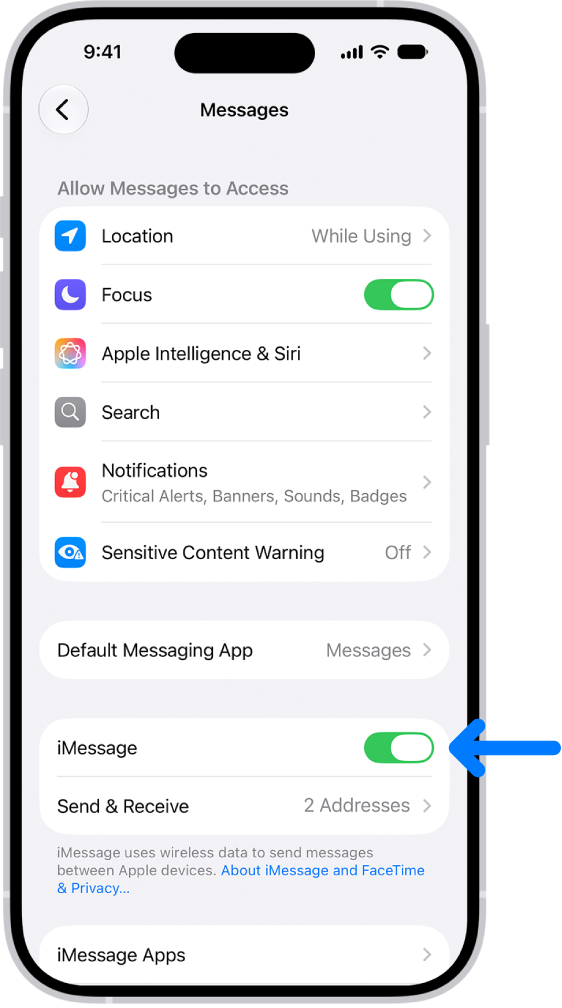
- Then tap on Send & Receive.
- Here you’ll see all the phone numbers and email addresses you can associate with iMessage. Make sure all the numbers and email addresses you want to use are enabled.
If you’re having issues on multiple devices, repeat these steps on any device that iMessage isn’t working for.
3. Try Different Send and Receive Options
If iMessage still isn’t working on your iPhone 18 Pro or iPhone 18 Pro Max, try using different options in the Send & Receive settings. On an iPhone, go to Settings > Apps > Messages > Send & Receive.
From this screen, you should see all the phone numbers and email addresses linked to your Apple Account. Try enabling or disabling different options to see if any combinations make iMessage start working again. It could help to disable everything except your mobile number to start with, then try testing iMessage again.
In general, it’s also best to choose to Start New Conversations From your mobile number.
4. Reset iMessage and Reboot Your Device
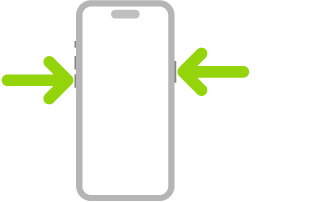
A reboot can help fix a lot of faults, but there’s another step you’ll want to take to resolve iMessage issues. You’ll want to turn off iMessage, reboot, then turn it back on. Simultaneously press and hold the side button and either volume button until the sliders appear, then drag the Power Off slider. Press and hold the side button until the Apple logo appears.
- Launch Settings, tap Apps, then tap Messages.
- The iMessage toggle is located near the top of the screen. Turn it off.
- Now restart your iPhone 18 Pro Max, then turn iMessage back on using the same method.
To be extra thorough, you may want to do this for every device you use with iMessage.
5. Sign In to iMessage Again
This is another method that is so simple it can’t hurt to try: log out of iMessage, then log back in. See iPhone 18 Pro Max Says iMessage Is Signed Out.
- Open the Settings app, tap Apps, then tap Messages.
- Tap Send & Receive.
- From this menu, tap on your Apple Account at the bottom of the screen.
- In the dialog that pops up, tap Sign Out.
- After you sign out, tap on Use your Apple Account for iMessage.
- In the dialog that pops up, it will show your Apple Account and ask if you want to log in with that. Tap Sign In to log in with that ID.
6. Test Your Internet Connection
Unlike regular texts, iMessages send over the internet. So you need to have a working Wi-Fi connection or good cell reception with available cellular data to use iMessages. Open a web browser and try loading a new webpage to test your internet connection.
If you can’t get online, that will explain why iMessage isn’t working on your iPhone 18 Pro Max. Try connecting to a different Wi-Fi network or check how much data you’ve got left.
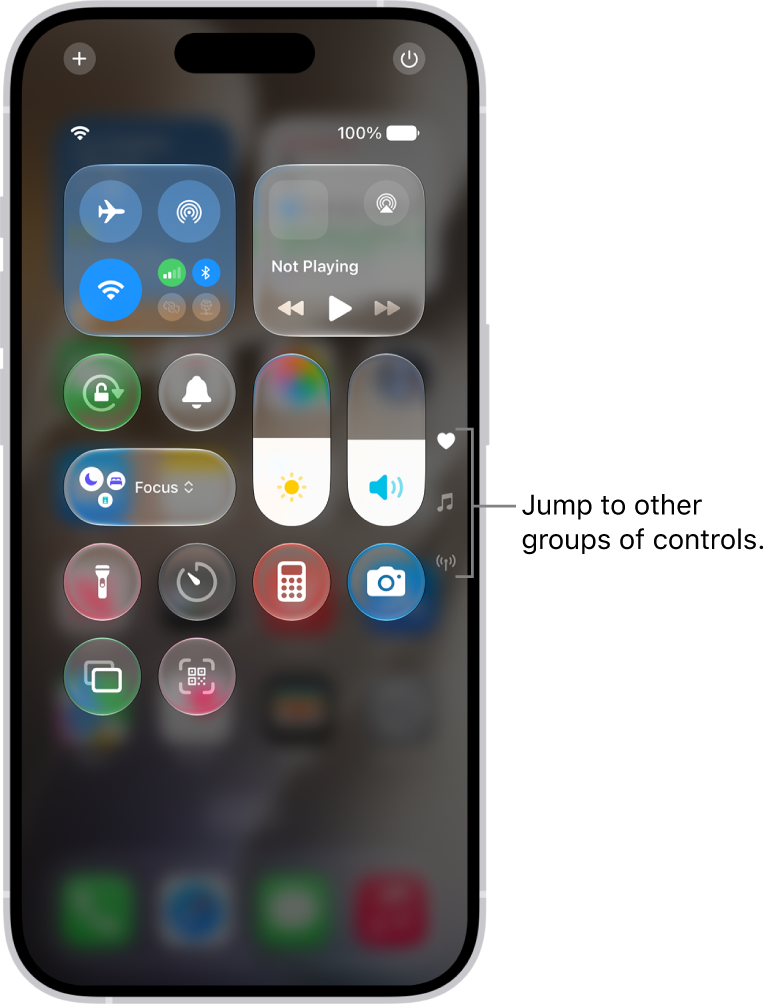
Strangely, you can’t always activate iMessage over Wi-Fi. So if you’re trying to use iMessage for the first time but can’t get it working at all, try disabling Wi-Fi from the Control Center and activate iMessage on your iPhone over cellular data instead.
7. Reset the Network Settings
This is an iPhone-only option, and worth trying if iMessage still isn’t working after trying the above steps. Resetting your iPhone network settings is a fix for several issues, and can often fix iMessage-related problems.
To do so:
- Launch Settings, then scroll down and select General.
- Here, scroll again and select Transfer or Reset iPhone at the bottom of the screen.
- Tap on Reset > Reset Network Settings.
- If prompted, enter your passcode, then confirm by tapping Reset Network Settings.
Don’t worry too much about losing any data; all apps and files on your iPhone will remain untouched. However, your phone will forget saved Wi-Fi networks, so you’ll need to enter their passwords again.
Other Possible iMessage Fixes Worth Trying
There are a few other possible fixes you can try when iMessage isn’t working. If you’re not receiving iMessages on a certain device, one simple tip is to try sending a message from that device. Then get someone to send an iMessage to you again to see if you can receive it now.
You should also visit Apple’s System Status website to make sure iMessage isn’t down for everyone. Check there’s a green circle next to iMessage. If there’s anything else, it means Apple is experiencing technical issues and you’ll need to wait for Apple’s technicians to fix it.
Another possible fix is to check if an iOS update is available. This is especially true if you’ve recently upgraded to a new software. Apple releases updates to improve your device and fix bugs, but these updates can sometimes introduce new problems. If this is the case, Apple may have already issued a new update to fix it.
Finally, if nothing else works, you can try contacting Apple Support.
Having Trouble With Regular Text Messages Too?
Hopefully, one of the above fixes got iMessages working again on your iPhone 18 Pro Max. If you’re experiencing the problem with multiple devices, you’ll need to repeat the step that worked on every device. If that doesn’t help, hopefully another one of the steps will.
iMessages aren’t the only messages you can send from an Apple device, though. If you still can’t send a message to someone, it could be that there’s a problem sending regular text messages (SMS or MMS) from your device instead.