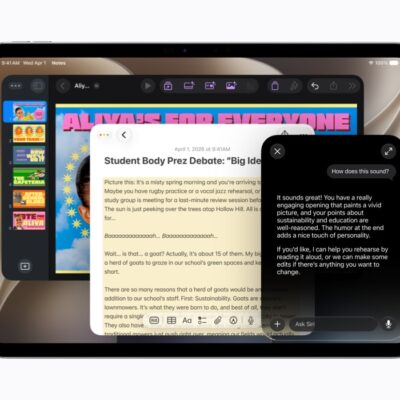
Apple devices have long offered a wide range of features intended to make them easier to use for people who have difficulties with some aspect of the default interface—which doesn’t necessarily imply a disability, but also encompasses personal preference and a limited tolerance for Apple’s Liquid Glass shenanigans, for example.
Increasingly, these features have become more powerful by incorporating features from Apple Intelligence.
Apple appears to still be finishing and reconciling some Apple Intelligence accessibility features as we write this. Some terms mentioned in a May 2026 announcement by Apple and in the Learn More pages within Settings > Accessibility on an iPhone and iPad don’t match the interface element names or certain functionality. We’ll update this section as Apple finalizes these features and makes the documentation consistent.
VoiceOver
When enabled, VoiceOver describes what appears on screen when you move your pointer, tap, or change focus. It’s a way to interact with buttons and interface elements and have text that is part of the interface—such as labels under switches—read aloud. VoiceOver is a mode, not something you invoke: when you turn it on, all the options you set are in effect for as long as it’s enabled.
With iOS 27 and iPadOS 27, VoiceOver taps into Apple Intelligence to provide richer descriptions of visual material that wasn’t previously available. You can enable and configure this new feature in Settings > Accessibility > VoiceOver > VoiceOver Recognition. You can also ask follow-up questions about what it describes.
We have not seen changes to VoiceOver in Golden Gate; it appears that the Apple Intelligence features are only available in iOS and iPadOS.
Magnifier
The Magnifier app lets you use your iPhone or iPad, or any camera connected to your Mac, to zoom in (or out) to see something better. That might mean zooming in to see more detail, turning on the flashlight to provide better lighting, or adjusting image processing, such as changing brightness or contrast. You can also use it to capture what you see as a photo, apply filters, and more.
It’s been enhanced in iOS 27, iPadOS 27, and macOS 27 with an Apple Intelligence feature called Live Recognition that identifies what the camera is looking at. Use the Ask button to query Live Recognition. Type in a request, such as Read this aloud or Summarize this bill, and Siri provides the response. For example, point it at a bill and ask it what the bill’s total is.
Voice Control
In addition to Siri, your Mac, iPhone, and iPad have a feature called Voice Control, which lets you control your interface directly using voice commands—this goes far beyond actions you can take using Siri. You can effectively “click” or “tap” interface elements with your voice. It also includes context-based automatic text dictation, enabled whenever a page or field with a text insertion point is active.
While Voice Control has been in place for years, Apple Intelligence is now part of Voice Control. This addition lets you be much less precise in your descriptions of what to click, tap, or move. Describe what you want to do in natural language, and your device can then figure out what you intended.
To enable Voice Control, go to Settings > Accessibility > Voice Control on iPhone or iPad, or System Settings > Accessibility > Voice Control on a Mac, then turn on the Voice Control switch; turn it off to disable it. For help using the feature, you can click or tap (or ask your device to click or tap) Open Tutorial.
Accessibility Reader
Accessibility Reader is a feature designed to make text easier to read. After turning it on in Settings > Accessibility > Read & Speak on iPhone or iPad, or System Settings > Accessibility > Read & Speak on a Mac, you can enable it on a Mac by pressing ⌘-Esc on a Mac, or on an iPhone or iPad using a Share menu command, an Accessibility Shortcut, or Control Center, almost anywhere you see text. (This doesn’t include text labels for controls and the like, but does include things like email messages, webpages, and open documents.)
When you do, a new window appears that’s a bit like Safari’s Reader view: it displays whatever text was in the foreground window but without graphics, links, or other distractions. You can use the controls in this window to change the magnification, font, color, line spacing, and so on, or even click the play button to have your device read the text aloud.
Apple Intelligence enables this feature to operate on more complex documents, provide a simpler view of structured information such as tables, and provide summaries and translations if you request them.
Generated captions
Your device automatically generates captions from any uncaptioned video you’re watching in Photos and other supported apps. (As of publication time, it works only on an iPhone or iPad.)
These automatic subtitles aren’t related to tvOS or TV app captioning.
An automated caption icon appears at the start of each onscreen subtitle to let you know that the caption was generated.
Tap or click the Caption button on the toolbar to change settings. For instance, you might want to adjust the subtitles’ size or hide them.
If captions already exist, you can have them automatically translated between supported languages.
Siri’s own dictation also improved in this release, covered in Siri AI expressive voice and Advanced Dictation requirements.