









Do your AirPods keep disconnecting intermittently while using them with your iPhone 18 Pro or iPhone 18 Pro Max? Bugs, glitches, and conflicting settings often cause that to happen.
If your AirPods won’t stay connected, the list of troubleshooting tips and fixes below should resolve most connectivity issues between your AirPods and iPhone, Mac, or other device.
1. Re-Establish the Connection With Your iPhone
If your AirPods started disconnecting from your iPhone 18 Pro Max just a moment ago, then re-establishing the connection between both devices can help.
Just put your AirPods or AirPods Max in the charging case or Smart Case, wait for a few seconds, and then take them out again to reconnect them.
2. Keep Your AirPods and iPhone Closer Together
This one’s probably obvious, but the further you move away from your iPhone, the higher the chances are that your AirPods won’t stay connected. Keep the distance between you and your paired device under 30 feet, and you should be fine.
3. Disable and Re-Activate Bluetooth on Your iPhone
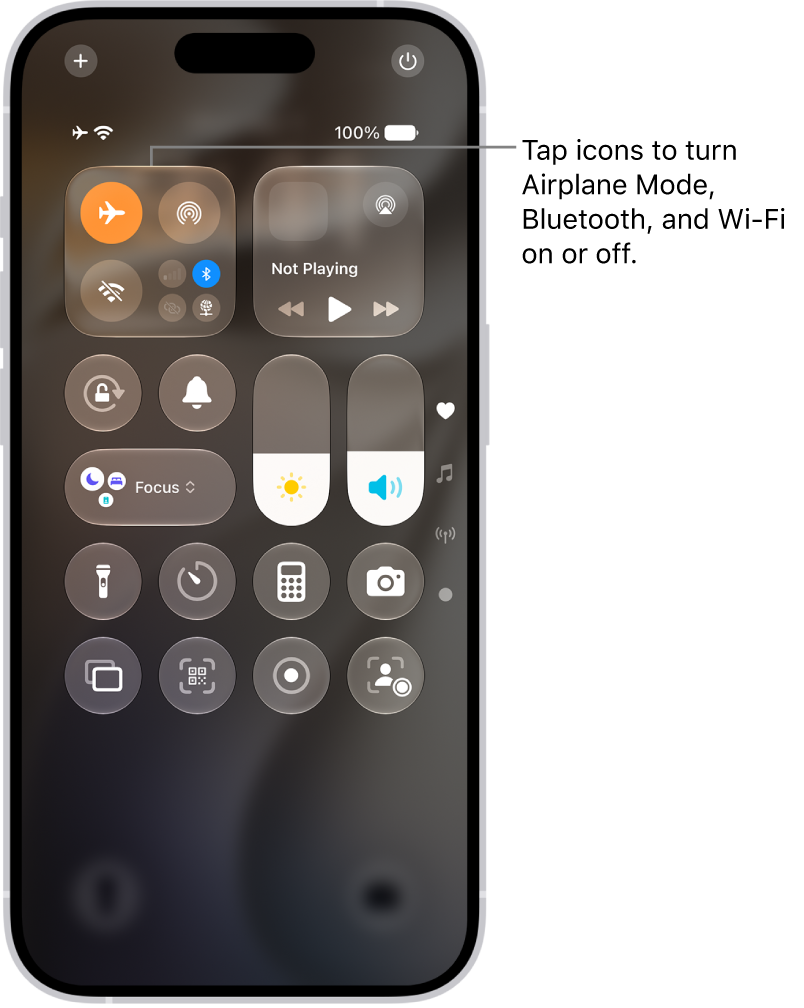
Disabling and re-activating Bluetooth on your iPhone or other connected device can eliminate minor technical glitches and help fix AirPods-related connectivity issues. The best way to do that is to toggle Airplane Mode on and off.
Simply swipe down from the top-right of the iPhone’s screen to open the Control Center. Then, tap the Airplane Mode icon, wait for 10 seconds, and then tap it again to turn Bluetooth back on.
4. Charge Your AirPods
Your AirPods may randomly disconnect and have trouble staying connected to your iPhone when the batteries are low. Therefore, simply place your AirPods back in the case and charge them sufficiently before using them again.
If the batteries of your AirPods often die quickly, you may want to review your usage habits to prevent your AirPods’ batteries from draining too fast.
5. Disable Automatic Ear Detection
Automatic Ear Detection is a feature that automatically detects when your AirPods are in your ears. But it can also cause the audio to disconnect, especially if you tend to fidget with the left or the right AirPod while wearing them. If your AirPods don’t stay connected to your iPhone 18 Pro Max, turning off Automatic Ear Detection can help.
First, connect your AirPods to your iPhone. Then, go to Settings > Bluetooth and tap the More Info button next to your AirPods. Disable the Automatic Ear Detection option (if you don’t see that option, first tap Audio & Routing).
6. Deactivate Automatic Switching
Your AirPods should automatically switch between Apple devices when you start playing audio. While it’s a convenient feature, if you have another iPhone or Mac lying around, you might want to disable this functionality to avoid sudden disconnects.
Go to Settings > Bluetooth and tap the More Info button next to AirPods. Then, tap Connect to This iPhone (if you don’t see that option, first tap Audio & Routing) and select When Last Connected to This iPhone. You must repeat that on each iPhone that you own.
On a Mac, go to System Settings and click the name of your AirPods in the sidebar (you may need to scroll down). Then, set Connect to This Mac to When Last Connected to This Mac (if you don’t see that option, first click Audio & Routing).
7. Avoid Wireless Interference
Wireless interference can also prevent your AirPods from working correctly. Check whether you’ve got common sources of interference around you—such as poorly shielded power cables, microwave ovens, wireless speakers, and so on. If so, you should move away from them.
8. Update the Firmware on Your AirPods
If your AirPods don’t stay connected, outdated device firmware might be the reason behind the issue. With your AirPods connected to your iPhone, head to Settings > Bluetooth, tap the More Info button next to the name of your AirPods, and check whether Version is up-to-date.
A cursory search on the internet—or the AirPods’ Wikipedia page—should reveal the latest version of the firmware.
To update the firmware on your AirPods, put them in the charging case and connect the case to a power source. Then, ensure your iPhone is connected to Wi-Fi and keep it close to the AirPods. Wait for at least 30 minutes before checking back. Your AirPods should update automatically in the meantime.
9. Update Your iPhone 18 Pro Max
Apple’s iOS updates often come with numerous bug fixes that could resolve connectivity issues with your AirPods. Go to Settings > General > Software Update to update your iPhone.
If you don’t see any pending updates, try restarting your iPhone instead. Go to Settings > General > Shut Down and drag the slider to the right. Once the device shuts down, wait for 30 seconds before booting it back up. Press and hold the side button until the Apple logo appears.
10. Reset Your AirPods
If you still keep running into issues with your earbuds disconnecting randomly, you should reset your AirPods to factory settings.
AirPods 1, 2, or 3, or AirPods Pro 1 or 2: Put the AirPods in their case, close the lid, then wait 30 seconds. Open the lid, then press and hold the setup button on the back of the case for about 15 seconds, until the status light flashes amber, then white.
AirPods 4 or 5, or AirPods Pro 3: Put the AirPods in their case, close the lid, then wait 30 seconds. Open the lid, then double-tap the front of the case three times. When you successfully reset your AirPods, the status light flashes amber, then white.
AirPods Max: On the right headphone, press and hold the Digital Crown and the listening mode button at the same time, until the status light next to the charging port changes from flashing amber to flashing white (around 15 seconds).
Now, take the AirPods out and follow the onscreen prompts on your iPhone to reconnect them.
11. Reset the Network Settings
Resetting the network settings on your iPhone should resolve corrupt network-related settings preventing the device from communicating with your AirPods correctly.
To do that, go to Settings > General > Transfer or Reset iPhone > Reset and select Reset Network Settings. Enter your device passcode and tap Reset Network Settings. Reconnect your AirPods after the reset procedure and check if the issue recurs.
No More Randomly Disconnecting AirPods
The fixes above should’ve helped you fix issues with the AirPods disconnecting from your iPhone 18 Pro or iPhone 18 Pro Max. If not, you’re likely dealing with a defect on the hardware level.
For example, if one of your AirPods often falls from your ear, it might cause hardware damage, and you may find that the AirPod keeps disconnecting even when it’s fully charged. In such cases, it’s best to contact Apple for assistance. There are a few different ways you can do that, from visiting an Apple Store to downloading the Apple Support app.


