Got a tip for us?

Abigail Shilets

Abigail is a staff writer for GeeksModo based in Pennsylvania. She covers news, how-tos, and user guides for iPhone, iPad, Mac, and Apple Watch. Before becoming a writer Abigail studied computer science at University and also worked at Apple for more than two years. When not creating masterpiece for GeeksModo, you can usually find Abigail hiking, climbing, or otherwise unplugged.

Abigail Shilets's Articles

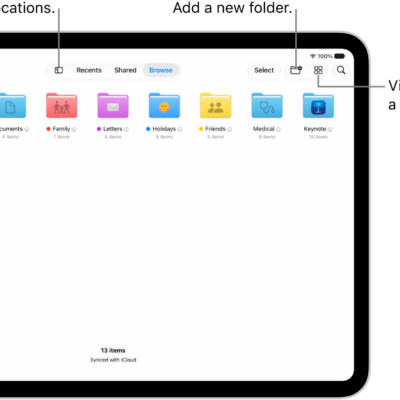
The Files app displaying multiple folders and locations named Downloads, Letters, Family, and so on. At the bottom of the screen are buttons for Recent files, Shared files, and the Browse tab.

How to connect external storage devices to iPad

You can connect external storage devices to iPad, like USB drives and SD card readers, and access their files in the Files app.
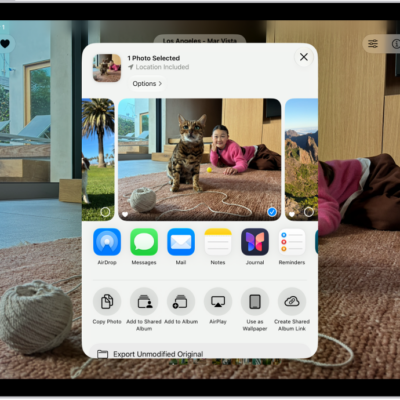
A photo is open in the Photos app and the share options are displayed in the middle of the screen.

How to import and export photos and videos on iPad

You can import photos and videos to iPad from a camera, SD card, or other device, and export them to an external storage device.
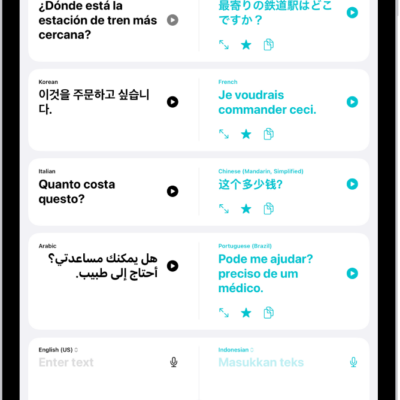
The Translate screen, showing phrases translated from English to Chinese, Japanese to Arabic, French to German, and English to Spanish. Along the top, from left to right, are the Show Sidebar, Translate, Camera, Conversation, Favorites, and More buttons.

How to translate words and phrases on iPad

You can translate words and phrases on iPad in the Translate app by typing or speaking, and save your favorite translations.
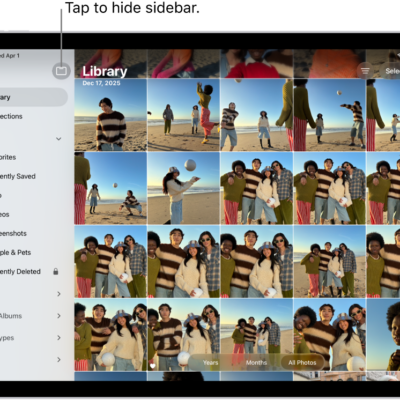
The Photos app is open and the Library tab is selected in the sidebar.

How to browse your photo library on iPad

You can browse your photo library on iPad by years, months, or all photos, zoom in or out, and change how the library is displayed.

A Live Photo is in the center of the Edit screen in the Photos app. The frame viewer is across the bottom of the video and a yellow outline is around the selected frames to include in the edited Live Photo; a single frame is selected to make key photo. The editing tools are on the left side of the screen: from the top to bottom, Live Photo, Adjust, Filters, and Crop. Live Photo is selected.

How to take Live Photos with your iPad camera

You can take Live Photos with your iPad camera to capture what happens just before and after a photo, including the audio.
A photo is open in the Photos app and the share options are displayed in the middle of the screen.

How to share photos and videos on iPad

You can share photos and videos on iPad in Mail, Messages, and other apps, or with AirDrop, and adjust what information you share.
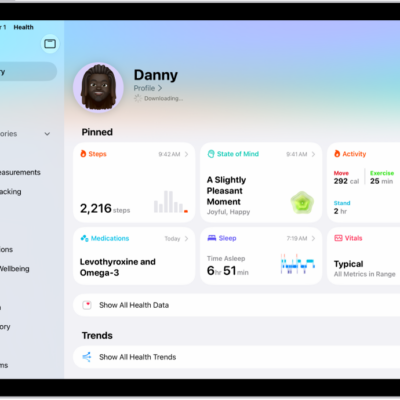
The Summary screen in Health. Information about steps, state of mind, activity, medications, sleep, and vitals appears below Pinned.

How to view health records in Health on iPad

You can view health records in Health on iPad after you set up downloads from a healthcare provider, and pin lab results.
The Summary screen in Health. Information about steps, state of mind, activity, medications, sleep, and vitals appears below Pinned.

How to get started with Health on iPad

You can get started with Health on iPad to keep your health data in one place, fill out Health Details, and schedule medications.
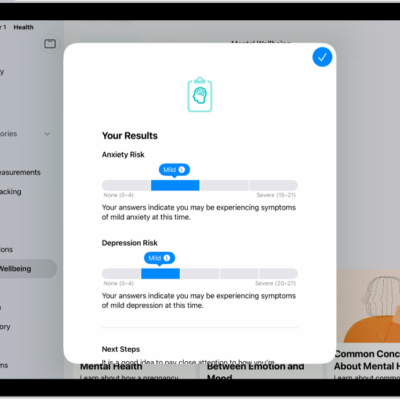
A screen in the Health app showing results of a mental health questionnaire.

How to take a mental health assessment in Health on iPad

You can take a mental health assessment in Health on iPad to see your current risk for depression or anxiety and share the results.
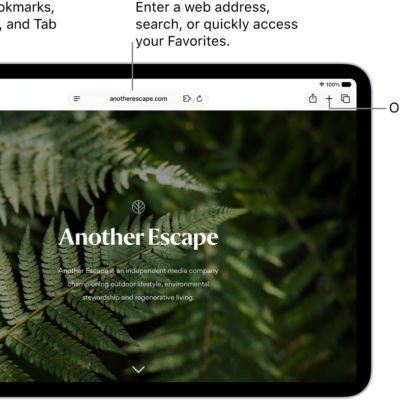
An open webpage. Along the top, from left to right, are the Sidebar button, the Previous button, the search field, the Share button, the New Tab button, and the Tab Overview button.

How to fill in personal information in Safari on iPad

You can fill in personal information in Safari on iPad with AutoFill, including your contact info, user names, and passwords.