









Emily Long
Emily Long's Articles
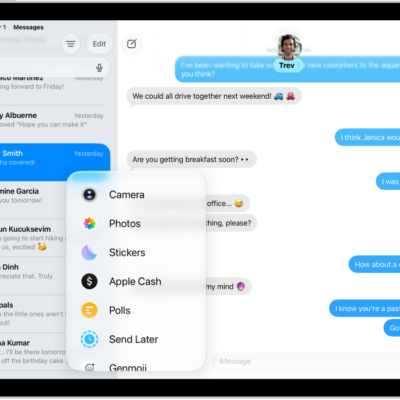
What iMessage is and how it works on iPad
You can learn about iMessage on iPad, Apple's end-to-end encrypted messaging service for Messages across your Apple devices.
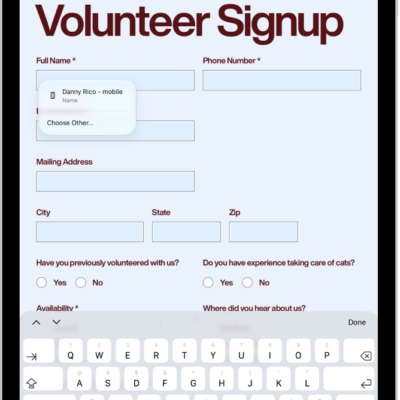
How to fill out and sign PDF forms in Preview on iPad
You can fill out and sign PDF forms in Preview on iPad, enter information in form fields, and add a signature or text box.
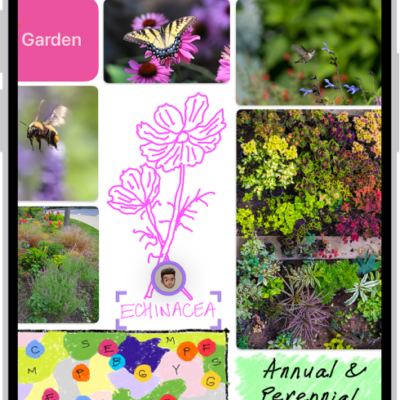
How to get started with Freeform on iPhone
You can get started with Freeform on iPhone, a boundless canvas to brainstorm, sketch, and collect ideas with photos, drawings, links, and files.
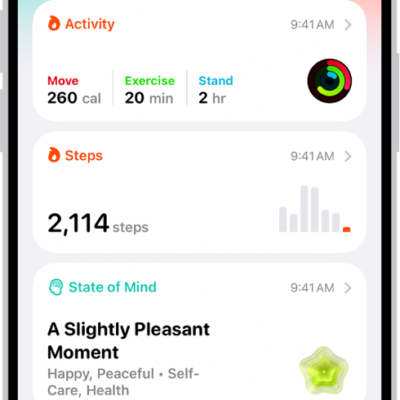
How to get started with Health on iPhone
You can get started with the Health app on iPhone, which brings together health data from your devices with sleep schedules, medications, and more.
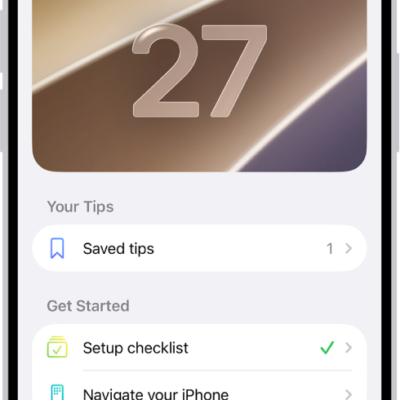
How to use the Tips app on iPad
You can use the Tips app on iPad to view collections of tips, get notified when new tips arrive, and save and share tips.
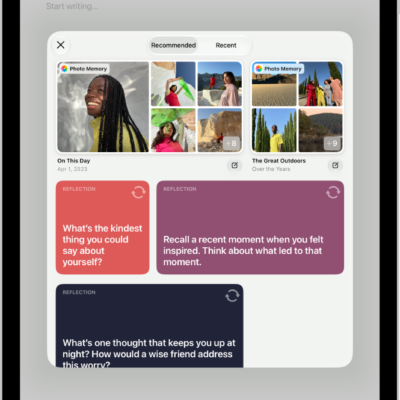
How to write in your journal on iPad
You can write in your journal on iPad to capture thoughts on everyday moments, with suggestions, Apple Pencil, and writing prompts.
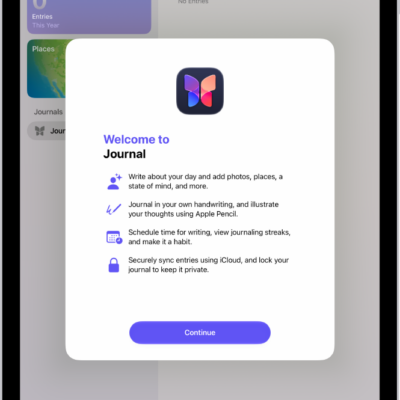
How to get started with Journal on iPad
You can get started with Journal on iPad to record your experiences with photos, music, drawings, and audio, and review your entries.
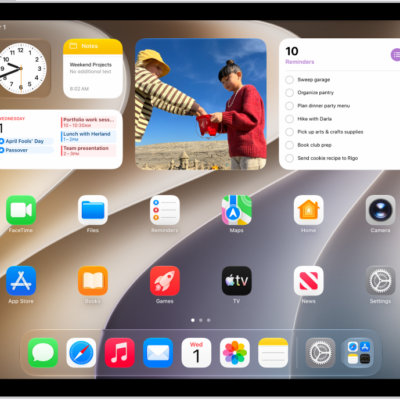
How to use News widgets on iPad
You can use News widgets on iPad to check the day's top and trending stories, or stories about a topic you choose.
How to use Apple Intelligence with Home cameras and notifications on iPad
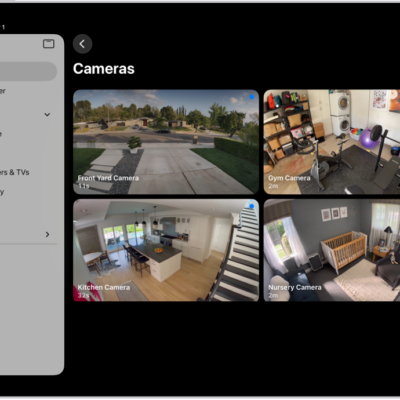
You can use Apple Intelligence with Home cameras and notifications on iPad to generate video descriptions and get fewer alerts.
How to work faster on iPad with multitasking, the menu bar, and the Dock
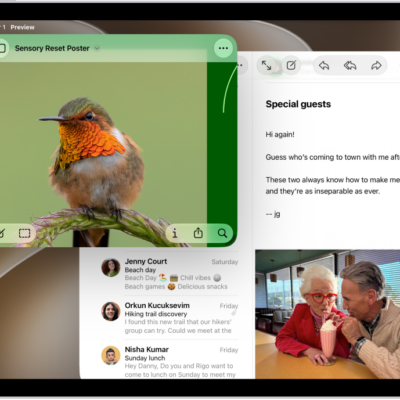
You can streamline the workflow on your iPad by switching between apps, arranging app windows, using the menu bar, and adding folders to the Dock.