Got a tip for us?

Kevin Hollington

Kevin Hollington is a seasoned tech journalist based in Los Angeles with a penchant for all things Apple. He started writing about Apple products in 2007 and it’s been a love affair ever since. He has spent over a decade testing and writing about iPhones, iPads, Macs, and other Apple products. In his spare time, he likes nothing more than catching up with the latest news and sports podcasts on the beach.

Kevin Hollington's Articles

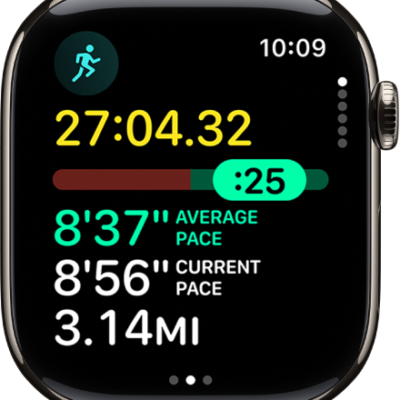
The Workout app on Apple Watch showing the Pacer view in an Outdoor Run workout. At the top is the duration of the run. Below is a slider indicating how far or behind you are in your pace. Average Pace, Current Pace, and distance are below.

How to start an outdoor run workout on Apple Watch

You can start an outdoor run workout on Apple Watch, create a Pacer workout, race your last or best time on a route, and run
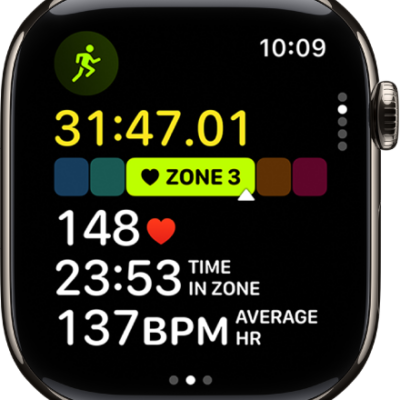
A running workout in progress shows the workout's elapsed time, the zone you're currently in, heart rate, time in zone, and average heart rate.

How to view Heart Rate Zones on Apple Watch

You can view Heart Rate Zones on Apple Watch during a cardio workout, review your zone data, and edit your Heart Rate Zones.
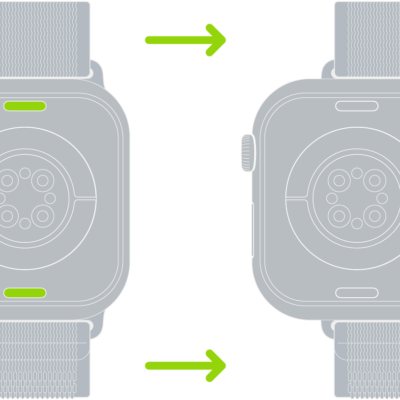
Two images of Apple Watch. The image on the left shows the band release button. The image on the right shows a watch band partially inserted into the band slot.

How to remove and change Apple Watch bands

You can remove and change Apple Watch bands with the band release button, using the same general steps for different bands.
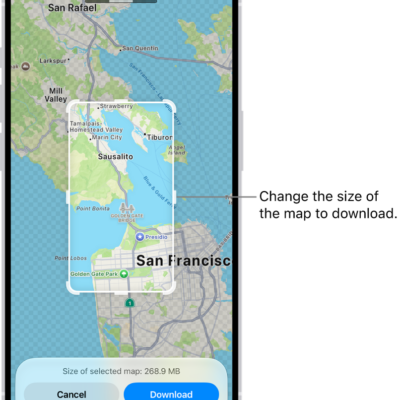
A map of a national park. The park is framed by a rectangle with handles, which can be moved to change the size of the map to download. The selected map's download size is indicated near the bottom of the map. The Cancel and Download buttons are at the bottom of the screen.

How to use offline maps on Apple Watch

You can use offline maps on Apple Watch to view saved map areas and hiking routes and get directions without Wi-Fi or cellular service.
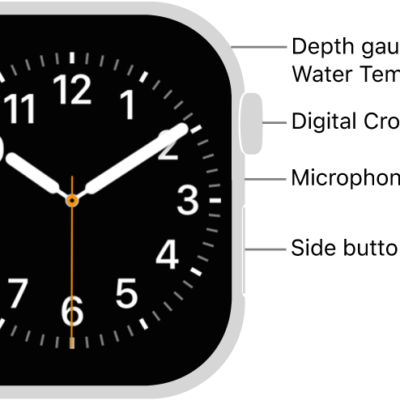
The front of Apple Watch Series 12, with the display showing the watch face, and the Digital Crown, microphone, and side button from top to bottom on the side of the watch.

How to manage your passcode on Apple Watch

You can manage your passcode on Apple Watch, change it, use a four-digit passcode, turn it off, or erase data after 10 failed attempts.
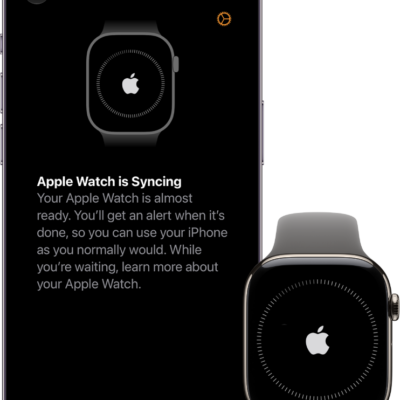
An iPhone and Apple Watch, side by side. The iPhone screen shows "Apple Watch is Syncing." The Apple Watch shows syncing progress.

How to pair and set up Apple Watch with iPhone

You can pair and set up Apple Watch with iPhone using the setup assistants, then activate cellular service if your watch supports it.
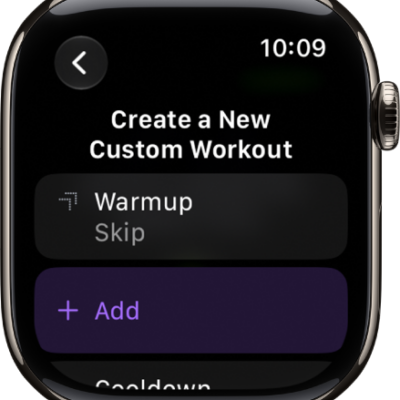
The Workout app showing a screen for creating a Custom Workout.

How to create a Custom Workout on Apple Watch

You can create a Custom Workout on Apple Watch with warmup, work, recovery, and cooldown intervals, plus time, calorie, and distance goals.

A screen in the Translate app showing an English phrase at the top translated to Spanish at the bottom.

How to translate text and voice on Apple Watch

You can translate text and voice on Apple Watch in the Translate app, download languages for offline use, and save favorite translations.
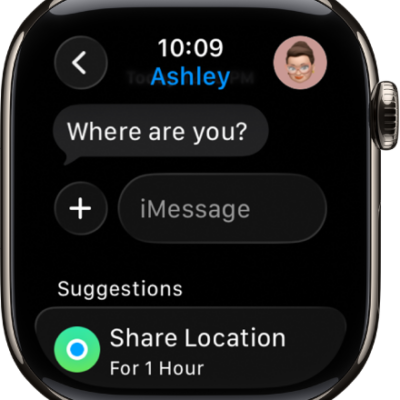
Apple Watch showing a conversation in the Messages app. A suggestion to share a location is at the bottom of the screen.

How to write messages on Apple Watch

You can write messages on Apple Watch, start a conversation, send stickers, GIFs, and audio clips, and share your location.
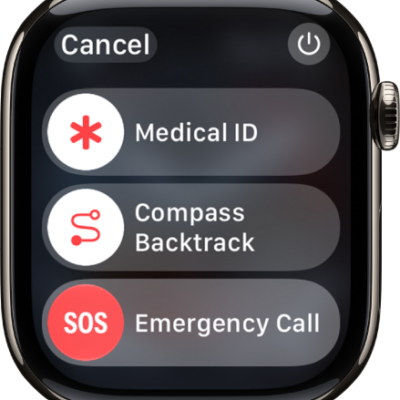
The Apple Watch screen showing the sliders for Medical ID, Compass Backtrack, and Emergency Call. The Power button is at the top right.

Apple Watch safety features: Check In, Fall Detection, Emergency SOS, and more

You can use safety features on Apple Watch, like Check In, Medical ID, Emergency SOS, Fall Detection, Crash Detection, and the siren.