









Moses Johnson
Moses Johnson's Articles
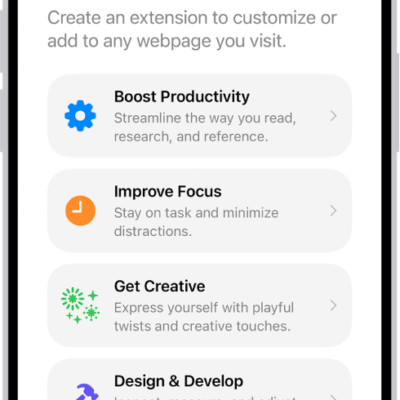
How to use Apple Intelligence to stay organized and get things done on iPhone
You can describe events, reminders, and shortcuts, create Safari extensions, and get summaries with Apple Intelligence on iPhone.
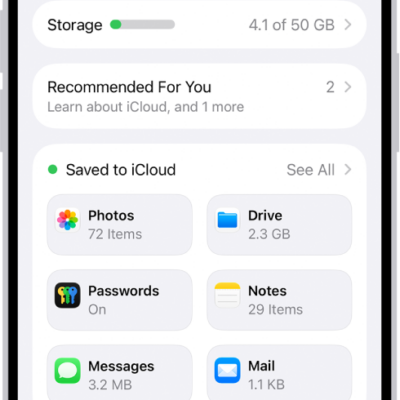
How to back up and sync your photos and videos with iCloud
You can turn on iCloud Photos on iPhone to back up and sync your photos and videos, check their sync status, and keep originals on your iPhone.
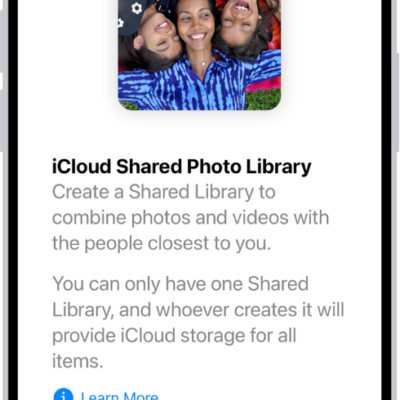
How to use iCloud Shared Photo Library on iPhone
You can use iCloud Shared Photo Library on iPhone with up to five others to add, edit, and comment on photos, seen by everyone in real time.
How to sign in with fewer CAPTCHA challenges on iPhone
You can sign in with fewer CAPTCHA challenges on iPhone, since iCloud can privately verify your device and account, and turn it on or off.
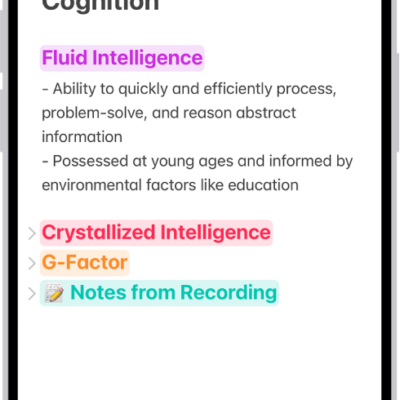
How to change the Notes view on iPhone
You can add lines or grids to your notes on iPhone, view notes as a list or gallery, and see all your attachments in one place.
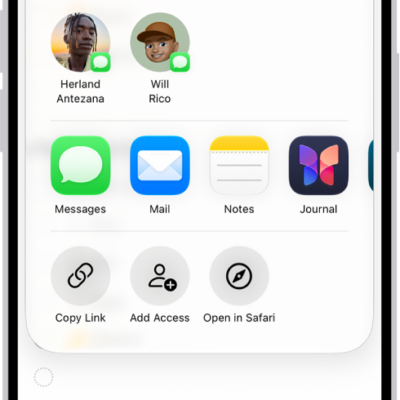
How to print a list in Reminders on iPhone
You can print a grocery list, checklist, to-do items, or project tasks from the Reminders app on iPhone.
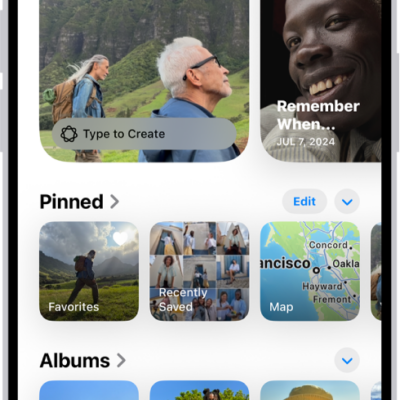
How to browse your photo collections on iPhone
You can browse your photo collections in Photos on iPhone, and change their size, order, and which library they include.
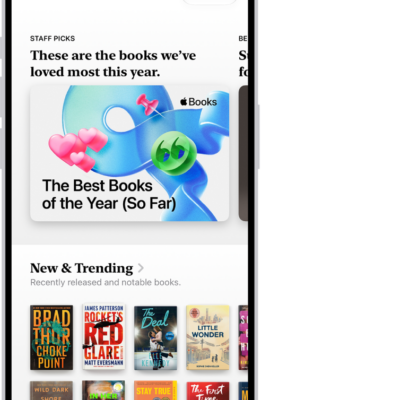
How to buy books and audiobooks on iPhone
You can browse, buy, and download books and audiobooks in the Books app on iPhone, and read a sample or hear a preview first.
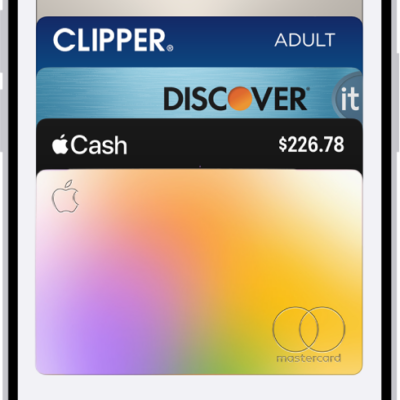
How to manage passes, cards, and keys in Wallet on iPhone
You can see details for passes, cards, and keys in Wallet on iPhone, search transactions, manage expired passes, and remove cards if your iPhone is lost.

Getting started with the Home app on iPhone
You can use the Home app on iPhone to add, control, and automate HomeKit and Matter accessories, from lights and locks to security cameras.