Got a tip for us?

Stacey Butler

Stacey is a senior staff writer at GeeksModo and has been writing about Apple for nearly a decade. She covers all things Apple for GeeksModo, including iPhones, iPads and Mac. Based in Honolulu, Hawaii, Stacey is often found hiking precarious landscapes or tinkering with a camera.

Stacey Butler's Articles

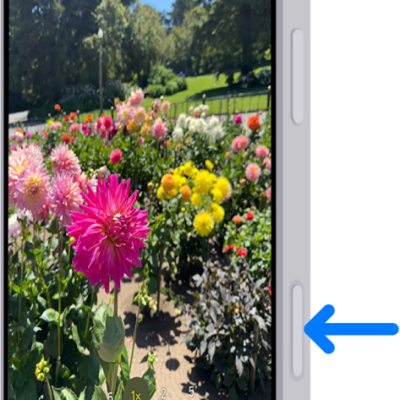
An arrow points to the location of the Camera Control on the side of iPhone.

How to adjust accessibility settings for the Camera Control on iPhone

You can change the Camera Control's light-press force and double-press speed, change its swipe gesture, or turn it off on supported iPhone models.
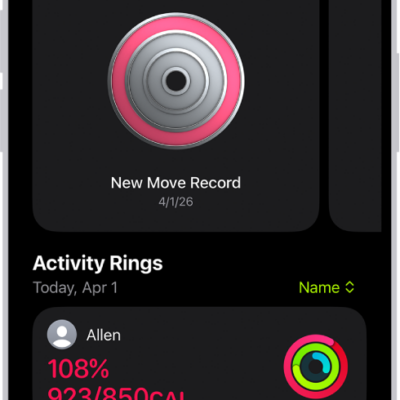
The Fitness Sharing screen, with activity rings and activity highlights shared between a person and their friends.

How to share your activity in Fitness on iPhone

You can share your activity in Fitness on iPhone with friends, family, or a coach, and get notified when they meet goals or earn awards.

The Camera in Video mode. The Camera Controls button is in the top-right corner and the video format buttons are in the top-left corner. The Photo and Video Viewer button is in the bottom-left corner. The Record button is at the bottom center, and the Camera Chooser Back-Facing button is in the bottom-right corner.

How to record a video with your iPhone camera

You can record video with your iPhone camera, including Dual Capture, Cinematic, slow-motion, and time-lapse, and use Action mode.
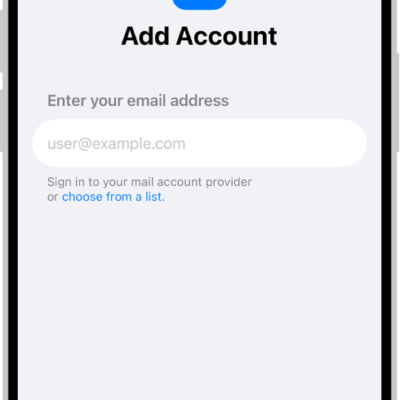
The Add Account screen with a field to enter your email address.

How to add and remove email accounts on iPhone

You can add email accounts to the Mail app on iPhone, set a fetch schedule, pause an account, or remove one you no longer need.

A Group FaceTime call with five participants. Each participant appears in a separate tile. The FaceTime controls are at the bottom-right side of the screen.

How to make a Group FaceTime call on iPhone

You can make a Group FaceTime call on iPhone with up to 32 people, start one from Messages, and add people during the call.
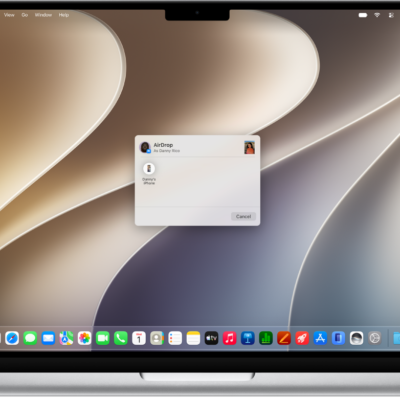
A Mac is next to an iPhone. The AirDrop dialog is open on the Mac desktop, ready to share a document with the iPhone. The iPhone screen has a notification about receiving the document.

How to use AirDrop to send items to nearby Apple devices

You can use AirDrop to send photos, videos, and documents from iPhone to a nearby iPhone, iPad, or Mac, with encrypted transfers.
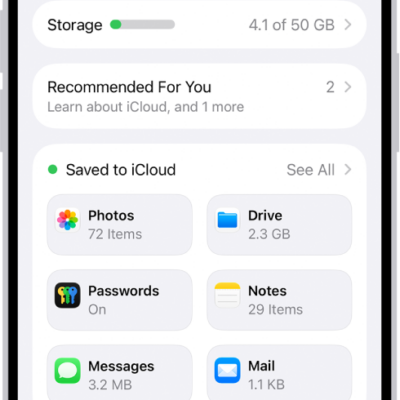
The iCloud settings screen showing the iCloud storage meter and a list of features—including Photos, iCloud Drive, and iCloud Backup—that can be used with iCloud.

How to restore all content to iPhone from a backup

You can restore content, settings, and apps to a new or erased iPhone from an iCloud backup or a computer backup.

A preview of a website followed by a list of possible actions: Open, Open in New Tab, Open in Tab Group, Download Linked File, and Add to Reading List.

How to browse the web using Safari on iPhone

You can browse and preview webpages in Safari on iPhone, translate pages, and keep your tabs and bookmarks in sync across your devices.
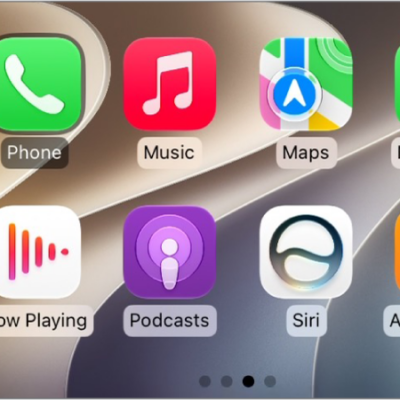
The CarPlay Home Screen showing Maps, Music, and Messages in the sidebar. To the right is a collection of other app icons.

How to use your vehicle’s built-in controls to control CarPlay

You can control CarPlay with your vehicle's touchscreen, rotary knob, or touchpad, and with Siri.
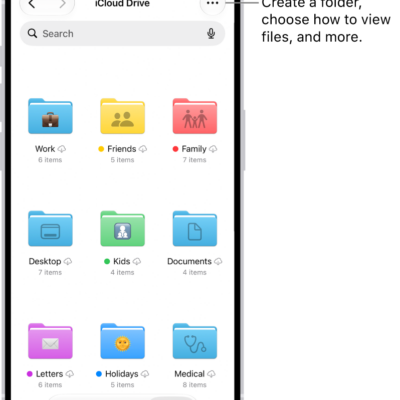
The Files app showing the files and folders in your iCloud Drive. The More menu has options for Selecting items, creating a new folder, Scan Documents, and Connect to Server. Below that are options to view items on the screen as Icons or a List. At the bottom are sort options for Name, Kind, Date, Size, and Tags followed by View Options.

How to modify files and folders in Files on iPhone

You can copy, move, share, delete, and customize files and folders in the Files app on iPhone, and switch between list and icon view.