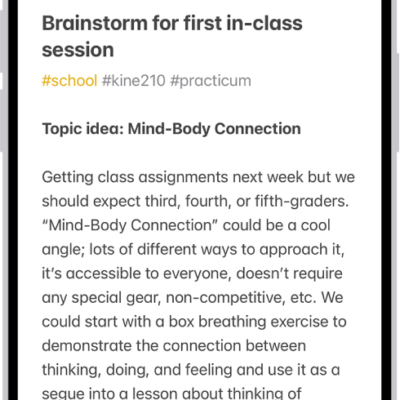
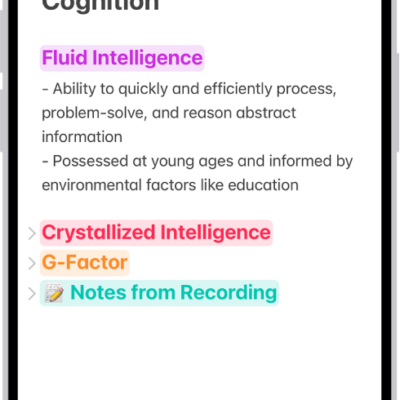
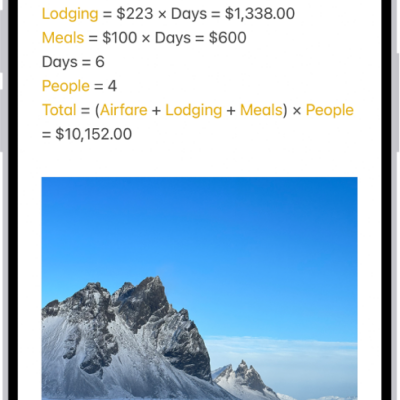
In the Notes app, you can attach, view, edit, and collaborate on PDFs, including documents you scanned into a note. You can also annotate or sketch directly on PDFs and scanned documents in your note.
You can even preview multiple PDFs in the same note, and change the viewing size. You can attach one from an app such as Files or Mail, too.
Here’s how to work with PDFs in Notes on iPhone.
Attach a PDF to a note
To attach a PDF from an app like Files or Mail, do either of the following:
- Drag the file into a note.
- Touch and hold the file, tap the Share button, tap Notes, choose a note, then tap Save.
View and edit a PDF in a note
- Open the Notes app on your iPhone.
- In the note with the PDF, tap the Menu button. Then do any of the following:
- Change the viewing size: Tap View As and choose Small, Medium, or Large.
- View in full screen: Tap Quick Look.
- Copy, share, rename, or delete the PDF: Choose an action.
- When using the Medium or Large preview size, you can also do any of the following:
- Show or hide thumbnails: Tap the Thumbnails button.
- Zoom in and see more: Pinch the screen or swipe right to see more pages.
- Edit a page: Tap the thumbnail for the page, tap the More button, and choose an action such as Rotate Left, Rotate Right, Filters, Crop Page, or Insert Blank Page. (Filters and Crop Page are supported only in scanned documents.)
Annotate a PDF in a note
- Small preview size: Tap the PDF to open it, then tap the Handwriting Tools button.
- Medium and large preview sizes: Tap the Handwriting Tools button.
Collaborate with others
When you collaborate on a note with other people, updates come through in real time. Mark up a document, draw a diagram, or add a sticker, and the people you share with see the changes on their devices.
Tag: Notes