Got a tip for us?

Tyler Stephen

I'm Tyler Stephen, from the US state of Maine. I have a life-long passion for technology, and in addition to writing here, I am also on the editorial team of AppleVis.com. I've been totally blind from birth and thus rely on screenreading software like VoiceOver on Apple products and NVDA on Windows. I have been a Mac user since 2005 and an iOS user since 2010, in addition to also having used Windows, Linux, and Chrome OS. On this site and elsewhere, I hope to write pieces that educate and entertain people, as well as bring attention to the accessibility or inaccessibility of various technologies. You can find me on mastodon at mastodon.applevis.com/@tyler.

Tyler Stephen's Articles

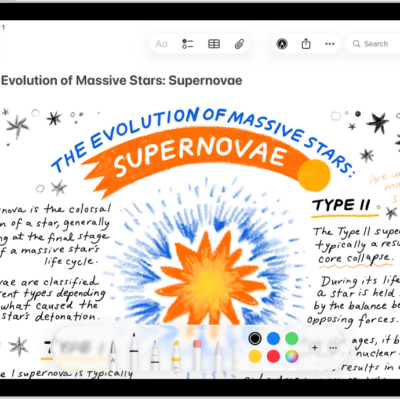
A note showing a drawing and Markup tools along the bottom of the screen.

How to search through your notes on iPad

You can search through your notes on iPad for typed and handwritten text, objects in images, and text in scanned documents.
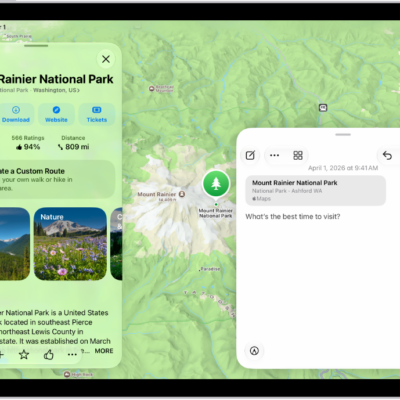
A Quick Note in a window overlay over a map of Mount Rainier National Park. The note has a link to the map, a photo, and text.

How to use Quick Notes on iPad

You can use Quick Notes on iPad to jot down information over any app or screen, and see your notes on iPhone and Mac.
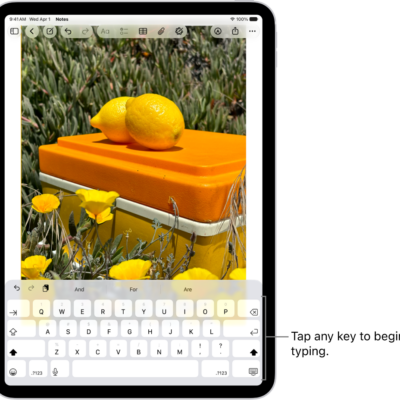
A document is open in the Notes app. The onscreen keyboard is in the bottom half of the screen.

How to use keyboard shortcuts in Notes on iPad

You can use keyboard shortcuts in Notes on iPad with an iPad keyboard to start notes, add checklists, links, and more.
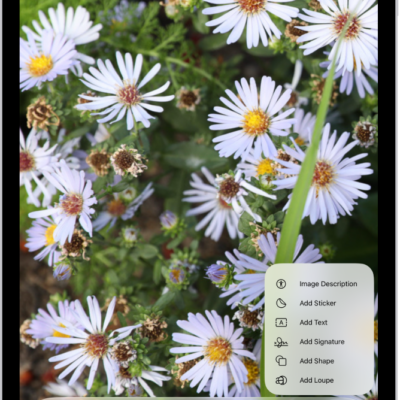
The Markup toolbar is open at the bottom of a note in the Notes app and the Add button in the bottom-right corner of the screen is selected. The following options are available in the Add menu: Add Sticker, Add Text, Add Signature, and Add Shape.

How to add text, shapes, stickers, and more with Markup on iPad

You can add text, shapes, stickers, and image descriptions with Markup on iPad in apps like Notes and Photos, and draw shapes.
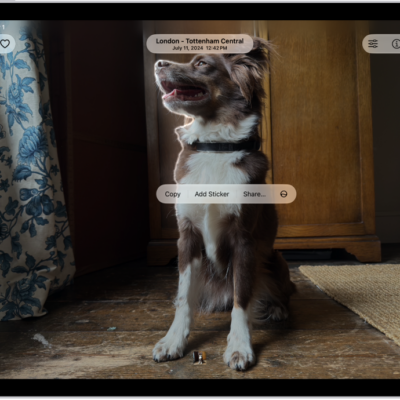
The Photos app is open to a photo of a dog. The dog is selected, and the option Add Sticker is available in the menu above.

How to make stickers from your photos on iPad

You can make stickers from your photos on iPad, including animated stickers from Live Photos, and delete a sticker.
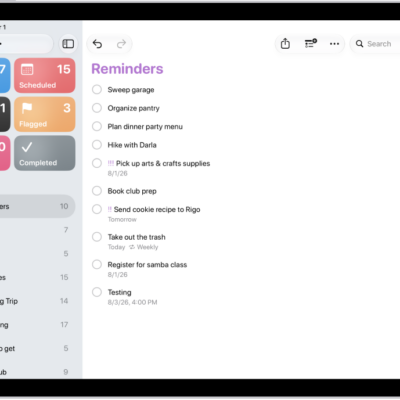
The Reminders app, showing a new task being added to the Reminders list.

How to change your Reminders settings on iPad

You can change your Reminders settings on iPad, choose a default list, adjust notifications, and change the sound for reminder alerts.
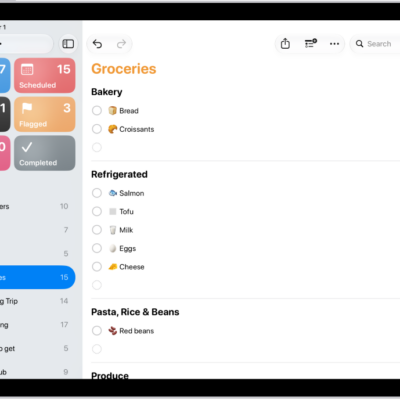
The Reminders app, showing a grocery list with items in categories such as Produce and Seafood.

How to make a grocery list in Reminders on iPad

You can make a grocery list in Reminders on iPad that sorts items into categories automatically, and convert an existing list.
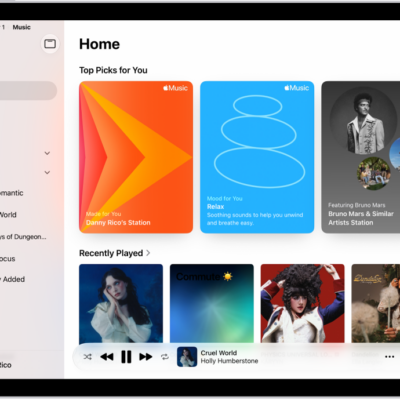
The Home tab in the Music app showing the sidebar on the left and the Home section at the right. The Home tab shows Top Picks at the top. Recently Played music appears below, showing four album covers. The MiniPlayer is at the bottom.

How to find music shared with you on iPad

You can find music shared with you on iPad in Shared with You in the Music app, listen, and reply in Messages.
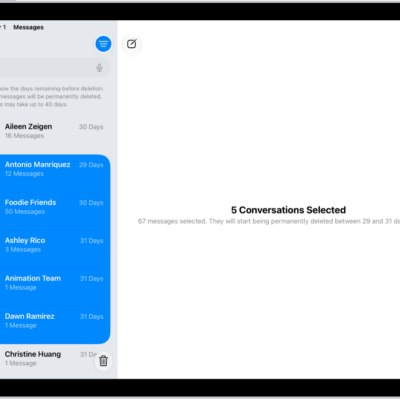
Recovering several recently deleted messages.

How to delete messages and attachments in Messages on iPad

You can delete messages and attachments in Messages on iPad, delete whole conversations, and recover them within 30 days.
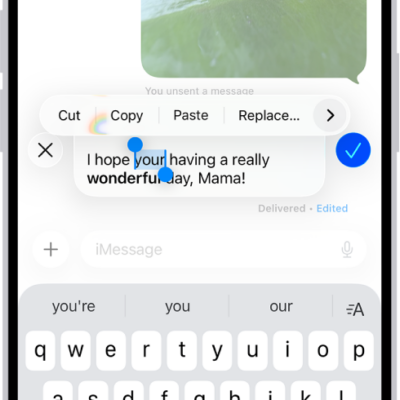
A conversation in Messages showing the last message being edited. The rest of the conversation is lighter, except for the specific text message that's being edited. The conversation shows that a previous message was unsent, and this message was edited before this current edit.

How to unsend and edit messages on iPad

You can unsend and edit messages on iPad, to fix a typo or pull back a message you accidentally sent to the wrong person.