









The Control Center is a pretty neat feature that instantly gives you access to the essential controls on your iPhone 18 Pro Max. You can quickly access the connectivity options, control the volume, and adjust the brightness of your screen, among many other nitty-gritty features.
Since it’s so important, it can be a real bummer when the Control Center stops working on your iPhone 18 Pro Max. Below, we’ll look at all the potential troubleshooting steps to fix this issue and bring all the crucial controls back to your fingertips.
1. Clean Your iPhone’s Screen
Your iPhone’s display not being able to register your touch inputs could be the reason you’re unable to access the Control Center. It might be because you’re using a thick protective case on your iPhone that might overlap your display, preventing you from accessing the Control Center.
Besides this, the quality and condition of your screen protector can also be why you can’t access the Control Center. So, if it has scratches or cracks on it, replace it with a new one. And even if you’re not using your iPhone with a screen protector, its display isn’t immune to dust and dirt that accumulate over time.
Because of this, your screen’s touch sensitivity and accuracy may reduce, making it unresponsive to touch. The best way to fix this issue is to remove the screen protector and clean your iPhone’s display with a microfiber cloth. And when you’re done, see if you’re able to open the Control Center.
2. Turn Off VoiceOver
For those unaware, VoiceOver is one of the many accessibility features in iOS that lets a visually impaired person interact with their iPhone. It’s a gesture-based screen reader that gives an audio description of what’s on the screen. When VoiceOver is on, you need to use special gestures to unlock iPhone, go to the Home Screen, open Control Center, switch apps, and more. Drag one finger down from the top edge of the screen until you feel a vibration or hear the second tone.
So, if you accidentally activated this feature, you can turn it off by heading over to Settings > Accessibility. Once you’re here, tap VoiceOver and toggle off the switch at the top. Now, try opening the Control Center on your iPhone.
3. Enable Control Center Access When Locked
This one is for those having trouble accessing Control Center from the Lock Screen on their iPhones. It only happens when you don’t give access to Control Center when your iPhone is locked.
Here’s how you can give access to Control Center when your iPhone is locked:
- Open the Settings app on your iPhone and navigate to Face ID & Passcode.
- Enter your passcode for verification and scroll down to Allow Access When Locked section.
- Enable the Control Center toggle.
After this, you should be able to access the Control Center from your iPhone’s Lock Screen.
4. Enable Control Center Access Within Apps
Similarly, this one is for those unable to access the Control Center while using apps. If that’s the case, it’s likely happening because you’ve accidentally disabled Control Center access within apps on your iPhone 18 Pro Max.
The process of enabling Control Center access within apps is pretty straightforward. Open the Settings app, select Control Center, and toggle on Access Within Apps.
Once enabled, you should be able to access the Control Center while using apps on your iPhone.
5. Update to the Latest iOS Version
iOS updates typically include bug fixes, performance improvements, and new features. Installing the latest updates should be helpful if you’re facing the Control Center issue because of a bug in the iOS version you’re currently using.
Here’s how you can update your iPhone:
- Launch Settings and select General.
- Tap Software Update and check if an update is available.
- Press the Update Now button to initiate the update.
Once your iPhone is running the latest iOS version, try opening the Control Center again. If it’s still not working, try some other solutions mentioned below.
6. Remove and Add Controls to Control Center
Another possible reason you’re unable to use Control Center on your iPhone could be a specific control that isn’t working due to a bug.
Therefore, removing that control might fix the issue. To do this, follow these steps:
-
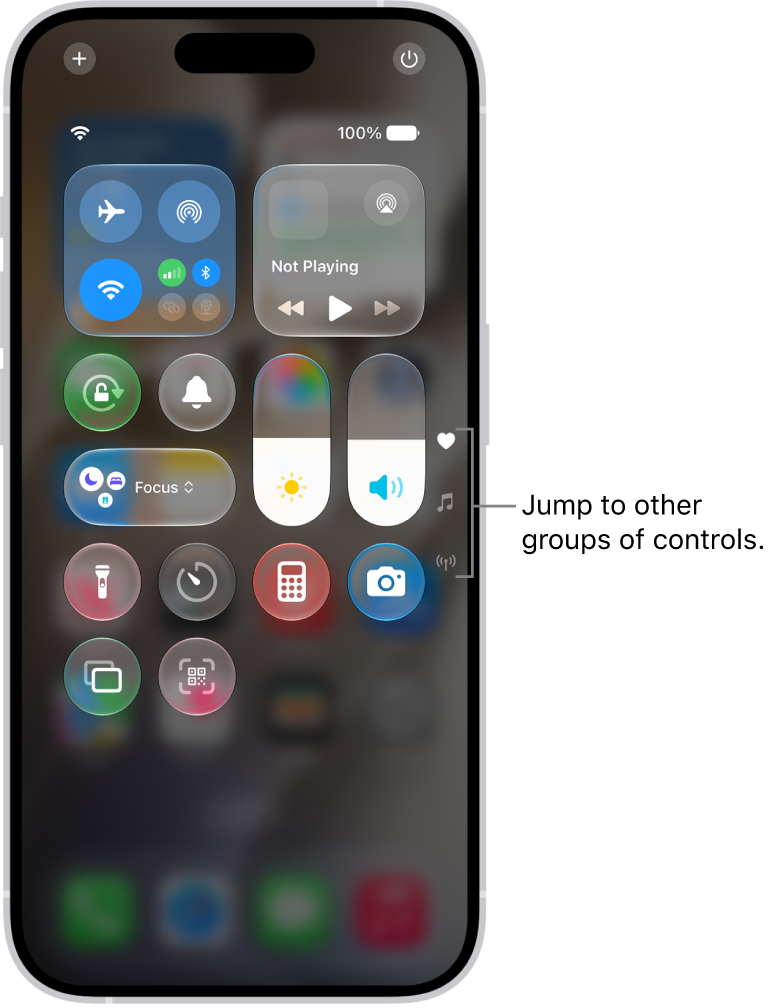
Open Control Center, then tap the Add button to begin editing the controls.
-
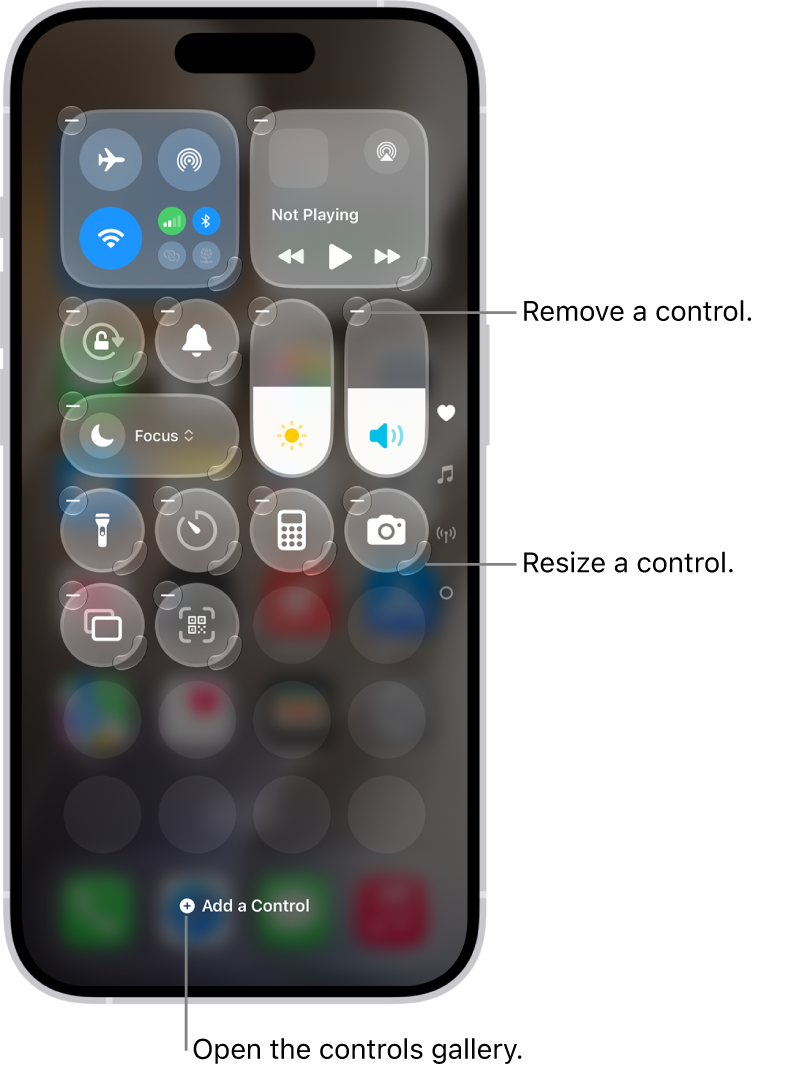
Tap the Remove button at the upper left of the control you want to delete.
-
Tap Add a Control at the bottom of the screen to open the controls gallery, then tap the control to add it back to the Control Center.
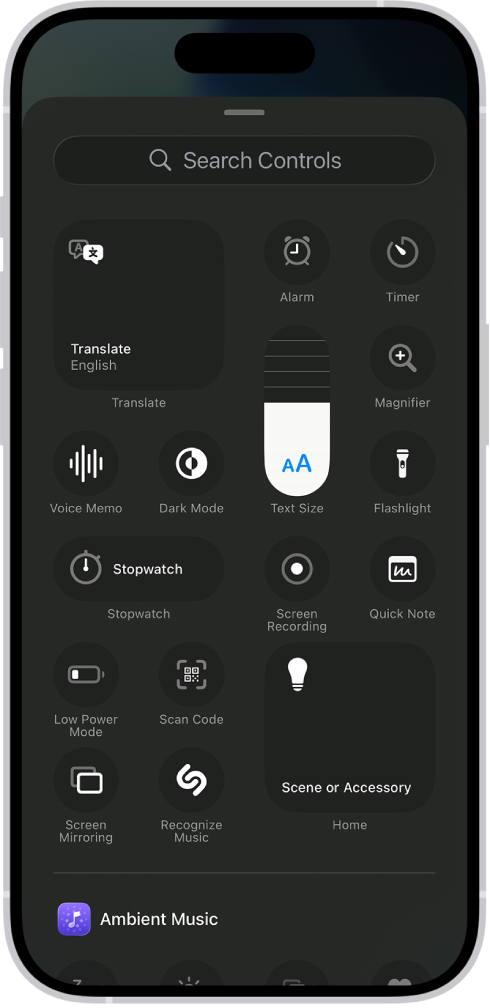
After customizing the Control Center on your iPhone, try launching it again to check if the issue is fixed.
7. Restart Your iPhone 18 Pro Max
The best and quickest approach to resolve any software issue you might be experiencing on your iPhone is to restart it. Therefore, a simple restart should fix this Control Center issue. However, there’s no dedicated restart button, so you need to turn it off and back on.
To shut down your iPhone, simultaneously press and hold the side button and either volume button until the sliders appear, then drag the Power Off slider.

You can restart your iPhone 18 Pro or iPhone 18 Pro Max even if its buttons are broken. Press and hold the side button until the Apple logo appears. Then check if you can access the Control Center.
8. Reset Your iPhone’s Settings
Your final option is to reset all the settings of your iPhone if the Control Center is still not functioning properly despite applying all the methods mentioned in this post.
This method won’t impact the data stored on your iPhone, but it will fix any issues you’re facing and return all of your iPhone’s settings to their factory default values. Here’s what you need to do:
- Open Settings and select General.
- Scroll down and select the Transfer or Reset iPhone option.
- Tap Reset and choose Reset All Settings.
Enter your passcode for verification, and iOS will reset your iPhone’s settings. Now, try accessing the Control Center again.
Resolve Your Control Center Issues
Using the methods mentioned in this post, you can easily fix the Control Center in iOS when it’s not opening. However, if you’ve tried all the methods and still find that the Control Center isn’t working on your iPhone 18 Pro Max, you should contact Apple support for further assistance.
An inoperable Control Center can likely result from a faulty device or a software bug that might require a professional to fix it.

