









Although many features of smartphones now overlap with computers, making and receiving calls are still a phone’s essential functions. Therefore, it can be frustrating when you can access the internet, take photos, and more with your iPhone 18 Pro or iPhone 18 Pro Max, yet the device can’t perform the basic task of receiving a call.
Below, we look at the solutions you can try when you find that you’re unable to receive calls on your iPhone at all.
1. Check Your Mobile Plan Status
Let’s start by ruling out non-technical causes. First, check that you have an active mobile plan. If your plan has been suspended for more than three to four weeks, your iPhone won’t ring because most carriers only allow expired accounts to receive calls for a limited number of days.
If this is the case, simply reload and reactivate your mobile plan, and your iPhone will ring when you get calls again.
2. Disable Airplane Mode and Focus
Airplane Mode is a setting that disables cellular connectivity during a flight. But if you’re not actually on a plane, you need to turn it off so that you can receive calls without issues. Access the Control Center, and if you see that the Airplane Mode icon is orange, tap to turn it off.
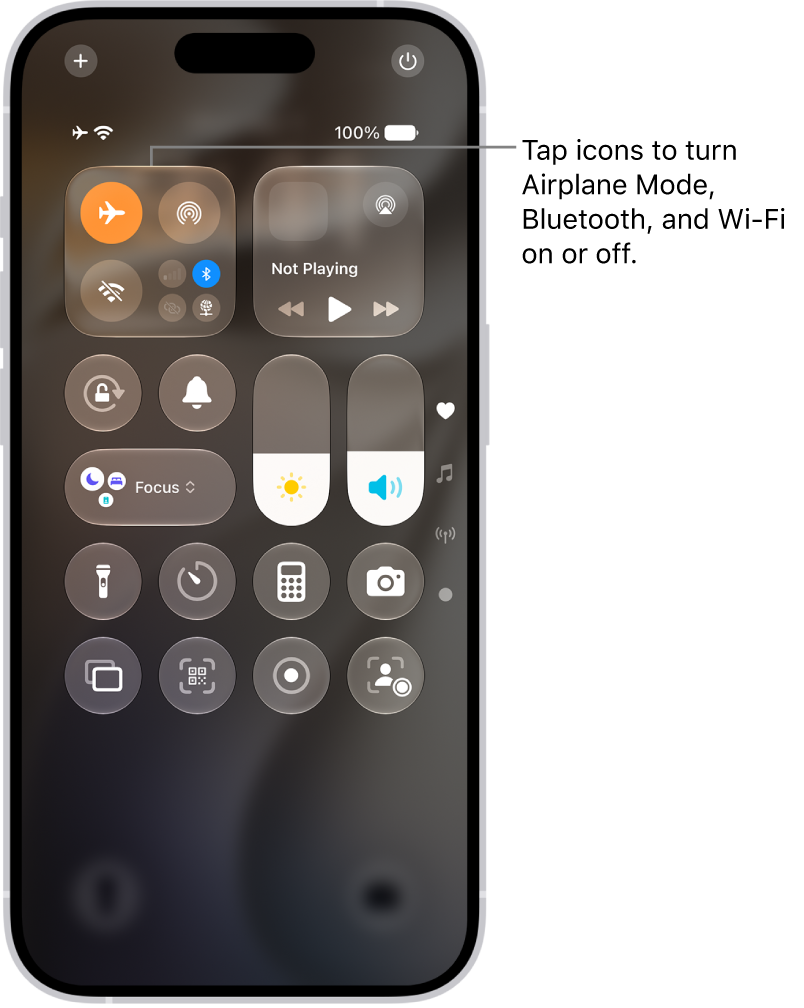
Focus is another feature that affects calls. It helps you control incoming calls, texts, and app notifications so that you can avoid distractions while working or resting. Unless you customize its settings, Focus modes such as Do Not Disturb and Sleep will disable incoming calls by default.
To check if this is the cause of your problem, open the Control Center and see if you have one of your Focus modes enabled. If yes, simply tap the mode’s icon to turn it off. Now, you should start hearing the ringtone when you get any calls.
3. Connect Your iPhone to the Internet
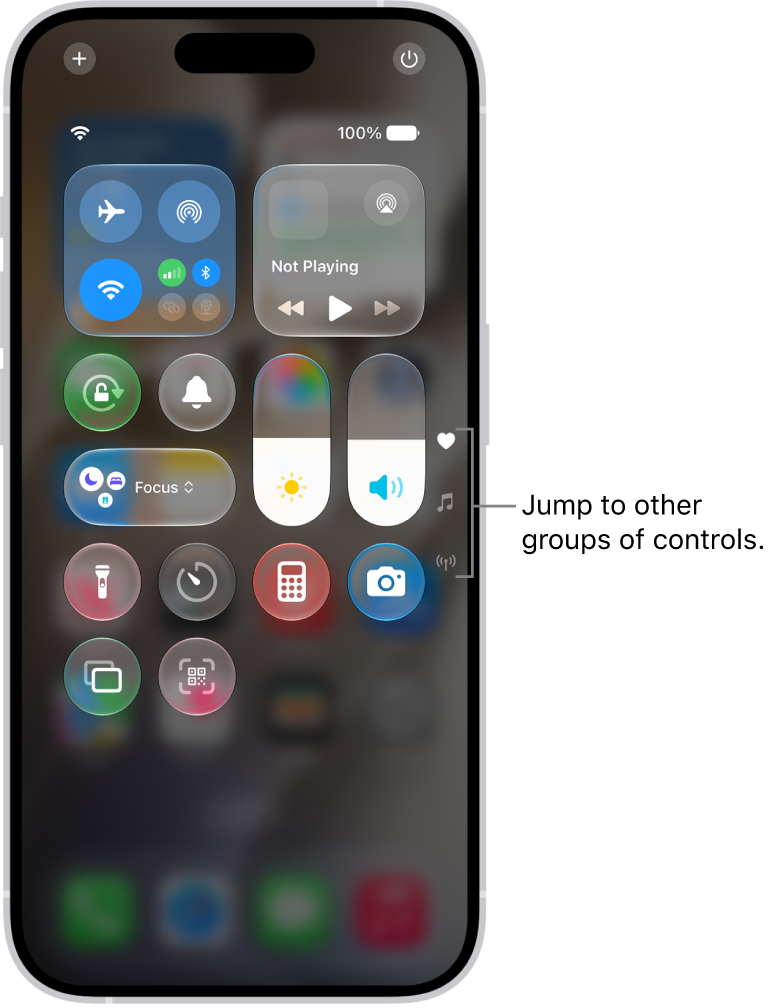
This fix applies if you intend to receive calls through third-party apps like WhatsApp and Messenger. For these apps, calls can’t come through if your iPhone is not connected to the internet.
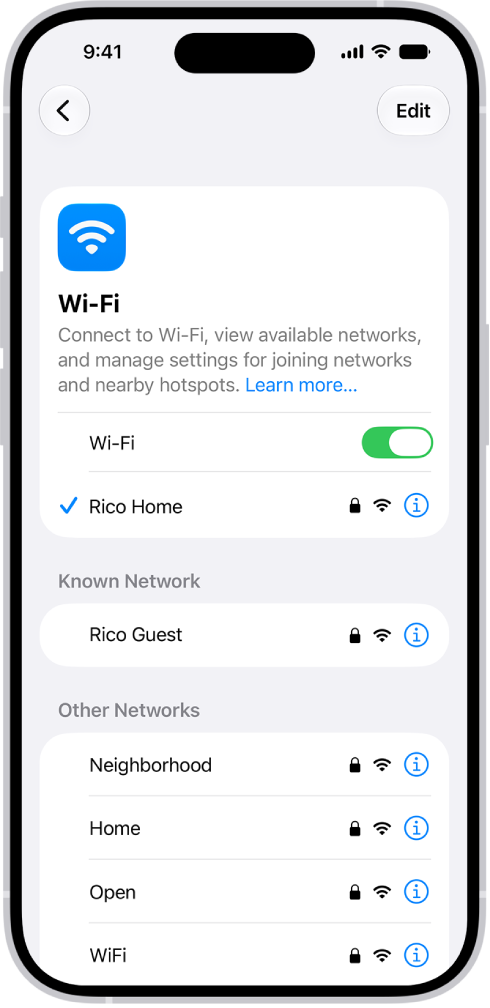
So, all you need to do is enable mobile data or connect your iPhone to a Wi-Fi network to receive calls on such apps again. To turn on mobile data, go to Settings > Cellular and toggle on Cellular Data. To connect to a Wi-Fi network, go to Settings > Wi-Fi and select a Wi-Fi network from the list.
4. Boost Your Phone Signal
Have you ever received unexpected notifications regarding missed calls, even though your iPhone didn’t ring at all during that time? This may happen when you’re in an area with weak phone reception. Apart from location issues, bad weather conditions may also cause this.
To know if your iPhone 18 Pro or iPhone 18 Pro Max is available to receive calls, you can check the cell signal icon in the status bar. If you’re expecting a call at a particular time but notice that the icon only displays one or two filled bars, you can try going outdoors (if you’re in an indoor building) to obtain a stronger signal.
5. Turn Off Silence Unknown Callers
The Silence option under Screen Unknown Callers mutes all incoming calls from people not in your contacts. It also mutes calls from people you have never contacted or received the phone number for (via call, text, or email).
So, if someone like a distant relative or delivery person calls, you might not hear the incoming ringtone with this setting enabled. To fix it, go to Settings > Apps > Phone and scroll down to Screen Unknown Callers section. If Silence is selected, choose Never.
Now, you should hear the ringtone for all incoming calls unless you have blocked the person.
6. Check if You’ve Blocked the Caller
After you block someone on your iPhone, they can’t call, FaceTime, or text you. It’s possible that you blocked a person by accident or no longer need to have them blocked, and that’s why you can’t hear when they contact you. To address this, here’s how to check your block list and unblock them.
Go to Settings > Privacy & Security > Blocked Contacts. In the list of blocked contacts, swipe left on the desired entry and tap Unblock. Alternatively, tap Edit, then hit the red Remove button and tap Unblock.
7. Restart Your iPhone 18 Pro Max
Restarting your device is a simple and effective way to fix common issues without much trouble. If your phone doesn’t ring even after trying the above solutions, turn off your iPhone and turn it back on after a minute to restart it. Simultaneously press and hold the side button and either volume button until the sliders appear, then drag the Power Off slider. Press and hold the side button until the Apple logo appears.

8. Turn Off Call Forwarding
When call forwarding is enabled, you don’t get any notification or hear a ringtone when people call you, as incoming calls are diverted to another number. To turn off call forwarding to ensure you receive calls on your iPhone 18 Pro Max as usual, go to Settings > Apps > Phone > Call Forwarding. Give it a few seconds to load, then tap to toggle off Call Forwarding if it was enabled.
9. Review Third-Party Call Blockers
Suppose you’re waiting for a call from your bank. Any third-party call identification and spam-blocking apps you have installed may think the customer service number is a robocall or spam and thus block it.
To fix this, open any of those apps on your iPhone and whitelist any numbers you keep missing calls from. You may also want to turn off all call blocking from inside the app or by going to Settings > Apps > Phone > Call Blocking & Identification. Then, turn off any call identification apps you see here.
10. Update Your iPhone and Other Third-Party Apps
By this point, one or more of the above solutions should have fixed your iPhone not ringing. But in case you’re still having problems, make sure your iPhone is running on the latest iOS. Go to Settings > General > Software Update to see if an update is available for your device.
You should also update apps like WhatsApp or Zoom if you intend to receive calls through them. It may be a bug that’s been causing call reception issues, so updating the respective iPhone app might resolve the problem.
11. Reset Network Settings
The last method you can try is to reset the network settings on your iPhone. This deletes network-related data and returns the settings to its default state.
Go to the Settings app on your iPhone. Tap General, tap Transfer or Reset iPhone, then tap Reset. Tap Reset Network Settings.
Another common solution is to reset all settings instead. This procedure won’t delete personal data like music and photos. Instead, it restores all settings, in addition to network ones, to their default factory values. To do so, go to Settings > General > Transfer or Reset iPhone > Reset > Reset All Settings.
Receive Calls on Your iPhone 18 Pro Max Again
When you can’t receive calls at all on your iPhone, it’s usually due to two main reasons. One is phone signal issues, and the other is that there’s a setting on your iPhone that’s blocking the call from coming through.
By applying the fixes above, you should be able to receive calls normally again. However, if the issue persists, you should contact your mobile carrier service provider or Apple Support for further assistance.


