









If you are running out of space on your iPhone you may be looking at the huge amount of space being attributed to Photos and thinking that deleting all the photos from your iPhone 18 Pro Max would be an easy way to increase your storage.
You may have heard of iCloud Photos and wondered if that would be a way to back up your photos so you can delete them from the iPhone. Or you may already be using iCloud Photos and think they are all backed up in iCloud and can be deleted from your iPhone. But you’d be very wrong!
iCloud can be a little confusing: it’s not a backup it’s more of a sync. So rather than being a way to free up space on your iPhone, it’s more of a way to make everything available on all your devices. That’s not to say you can’t use iCloud to make more space on your iPhone, you can, but probably not in the way you think.
So, in this article, we will explain how you can reduce the amount of space photos take up on your iPhone using iCloud and how you can delete photos from your iPhone 18 Pro Max and not iCloud.
Find out how to save space on your device without accidentally trashing your digital memories.
If I delete photos from my iPhone are they deleted from iCloud?
iCloud Photos is a sync. It allows you to see all your images on all your Apple devices (and at the iCloud.com website). If you delete a photo on your iPhone it will be removed from the iCloud sync. However, you do have a period of 30 days to recover it from the Recently Deleted folder.
To find the Recently Deleted folder in Photos on your iPhone 18 Pro Max follow these steps:
-
Tap on the Collections tab in the Photos app.
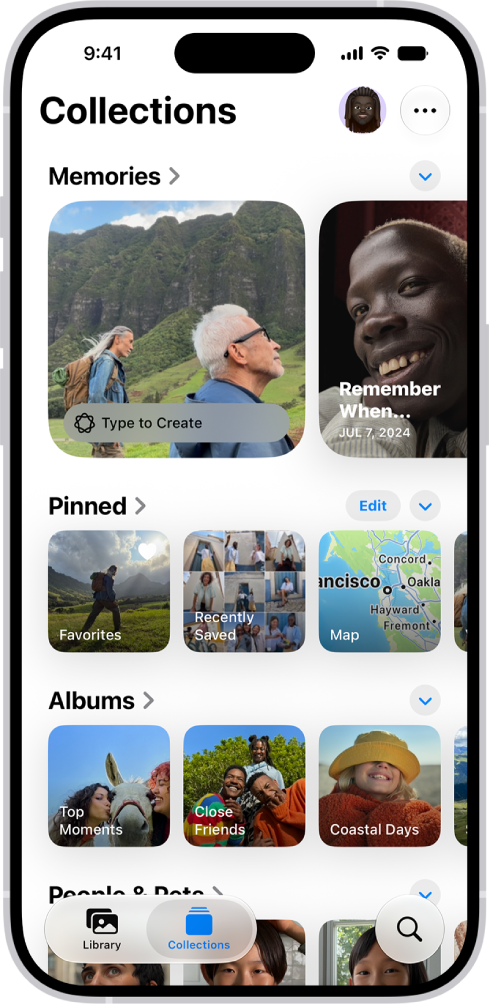
- Swipe down to the Utilities section and find Recently Deleted.
-
Unlock the folder.
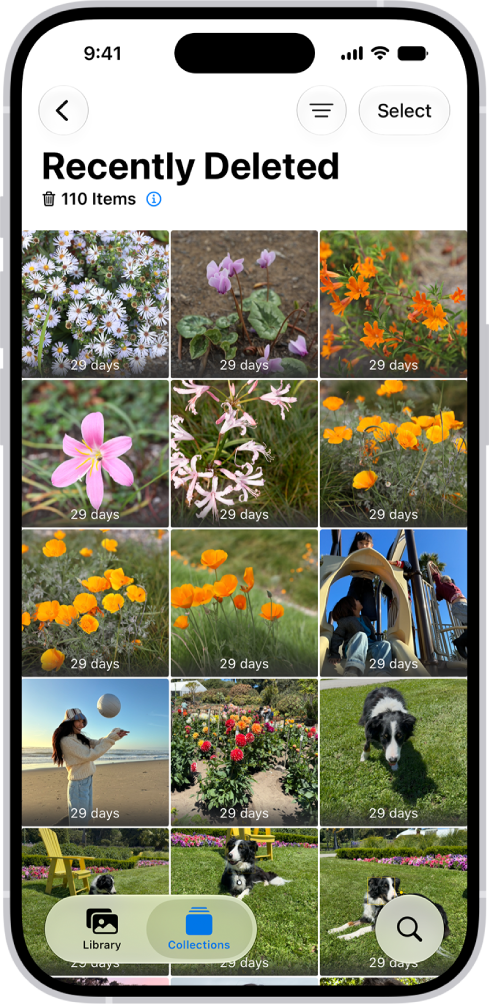
- Find the photo select it. (If you want to recover more than one image tap on Select and tap on all the images you wish to restore.)
- If you have selected just one image that photo will open on your screen. Tap on Recover.
- If you select more than one image tap on the three dots at the bottom right of the screen and choose Recover.
How to use iCloud Photos to save space on your iPhone 18 Pro Max
This doesn’t mean that iCloud can’t help you save space on your iPhone.
If you use iCloud Photos and choose Optimize iPhone Storage you can reduce the amount of space taken by the photos stored on your iPhone.
Apple explains: “When Optimize iPhone Storage is turned on, all your full‑resolution photos and videos are stored in iCloud in their original formats, with storage-saving versions kept on your iPhone.” This should significantly reduce the amount of space being taken up by your photos.
The only limit is the amount of space you have available in iCloud. Essentially Apple offers the following:
- 5GB free (this won’t be enough for all your photos)
- 50GB 99c/99p
- 200GB $2.99/£2.99
- 2TB $9.99/£8.99
- 6TB $29.99/£26.99
- 12TB $59.99/£54.99
If you take a lot of photos you might need to consider 2TB or more, but you will be able to share the space with members of your family if you turn on Family Sharing.
How to turn on iCloud Photos
To use iCloud Photos follow these steps:
- Open Settings on your iPhone.
-
Tap on the Apple Account section at the top of the screen.
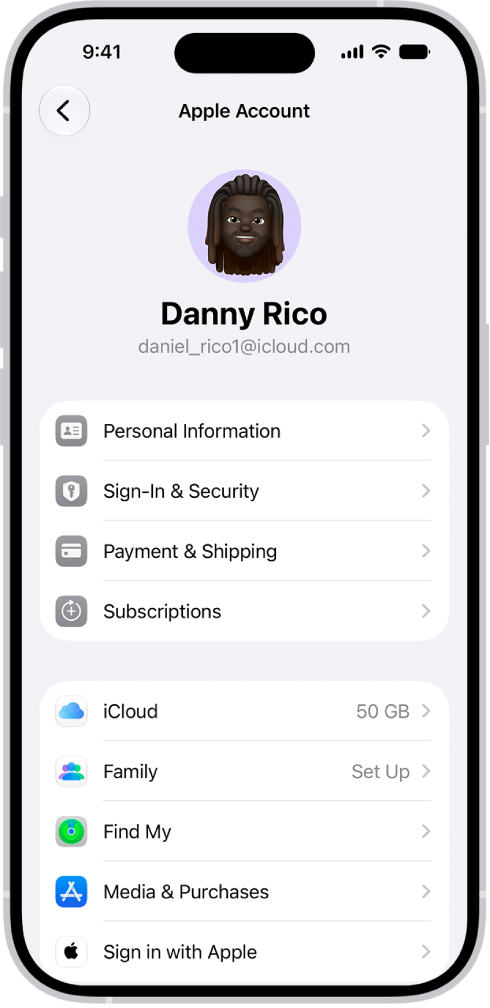
-
Tap on iCloud.
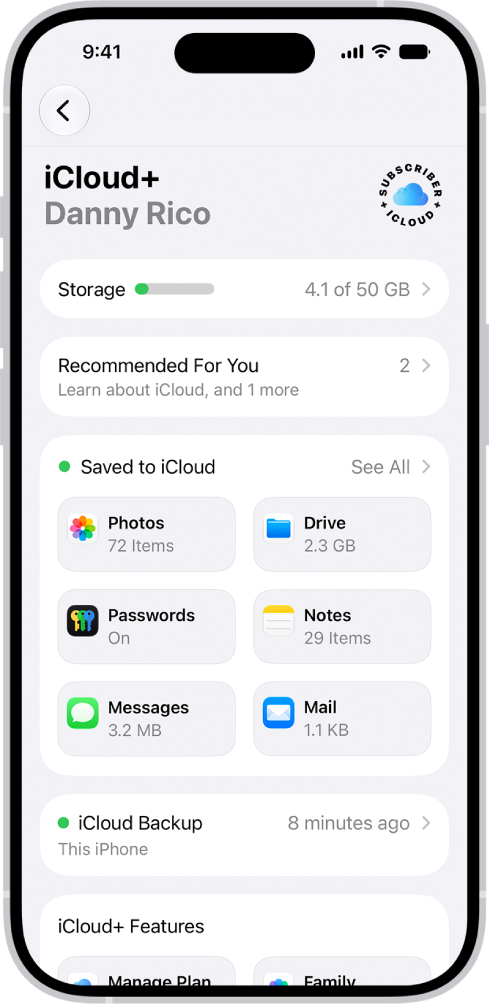
- Tap on Photos.
- Switch the slider beside Sync this iPhone on.
How to optimize iPhone storage with iCloud Photos.
If you want to reduce the amount of space being taken up by photos on your iPhone you need to turn on Optimize iPhone Storage.
Once you have iCloud Photos turned on you can choose for high-res versions of your images and videos to be saved in iCloud, but only small versions on your iPhone.
- Go to Settings and tap on your Apple Account.
- Tap on iCloud.
- Tap on Photos, then tap iPhone Storage.
- Now make sure that Optimize iPhone Storage is selected rather than Download and Keep Originals.
Once you have turned on iCloud Photos and Optimize iPhone Storage there should be no need to delete photos from your iPhone 18 Pro Max.
What happens if I turn off iCloud Photos?
If you go to Settings > [your name] > iCloud > Photos you will see that it is possible to stop syncing your iPhone by switching the slider beside Sync this iPhone to off.
If you do this, and have Optimize iPhone Storage on, you will see the option to remove photos from your iPhone or download the photos and videos to your iPhone.
Assuming you don’t have space on your iPhone to download everything, you might consider the Remove from iPhone option. At this point, you are likely wondering: “If I choose the Remove from iPhone option will all my photos be deleted from iCloud?”
If you never connect that iPhone to iCloud again your photos will remain in iCloud. But, crucially, if you later decide to connect that iPhone to iCloud using the same Apple Account to do so, the iCloud sync will result in all your photos being removed from iCloud to match your iPhone.
How to backup photos so you can delete them from iPhone
If you want to remove the photos from your iPhone and still have them backed up there are some ways to do this.
Here are a few options to consider.
Option 1: Use Google Photos
One option is to use Google Photos to back up your iPhone photos. The steps are as follows:
- Download the Google Photos app on your iPhone.
- Allow Google Photos to access your iPhone.
- Choose the option to Back Up and Sync.
With Google Photos up and running all the photos you take on the iPhone will be backed up. This should mean that if you delete photos from your iPhone 18 Pro or iPhone 18 Pro Max they will remain in Google Photos.
Option 2: Back up to a Mac
You could save all the images synced in iCloud Photos to your Mac. Assuming you have enough space on your Mac this may be an option.
- Open Photos on your Mac.
- Click on Photos in the menu bar.
- Choose Settings.
- Click on iCloud.
- Choose Download Originals to this Mac.
- With this option selected high res versions of all the images in iCloud will be downloaded to the Mac. Expect it to take some time!
Note that unless you turn off iCloud Photos your entire library will still be synced via iCloud, so if you delete something from your Mac it will be removed from iCloud.
There are other ways to import your photos from your iPhone to your Mac.
You can import images directly to Photos on a Mac. To do this:
- Plug your iPhone into your Mac.
- Open Photos.
- Click on your iPhone in Devices.
- Wait while your Mac prepares to import from your iPhone.
- Once you can see previews of the Photos on your iPhone you can choose which ones you want to import.
- Click on Import.
You can also use Image Capture to import photos to a folder on your Mac.
Both of these options will take a long time if you have a lot of photos stored on your iPhone.
Once you have backed up your photos from your iPhone to your Mac you might want to consider backing up your Mac, or moving your Photos library to an external drive.


