If Face ID malfunctions or stops working correctly, you won’t be able to unlock your iPhone 18 Pro Max, authorize Apple Pay transactions, autofill passwords, approve downloads, or sign in to apps with a gaze.
If you can’t set up Face ID or the facial recognition feature stops working randomly, becomes unavailable, won’t recognize your face anymore, or prompts you to enter a passcode instead, our troubleshooting tips will help you fix it.
When Does Face ID Become Unavailable?
Before going straight to the fixes, Face ID will temporarily stop working on your iPhone 18 Pro Max in these situations:
- After five unsuccessful facial scans.
- You just turned on or restarted the device.
- The device wasn’t unlocked in more than 48 hours.
- You initiated the shutdown or Emergency SOS screen.
- The device was put in Lost Mode via the Find My app.
- The passcode hasn’t been used to unlock the device in the last six and a half days and Face ID hasn’t unlocked the device in the last 4 hours.
And now, let’s check out our Face ID fixes.
1. Check Your Face ID Settings
As the first order of business, check if Face ID has been set up and configured correctly:
- Open the Settings app.
- Scroll down and tap on Face ID & Passcode.
-
If you see the Reset Face ID option, Face ID is already set up on this device. Otherwise, choose Set up Face ID and follow the instructions.
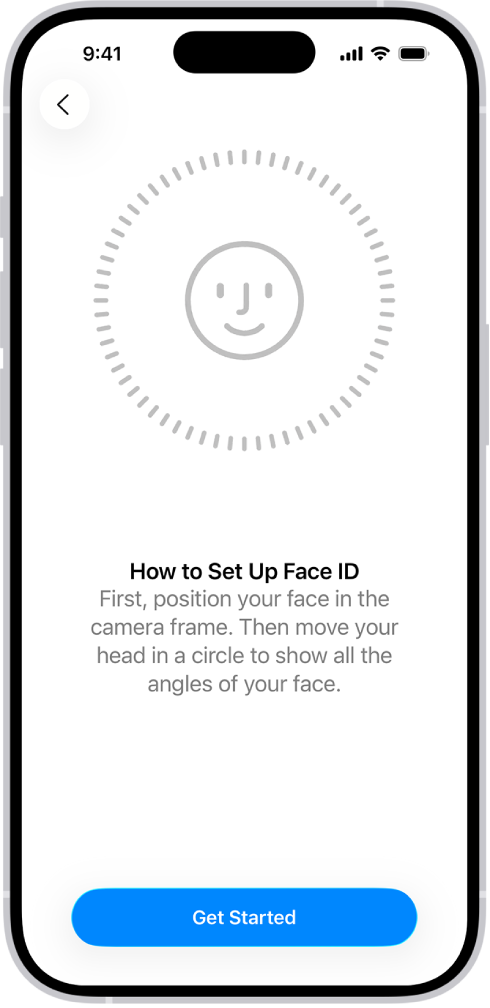
- With Face ID set up, turn on iPhone Unlock, iTunes & App Store, Contactless & Payments, Password AutoFill, and Other Apps underneath Use Face ID For.
2. Allow Face ID in Third-Party Apps
Your favorite third-party apps for banking, payment, instant messaging, etc., might use Face ID for login authentication. If you denied an app permission to use Face ID in the past, however, you’ll be prompted to enter your device’s passcode each time instead.
Here’s how to turn on Face ID for a compatible third-party app:
- Open the Settings app.
- Scroll down and tap on Face ID & Passcode.
- At the bottom of the Use Face ID For section, touch Other Apps.
- Ensure the switch for the concerned app, like WhatsApp, is set to ON.
Alternatively, tap the desired app in the root list of the Settings app (like Settings > Apps > WhatsApp) and verify whether Face ID has been switched on.
3. Clean the TrueDepth Camera Sensor
Over time, the TrueDepth camera lens could become dirty or greasy. Use a soft, dry cloth to wipe the sensor array at the top so nothing obscures it. On iPhone 18 Pro models, the TrueDepth camera is at the top of the device towards the left corner. Some rugged cases and thick screen protectors may slightly cover the sensors, throwing Face ID off, so consider removing them.
4. Avoid Blocking Your Face
For Face ID to perform smoothly, the TrueDepth camera needs a clear view of your eyes, nose, and mouth, so avoid obscuring this area with a veil or similar clothing. If you’ve set up Face ID with a mask, ensure your eyes aren’t blocked when using the feature.
“You might need to hold your iPhone higher or to try moving your iPhone higher and closer if you’re wearing a face mask,” Apple notes. Thankfully, Apple Watch owners can unlock an iPhone with their Apple Watch while wearing a mask.
5. Try Using Face ID Without Sunglasses
Face ID uses infrared light invisible to the human eye. Apple designed the feature to work with hats, scarves, glasses, contact lenses, and many sunglasses. Unfortunately, most polarized sunglasses and lenses interfere with infrared light. If your device doesn’t unlock with Face ID while wearing a pair of shades, take them off and try again.
6. Hold Your iPhone Correctly
To use Face ID properly, hold your iPhone 18 Pro or iPhone 18 Pro Max at a comfortable distance, not too far away or close to your face. Face ID works best at arm’s length or closer (10-20 inches or 25–50 centimeters). If you cover or obstruct the Face ID sensors with something like your finger, you’ll see a “Camera covered” message with an arrow pointing at the TrueDepth camera.
Face ID works in both portrait and landscape. As for the Face ID with a mask feature, it only works in portrait mode, as per Apple’s website.
7. Restart Your iPhone 18 Pro Max
A restart is the most basic fix for any issue. It involves two steps. Firstly, turn off your iPhone in Settings > General > Shut Down. And secondly, wait about a minute before turning the device back on. Press and hold the side button until the Apple logo appears.
The Face ID components that stopped functioning should now work perfectly. But for security reasons, you must enter your passcode to re-enable Face ID after a restart.
8. Update iOS to the Latest Version
Apple regularly updates iOS to fix bugs, patch vulnerabilities, and improve its software. If Face ID doesn’t work, the problem may be at a deeper software level. In that case, update your iPhone 18 Pro Max to the latest version of iOS by heading over to Settings > General > Software Update.
9. Set Up an Alternate Appearance
Setting up an additional Face ID appearance may help the facial recognition feature perform better, especially if you wear glasses or have facial hair that grows fast.
Follow these steps to set up an alternate Face ID appearance:
- Open Settings on your iPhone 18 Pro Max.
- Choose Face ID & Passcode from the root list.
- Choose the Set Up an Alternate Appearance option, then follow the onscreen prompts.
Face ID continuously learns and updates its mathematical representation of your face as your appearance changes and evolves. But if you suddenly look vastly different (i.e., after shaving a full beard), configuring an alternate appearance will ensure Face ID still recognizes you.
10. Reset Face ID
If you still need help, reset Face ID, then set it up again. Go to Settings, tap Face ID & Passcode, then tap Reset Face ID. Next tap Set up Face ID to set it up again.