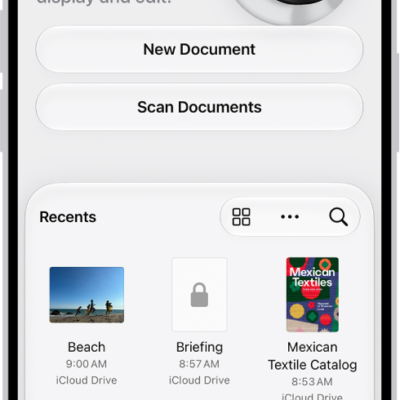
You can add, delete, rotate, reorder, or crop pages in a PDF in the Preview app on your iPhone.
You can insert a blank page, insert a PDF or image, or insert a scanned document, and you can delete the selected page, too. And if you make a change you don’t want, you can undo it.
Here’s how to add, delete, rotate, move, or crop PDF pages in Preview on iPhone.
Add or delete pages
- Start the Preview app on your iPhone.
- Open a PDF.
- Tap the page count to show thumbnails. (If the page count doesn’t appear, tap the PDF.)
- Touch and hold a thumbnail and then do any of the following:
- Insert a blank page: Tap Insert Blank Page.
- Insert a PDF or image: Tap Insert from File.
- Insert a scanned document: Tap Scan Pages, scan the document, then tap the Done button.
- Delete the selected page: Tap Delete Page.
Rotate a page
- Start the Preview app on your iPhone.
- Open a PDF.
- Tap the More button. Tap Rotate Left or Rotate Right.
Move a page
- Start the Preview app on your iPhone.
- Open a PDF.
- Touch and hold a thumbnail until menu options appear. Then drag the page thumbnail above or below another one. (If you don’t see thumbnails, tap the screen to show the page count, then tap the page count.)
Crop a page
- Start the Preview app on your iPhone.
- Open a PDF.
- Scroll to the page you want to crop. Then tap the Crop button.
- Drag the blue handles to select an area and then tap Crop. (If Crop doesn’t appear, tap within the selected area.)
To undo a change, tap the More button, then tap Undo.
Tag: Preview