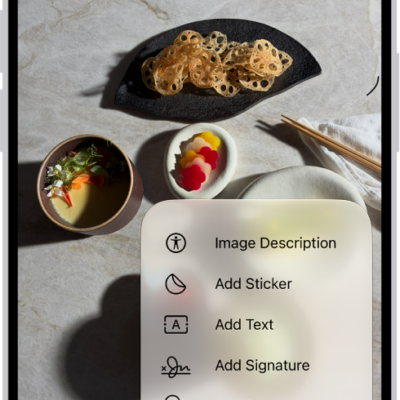
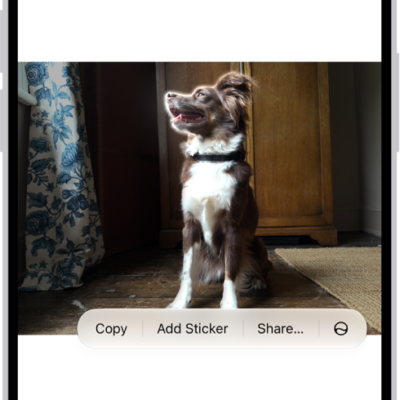
You can copy, highlight, underline, or strike through text in a PDF file. You can also annotate a PDF or image with stickers, signatures, shapes, or text.
You can pick a highlight color, and images can also get an image description or a loupe. Text you copy can be pasted into another document or app, and any change can be undone.
Here’s how to annotate a PDF or image in Preview on iPhone.
Select and copy text
- Start the Preview app on your iPhone.
- Open a PDF.
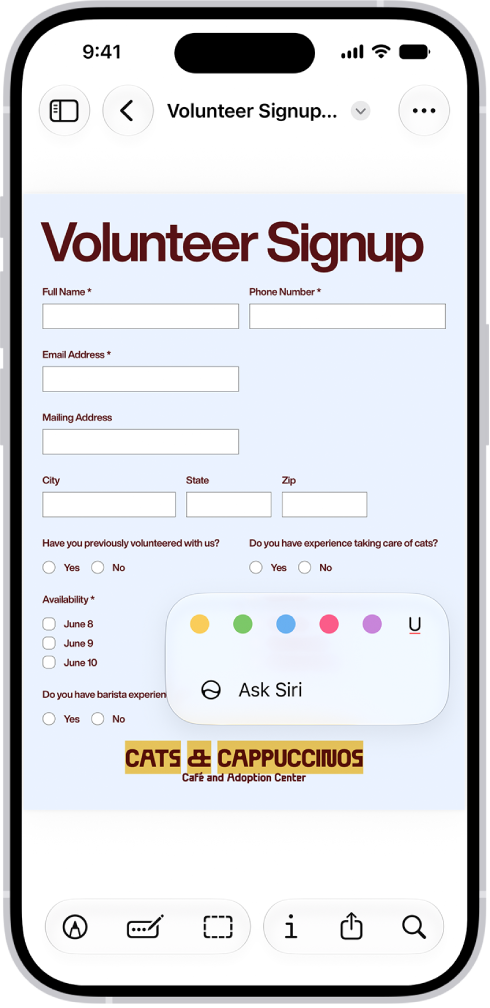
- To select text, touch and hold the first word and then move the grab points.
- To copy the selection, tap Copy.
The text is then ready to paste into another document or app.
Highlight, underline, or strike through text
- Start the Preview app on your iPhone.
- Open a PDF.
- Select and copy text, then tap Highlight.
- Choose a highlight color, or tap the underline or strike through button.
Add an annotation
- Start the Preview app on your iPhone.
- Open a PDF.
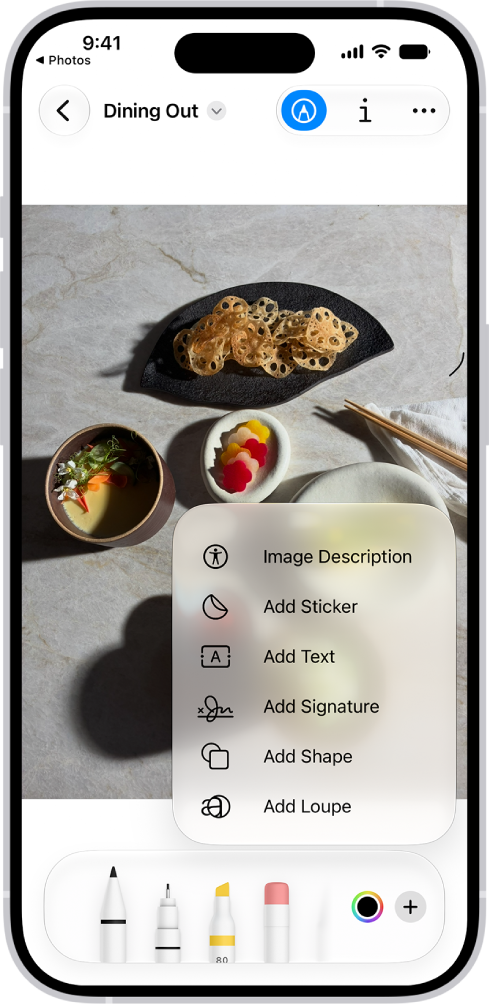
- Tap the Markup button and tap the Add button. Then choose an option, such as a sticker, signature, shape, or text. For images, you can also add an image description or a loupe.
To undo a change, tap the More button, then tap Undo.
Tag: Preview