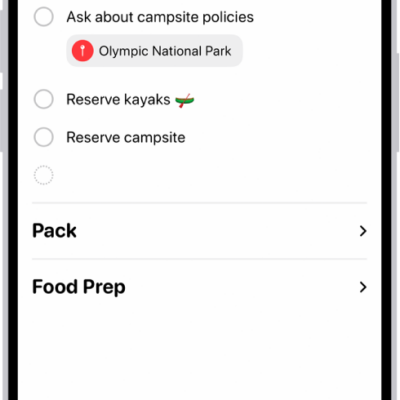
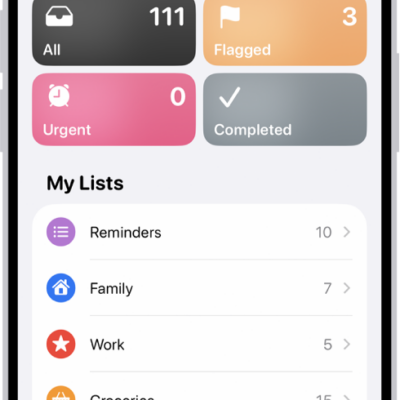
In the Reminders app, you can use multiple accounts—such as iCloud, enterprise-managed iCloud, Microsoft Exchange, and Yahoo—and keep all your to-do lists in one place. Your reminders stay up to date on all your devices that use the same accounts.
They appear on your iPhone, iPad, Apple Watch, and Mac when you’re signed in to the same Apple Account. Reminders from iOS 12 or earlier may need an update in iCloud before you get features like attachments and flags.
Note: Some features aren’t available with other accounts. To use all the Reminders features described in this guide, you need updated reminders in iCloud.
Keep your reminders up to date on all your devices with iCloud
- Open the Settings app on your iPhone.
- Tap your name.
- Tap iCloud, tap See All, and turn on Reminders.
Sign in to the same Apple Account on your iPhone, iPad, Apple Watch, and Mac, and your reminders stored in iCloud show up on each one, changes included.
Update your reminders stored in iCloud
Features such as attachments, flags, list colors and icons, and more may require an update to your reminders stored in iCloud if you’ve been using Reminders with iOS 12 or earlier.
- Open the Settings app on your iPhone.
- Tap your name.
- Tap iCloud, tap See All, and make sure Reminders is turned on.
- Open the Reminders app.
- On the Welcome to Reminders screen, choose one of the following options:
- Update Now: Begin the update process.
- Update Later: A blue Update button appears above your lists; tap it when you’re ready to update your reminders.
Note: Updated reminders don’t work with the Reminders app in earlier versions of iOS and macOS, because they aren’t backward compatible.
Add other accounts
If your to-do lists are in other accounts, such as Microsoft Exchange and Yahoo, you can manage them in the Reminders app, too.
- Open the Settings app on your iPhone.
- Tap Apps and tap Reminders.
- Tap Reminders Accounts and tap Add Account.
- Do one of the following:
- Choose an account provider, then enter your account information.
- If your account provider isn’t listed, tap Other, tap Add CalDAV Account, enter your account information, then turn on Reminders for that account.
Remove an account
If you remove or delete an account, the reminders in it stop appearing on your iPhone, but they remain in your internet account, such as iCloud.com or Microsoft Exchange, and on any other devices you had already set up.
- Open the Settings app on your iPhone.
- Tap Apps and tap Reminders.
- Tap Reminders Accounts. Then tap the account you want to remove.
-
Do one of the following:
-
Stop using Reminders on the account: Turn off Reminders.
You can continue to use the account for other services, such as Calendar.
- Stop using all services on the account: Tap Sign Out (for an iCloud account) or Delete Account (for other accounts).
-
Stop using Reminders on the account: Turn off Reminders.
Your account may be managed by your organization if you don’t see Sign Out or Delete Account. Ask an administrator for removal instructions.