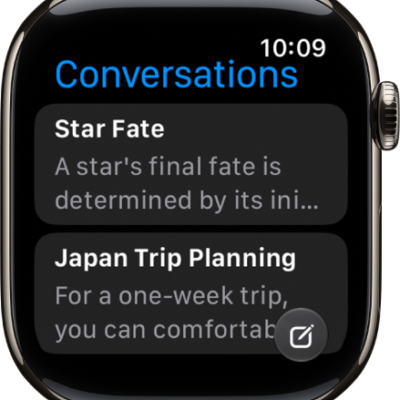
You can change text size and display settings to customize the appearance of onscreen elements. You can make text bold, turn on color filters, and adjust transparency.
Text size is quick to change from Control Center, and you can limit animation, too.
Here’s how to adjust text and display settings on Apple Watch.
Adjust text size in Control Center
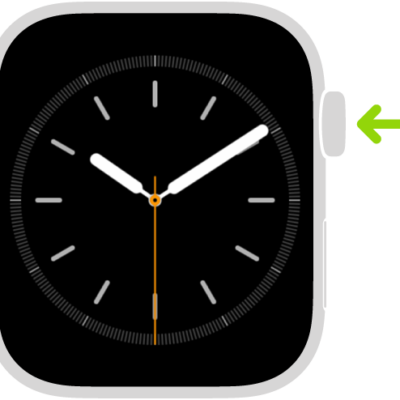
- Press the side button to open Control Center.
- Tap the Adjust Text Size button and turn the Digital Crown to adjust.
Choose how text and other items appear on the screen
You can adjust transparency, make text bold, turn on color filters, and more.
- Start the Settings app on your Apple Watch.
- Tap Accessibility, then adjust any of the following:
- On/Off Labels: Adds visual indicators to switches—a vertical line shows when a switch is on, and a circle shows when it’s off.
- Reduce Transparency: Reduces transparency effects to improve text readability against backgrounds.
- Increase Contrast: Increases color contrast between text and backgrounds for better visibility.
- Show Borders: Shows the outline of onscreen elements.
- Color Filters: Applies a filter to view the entire screen in grayscale or adjust colors for color vision deficiencies.
- Minimum Brightness: Sets a higher minimum brightness level when the display automatically adjusts to lighting conditions.
- Text Size: Adjusts the size of text for better readability.
- Bold Text: Makes text appear bolder and more prominent.
You can also go to the Apple Watch app on your iPhone, tap My Watch, tap Accessibility, then change an option.
Note: Changes in bold text and grayscale take effect after you restart your Apple Watch.
Limit animation
Motion on the Home Screen, and when apps open and close, is something you can limit.
- Start the Settings app on your Apple Watch.
- Go to Accessibility, tap Reduce Motion, and turn on Reduce Motion.
You can also go to the Apple Watch app on your iPhone, tap My Watch, go to Accessibility > Reduce Motion, then turn on Reduce Motion.
Quick tip: Turn on Reduce Motion, choose grid view for the Home Screen, and every app icon ends up the same size.
See also
- Use Zoom on Apple Watch
- Tell time with haptic feedback on Apple Watch
- Control Apple Watch with your iPhone
- Adjust the display settings on Apple Watch