Adjust the brightness, text size, wake settings, and Always On display.
You can change the text size from Control Center, set brightness, text size, and bold text in Settings, or make these adjustments on your iPhone in the Apple Watch app. The wake settings decide whether Apple Watch wakes when you raise your wrist or turn the Digital Crown, and Always On keeps the watch face and time displayed even when your wrist is down.
Here’s how to adjust the display settings on Apple Watch.
Adjust the text size in Control Center
- Press the side button to open Control Center.
- Tap the Text Size Switch button and tap the letters or turn the Digital Crown.
Adjust brightness and text size in Settings
- Open the Settings app on your Apple Watch.
-
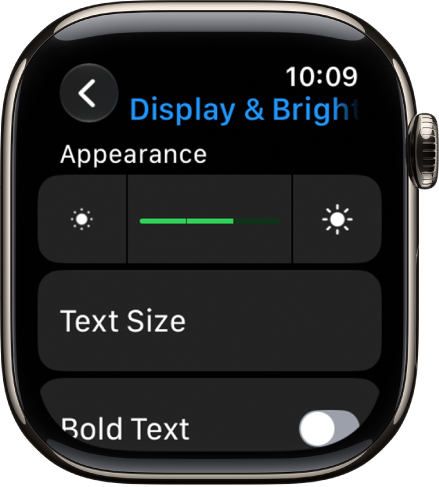
Tap Display & Brightness.
-
Set any of the following:
- Brightness: Tap the brightness buttons or turn the Digital Crown.
- Text Size: Tap Text Size and then tap the size buttons or turn the Digital Crown.
- Bold Text: Turn on Bold Text.
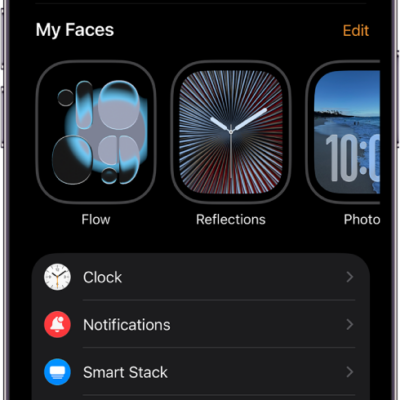
You can also make these adjustments on your iPhone—go to the Apple Watch app, tap My Watch, then tap Display & Brightness.
Adjust the wake settings
- Open the Settings app on your Apple Watch.
-
Tap Display & Brightness. Then set any of the following:
-
Wake on Wrist Raise: Allow or prevent Apple Watch from waking when you raise your wrist.
Tip: To temporarily stop Apple Watch from waking when you raise your wrist, turn on Theater Mode.
- Wake on Crown Rotation: Allow or prevent Apple Watch from waking when you turn the Digital Crown.
- Wake Duration: Choose how long the display stays on after Apple Watch wakes.
-
Wake on Wrist Raise: Allow or prevent Apple Watch from waking when you raise your wrist.
Keep your watch face visible with Always On
Always On keeps the watch face and time on display even when your wrist is down, and Apple Watch works normally when you raise your wrist.
- Open the Settings app on your Apple Watch.
- Tap Display & Brightness, then tap Always On.
- Turn on Always On and then set any of the following:
- Show Complication Data: Choose which complications show data.
- Show Notifications: Choose which notifications are visible.
- Show Apps: Choose which apps are visible.
Note: If your Apple Watch is in Low Power Mode, Always On isn’t available, so tap the display to see the watch face.
Return to clock face when inactive
You can pick how long Apple Watch waits before it returns to the clock face from an open app.
- Open the Settings app on your Apple Watch.
- Tap General and tap Return to Clock. Choose when you want your Apple Watch to return to the clock face: Always, After 2 minutes, or After 1 hour.
- You can also return to the clock face by pressing the Digital Crown.
By default, the setting you select applies to all apps, but you can choose a custom time for each app. To do so, tap an app on this screen, tap Custom, then choose a setting.
Set Apple Watch to return to your last used app
With some apps, like Workout, Voice Memos, Timers, Stopwatch, Podcasts, Now Playing, Music, Mindfulness, Maps, and Audiobooks, Apple Watch can take you back to where you were before it went to sleep.
- Open the Settings app on your Apple Watch.
- Tap General, tap Return to Clock, scroll down and tap an app, and then turn on Return to App.
Just stop what you’re doing in the app to return to the clock face. You might cancel a timer, end a route in Maps, or stop a podcast, for example.
You can also go to the Apple Watch app on your iPhone, tap My Watch, tap General, then tap Return to Clock.
See also