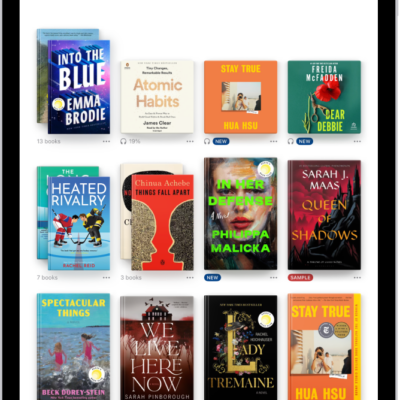
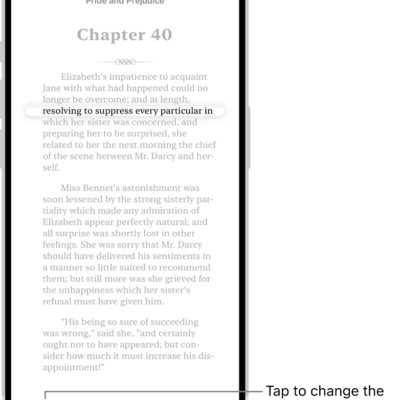
You can highlight, underline, and take notes as you read books in the Books app, and then share your annotations with others.
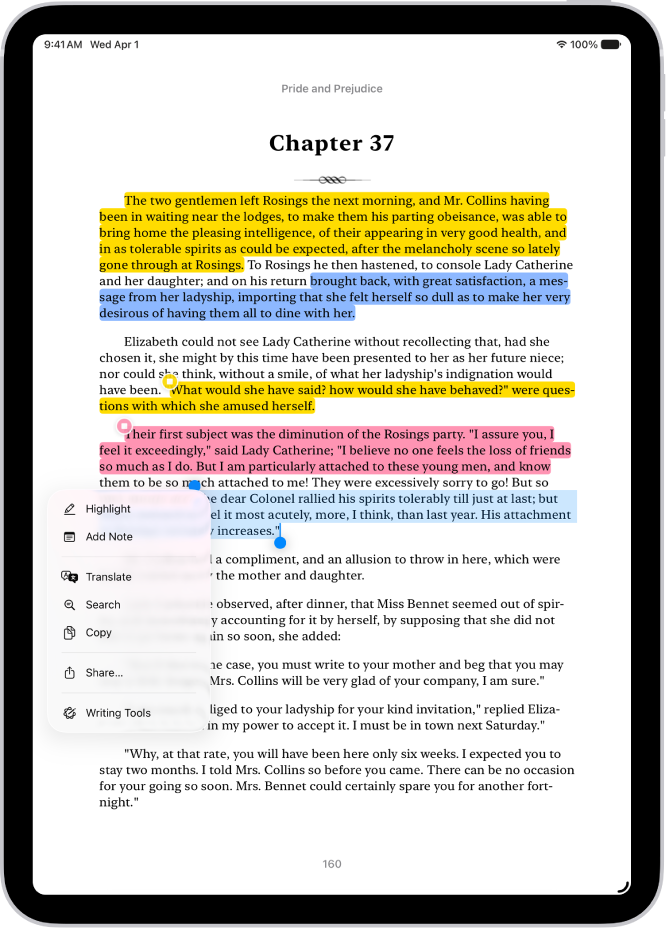
You can see all of your highlights and notes in one place, go to that location in the book, change the highlight color, or switch to underline. You can also translate, search, or copy text, and remove a highlight or a note.
Here’s how to annotate books in the Books app on iPad.
Note: Apple Books isn’t available in all countries or regions.
Highlight or underline text
- Start the Books app on your iPad.
- Tap a book cover to open it.
-
Touch and hold a word, move the grab points to adjust the selection. Then tap Highlight.
To remove a highlight or underline, tap the text, then tap Remove Highlight.
- To change the highlight color or switch to underline, tap the text, tap Highlight, and tap an option.
To see all of your highlights, tap the page, tap the Menu button, tap Bookmarks & Highlights, then tap Highlights. Tap a highlight to go to that location in the book.
Add a note
- Start the Books app on your iPad.
- Tap a book cover to open it.
- Touch and hold a word and then move the grab points to adjust the text selection.
-
Tap Add Note, enter text, and then tap the Done button.
To remove a note, tap the highlighted text, tap Remove, then tap Remove Note.
To see all of your notes, tap the page, tap the Menu button, tap Bookmarks & Highlights, then tap Highlights. Tap a note to go to that location in the book.
Share highlights and notes
- Start the Books app on your iPad.
- Tap a book cover to open it.
-
Tap a highlight or note and tap the Forward button. Then tap Share.
Tip: To share multiple highlights or notes at the same time, tap the Menu button, tap Bookmarks & Highlights, then tap Highlights. Tap the Checklist button, tap the items you want to share, then tap the Share button.
Delete a note
- Start the Books app on your iPad.
- Tap a book cover to open it.
-
Tap a note and tap Remove. Then choose Remove Note or Remove Highlight & Note.
Tip: To delete multiple notes or highlights at the same time, tap the Menu button, tap Bookmarks & Highlights, then tap Highlights. Tap the Checklist button, tap the items you want to delete, then tap the Delete button.
Translate, search, or copy text
As you read, select text and translate or copy it, or search the book for that text.
- Start the Books app on your iPad.
- Tap a book cover to open it.
- Touch and hold a word and then move the grab points to adjust the text selection.
- Tap the Forward button and then tap Translate, Search, or Copy.
See also