Use star ratings to rank your photos and videos from 1 to 5 stars. After you apply ratings, you can filter your Photos library to quickly find your favorite shots.
Star ratings appear in the top-left corner of each image in your library grid, and you can change a rating, remove it, or apply one to an unrated image later. You can also filter by rating to see all items with that rating, or all items in your library without a rating.
Here’s how to apply star ratings to photos and videos on iPad.
Turn on star ratings
- Start the Photos app on your iPad.
- Tap Collections and tap your Apple Account profile at the top of the screen.
- Turn on Show Ratings Controls.
Rate a photo or video
- Start the Photos app on your iPad.
- Open a photo or video.
- Tap the Unrated button. Then tap a star rating, from 1 through 5.
Quick tip: In your photo library grid, star ratings show up in the top-left corner of each image. To change a star rating, remove one, or apply a rating to an unrated image, touch and hold the image in the grid.
Filter photos and videos by star rating
- Start the Photos app on your iPad.
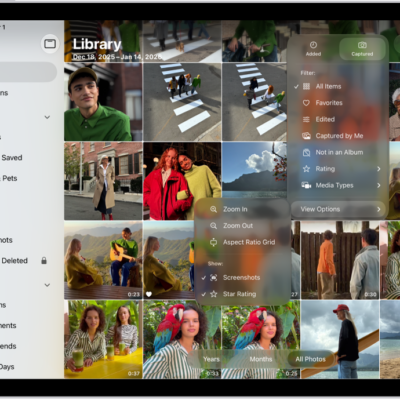
- Tap the Sort and Filter button, then tap Rating.
- Tap a rating level to see all items with that rating, or tap Unrated to see all items in your library without a rating.
To remove the rating filter, tap the star at the top of the library, then tap Remove Filters.
See also