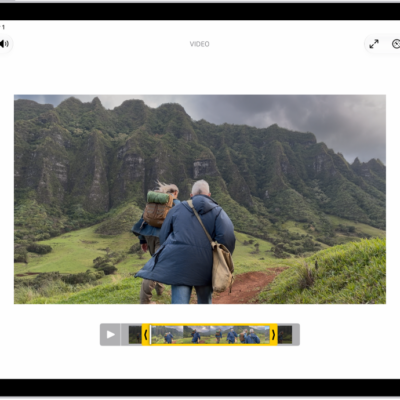
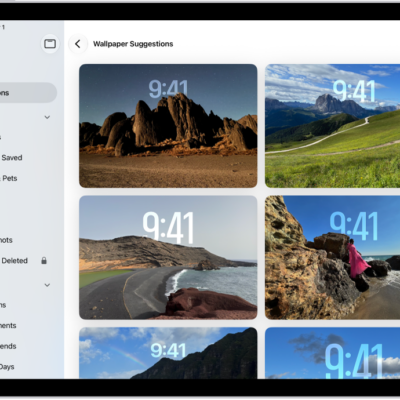
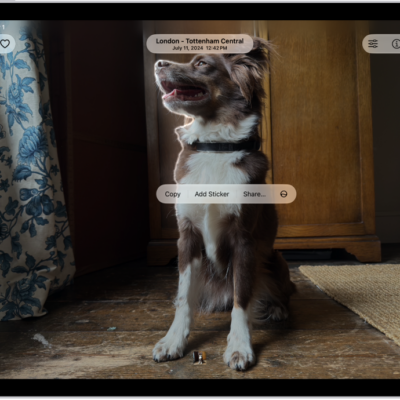
In the Photos app, you can delete photos and videos from your iPad or hide them. You can also recover photos you recently deleted. Photos you delete and hide are saved in Recently Deleted and Hidden, which you unlock using Face ID, Touch ID, or your passcode.
When you use iCloud Photos, any photos you delete or hide are deleted or hidden on all your devices. You can delete or hide several at once, and stop hiding them later. Hidden photos can’t be viewed anywhere else.
Note: The Recently Deleted collection holds deleted photos and videos for 30 days, and you can recover or permanently remove them during that time. Then Photos permanently removes them from all devices.
Delete or hide a photo or video
- Start the Photos app on your iPad.
-
While viewing a photo or video, do any of the following:
-
Delete: Tap the Delete button to delete a photo from your iPad and other devices where iCloud Photos is turned on and you’re signed in to the same Apple Account.
Deleted photos and videos are kept in the Recently Deleted collection for 30 days. During that time, you can recover or permanently remove them from all devices.
-
Hide: Tap the Actions button and then tap Hide.
Hidden photos are moved to the Hidden collection. You can’t view them anywhere else.
To turn off the Hidden collection so it doesn’t appear in the Photos app, see Hide the Hidden collection from view.
-
Delete: Tap the Delete button to delete a photo from your iPad and other devices where iCloud Photos is turned on and you’re signed in to the same Apple Account.
Delete or hide multiple photos and videos
- Start the Photos app on your iPad.
- Open your library or a collection.
- Tap Select and then tap the photos and videos you want to delete or hide.
-
Do any of the following:
-
Delete: Tap the Delete button to delete the items from your iPad and other devices where iCloud Photos is turned on and you’re signed in to the same Apple Account.
Deleted photos and videos are kept in the Recently Deleted collection for 30 days. During that time, you can recover or permanently remove them from all devices.
-
Hide: Tap the Actions button and then tap Hide.
Hidden photos and videos are kept in the Hidden collection.
-
Delete: Tap the Delete button to delete the items from your iPad and other devices where iCloud Photos is turned on and you’re signed in to the same Apple Account.
Stop hiding photos and videos
You can stop hiding a photo or video you previously hid, so that it reappears in your photo library.
- Start the Photos app on your iPad.
- Tap Collections.
- Tap the Hidden collection (below Utilities), tap View Album, and then unlock your iPad.
- Tap the photo or video you want to stop hiding.
- Tap the Actions button, then tap Unhide.
Recover or permanently delete recently deleted items
Deleted photos and videos stay in the Recently Deleted collection for 30 days. Then they’re permanently removed from iCloud, your iPad, and every other device associated with your Apple Account. Until the 30 days are up, you can recover them or delete them permanently at any time.
- Start the Photos app on your iPad.
- Tap Collections.
- Tap the Recently Deleted collection (below Utilities) and tap View Album. Unlock your iPad.
- Tap Select and choose the photos and videos you want to recover or delete.
- Tap the Actions button and then tap Recover or Delete.
Note: Photos missing from the Recently Deleted collection may be in the Recovered collection instead. For more, see our article, Find recovered items and save or delete them.
Lock and unlock the Recently Deleted and Hidden collections
The Recently Deleted and Hidden collections are locked by default. You can unlock these collections using Face ID, Touch ID, or your passcode. To change the default setting from locked to unlocked, do the following:
- Start the Settings app on your iPad.
- Tap Apps and tap Photos.
- Turn off Use Face ID, Use Touch ID, or Use Passcode.
Hide the Hidden collection from view
The Hidden collection is locked by default. For an extra layer of privacy, you can also remove it from view.
- Start the Settings app on your iPad.
- Tap Apps and tap Photos.
- Turn off Show Hidden Album.
See also