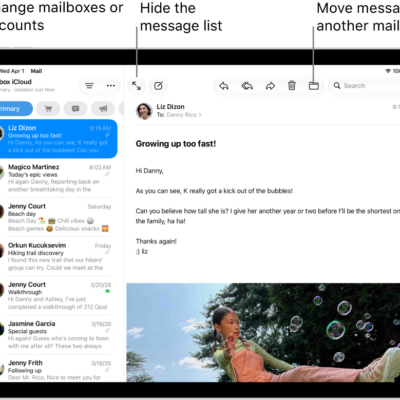
The Mail app automatically sorts your email messages into categories to help you find and manage messages more quickly (not available in all countries or regions). You can change a sender’s category or turn off categories.
Messages from a Transactions, Updates, or Promotions sender are grouped in a digest view, so you can take action on all of them at once. When one includes time-sensitive information, it also shows up in the Primary message list.
- Primary: Find personal messages and time-sensitive information.
- Transactions: Keep track of your confirmations, receipts, and shipping notices.
- Updates: Catch up on news, newsletters, and social updates.
- Promotions: Browse your coupon and sales emails.
Note: A Transactions, Updates, or Promotions message with time-sensitive information shows up in the Primary message list, too.
View all messages from a Transactions, Updates, or Promotions sender
When you tap a Transactions, Updates, or Promotions message, a digest view of messages from that sender opens. For example, if you open a Transactions message, all of the other Transactions messages from that sender will appear when you scroll up or down.
Note: In the digest view, you can take action on all messages from a sender.
- Open the Mail app on your iPad.
-
Tap a Transactions, Updates, or Promotions message.
All of your messages in that category from the same sender appear in a list.
- To view all of your messages from a sender, tap the Action Menu button at the top of the sender’s message list. Choose Show All Messages.
Note: Primary messages aren’t grouped by sender.
To view only one Transactions, Updates, or Promotions message when scrolling, tap the More button in the sidebar, then turn off Group by Sender.
Change the category of a sender
You can manually categorize messages from a sender into the category of your choosing.
- Open the Mail app on your iPad.
- Tap a message, tap the More menu in the bottom-right corner of the screen, and then choose Categorize Sender.
-
Choose a category and tap Continue.
All current and future messages from the sender will appear in the category you choose.
Turn off categories
Quick tip: Tap the category you’re currently viewing at the top of the screen, and you’ll quickly switch from that email category to all your email.
- Open the Mail app on your iPad.
- In an inbox, tap the More button at the top of the screen and choose List View.
See also
- Check your email in Mail on iPad
- Organize email in mailboxes on iPad
- Flag or block emails in Mail on iPad