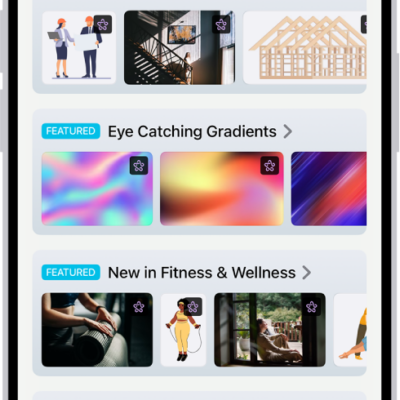
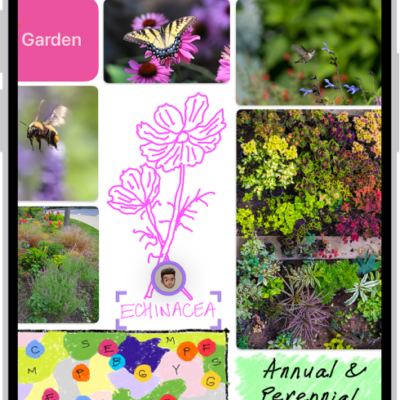
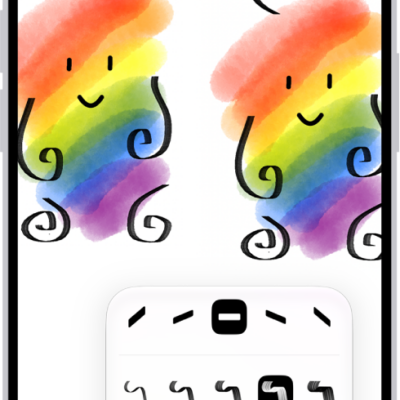
You can use the Freeform app to create boards for brainstorming and collaborating. For example, propose a trip with friends and let everyone take part in the planning, adding text, sticky notes, photos, videos, and other types of files as you go.
There’s no page to fill. The canvas expands as you add content, so you’re never constrained by space limits or page formatting, and your board is saved automatically as you work.
Here’s how to create a Freeform board on iPhone.
Create a new board
- Open the Freeform app on your iPhone.
-
Tap the New Board button.
If you don’t see the New Board button, tap the Back button.
-
Tap one of the options, such as the Add Text Box button or the Media button, to start building your board.
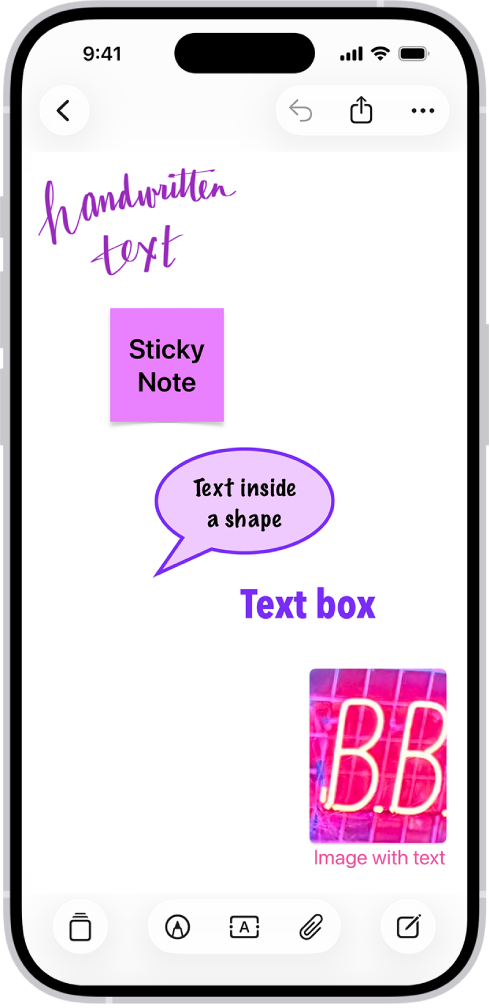
-
Move around your board by dragging your finger, and zoom in or out by pinching open or closed.
Tip: To magnify more precisely, tap the More button, tap View Options, then tap a percent.
- Your board is saved automatically as you work. To name it, tap the More button and tap Rename.
Create a board from another app
To start a new Freeform board, you can use content from another supported app, such as Safari, Notes, Maps, Photos, Files, and more.
- On your iPhone, go to the app whose content you want to use on a new Freeform board.
-
Open the item you want to place on the Freeform board (for example, a note, map, webpage, PDF, or screenshot).
To share just one part of a file to a board (rather than the entire webpage or note), select what you want to share. If your selection includes text, only the text is shared.
- Tap Share or the Share button and then tap the Freeform app icon.
- Tap New Board, name the board and tap the Done button.
In the board, you’ll see either the item or a link.
Open a board
- Open the Freeform app on your iPhone.
- Tap the board you want to open, or do one of the following:
- If you’re in a board: Tap the Back button, then tap a board.
- Find a board you opened recently, shared with others, or marked as a favorite: Tap the Back button in the top-left corner, tap a category, and then tap a board.
Note: Check the Invitations section on the Shared Boards screen for any collaborations you get invited to in the Messages app. They stay there until you accept them.
Duplicate a board
- Open the Freeform app on your iPhone.
-
While browsing All Boards, tap the More button. Tap Select.
If you’re in a board, tap the Back button to browse All Boards.
- Tap the boards you want to copy. Then tap Duplicate.
Or touch and hold the thumbnail or name of the board, then tap Duplicate.
Note: If you duplicate a shared board, the copy isn’t shared.
Add a board to Favorites
- Open the Freeform app on your iPhone.
- Do one of the following:
- While browsing All Boards: Touch and hold the thumbnail or name of the board, then tap Favorite.
- If you’re in a board: Tap the More button and then tap Favorite.