Use the tools in the Photos app to crop, rotate, flip, straighten, or adjust the size of a photo or video. When you use iCloud Photos, any edits you make are saved across all your devices.
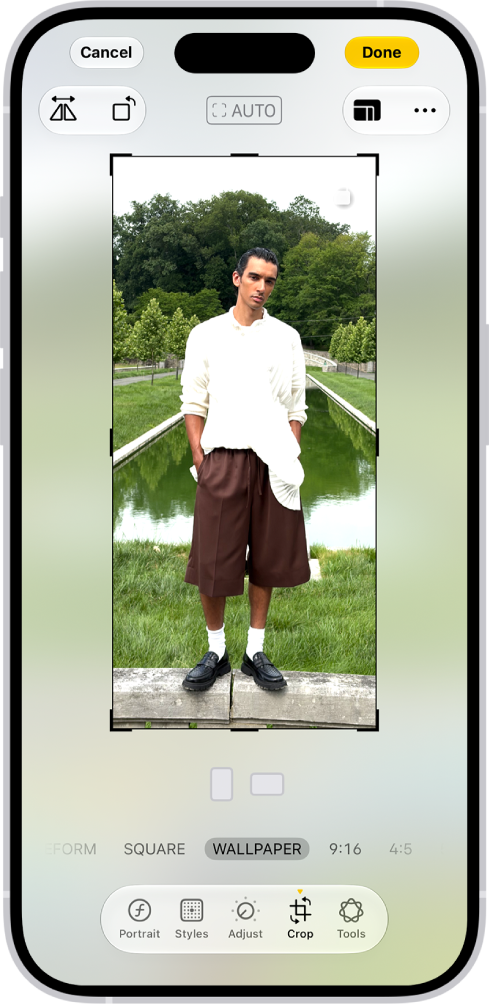
You can crop manually or to a standard preset ratio, such as Square, Wallpaper, 9:16, or 5:7, and rotate an image 90 degrees or flip it horizontally. The crop tool keeps the original aspect ratio of the photo unless you unlock it.
Here’s how to crop, rotate, flip, or straighten photos and videos on iPhone.
Crop, rotate, or flip a photo or video
- Open the Photos app on your iPhone.
- Tap a photo or video to open it, then tap the Edit button.
-
Tap the Crop button. Do any of the following:
-
Crop manually: Drag the rectangle corners to enclose the area you want to keep in the image, or pinch open or closed.
Note: When you drag a corner, the crop tool keeps the original aspect ratio of the photo. To change the aspect ratio, tap the lock at the top-right corner of the photo to unlock the aspect ratio.
- Crop to a standard preset ratio: Tap the Aspect Ratio Freeform button. Then choose an option such as Square, Wallpaper, 9:16, or 5:7.
- Rotate: Tap the Rotate button to rotate the image 90 degrees.
- Flip: Tap the Flip button to flip the image horizontally.
-
Crop manually: Drag the rectangle corners to enclose the area you want to keep in the image, or pinch open or closed.
- Tap Done to save your edits, or if you don’t like your changes, tap Cancel, and then tap Discard Changes.
Quick tip: There’s a faster way to crop a photo you’re viewing: Pinch it to zoom in, and when it looks right, tap Crop in the top-right corner. Then make any further adjustments with the crop tools and tap Done.
Straighten or tilt a photo or video
Along with straightening a photo or video, you can tilt it vertically or horizontally.
- Open the Photos app on your iPhone.
- Tap a photo or video to open it, then tap the Edit button.
- Tap the Crop button.
- Tap a button below the frame to straighten, tilt vertically, or tilt horizontally.
-
Drag the slider to make adjustments.
The level of adjustment you make is displayed by the slider. Tap the straighten or tilt button to switch between the adjusted version and the original.
- Tap Done to save your edits or tap Reset to revert to the original.
Quick tip: You can undo edits even after you save. Open the photo or video and tap the Edit button, then tap Revert.