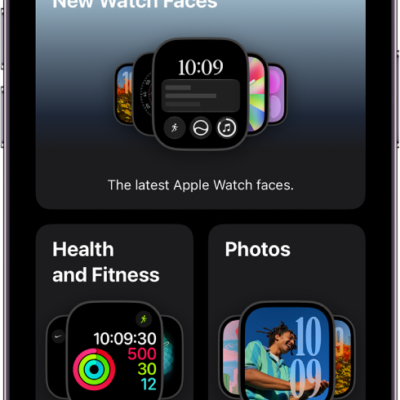
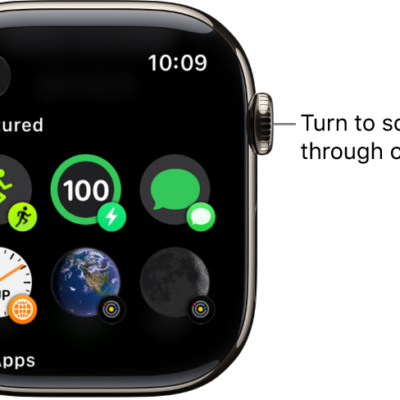
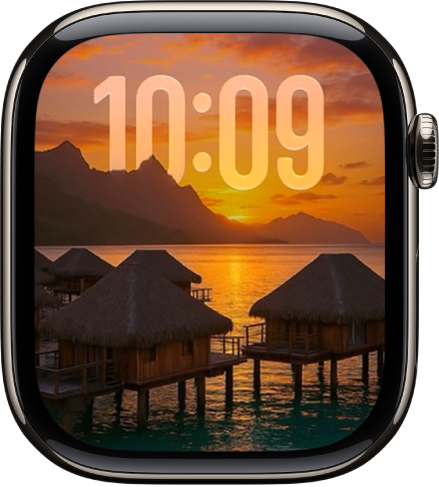
The Photos watch face cycles through photos you choose or through a synced album. You can also cycle through photos of specific people, places, pets, and cities from your photo library. A new photo appears every time you raise your wrist or tap the display.
You can shuffle your photo library or a collection, or manually add up to 24 photos. When you shuffle, sixteen photos are automatically selected to display each day.
Create a Photos watch face
- Start the Apple Watch app on your iPhone.
- Tap Face Gallery and tap the Photos category. Choose a style.
-
Do one of the following:
- Shuffle your photo library: Tap Shuffle and tap Featured or People. Then tap Continue.
- Shuffle a collection: Tap Shuffle, tap Collection, choose an album, and then tap Continue.
- Manually add photos: Tap Choose Photos and select up to 24 photos. Tap the Done button.
Note: When you shuffle your photo library or a collection, sixteen photos are automatically selected to display each day.
- Scroll down. Then choose any of the options to customize the layout of the watch face.
- When you’re finished, tap Add at the top of the screen.
Note: Not seeing photos? Check that they’re in your synced album. For help, read our guide, Choose a photo album and manage storage on Apple Watch.
Add a photo to your watch face
- Start the Photos app on your Apple Watch.
- Tap an album (like Featured or Favorites) and then tap a Photo.
- Tap the Action button and scroll down. Then tap Create Watch Face.
- Tap Photos.
See also
Tags: Photos, Watch Faces