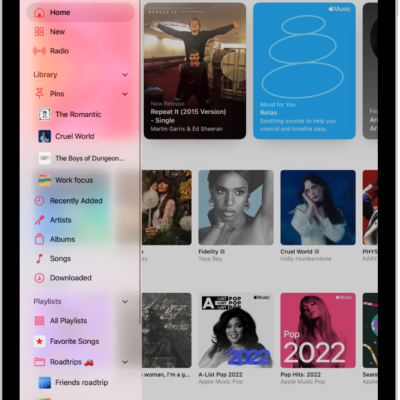
On your iPad, you can customize the layout in Music, both the tab bar and the sidebar, to personalize your experience. You can add items or remove them from the sidebar. You can also change their order, and add an item to the tab bar, such as Favorite Songs, or remove an item from the tab bar.
- Open the Music app on your iPad.
-
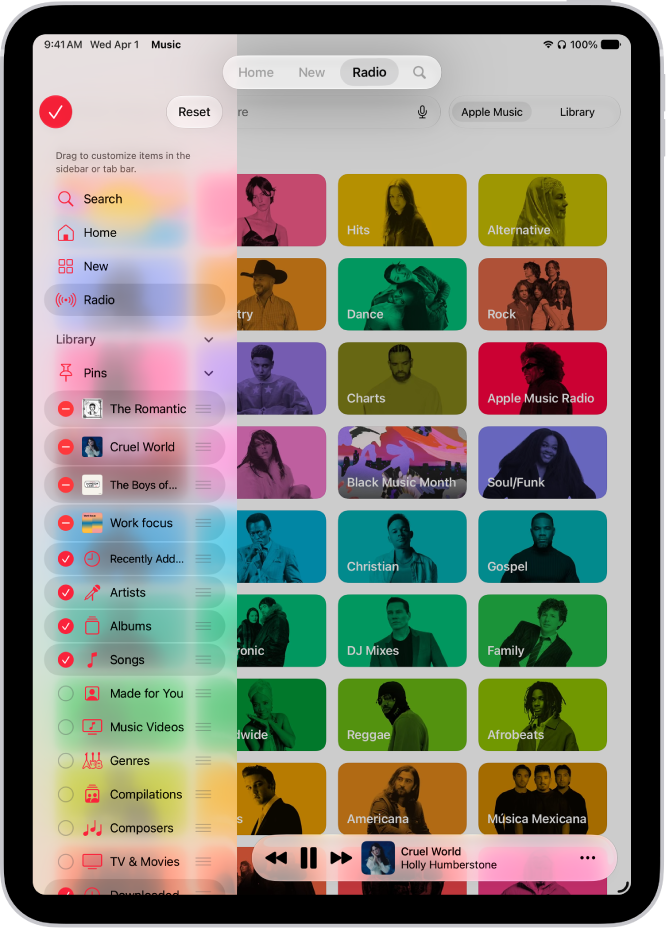
Tap Edit at the top of the sidebar. If you don’t see the sidebar, tap the Show Sidebar button in the tab bar at the top.
Tip: You can also touch and hold the tab bar.
-
Do any of the following:
- Customize the sidebar: Tap items below Library to add or remove them from the sidebar; drag the Reorder button next to items to change their order.
- Customize the tab bar: To add an item to the tab bar (such as Favorite Songs), drag it from the sidebar to the tab bar; to remove an item, drag it away from the tab bar.
See also
Tag: Music