In the Photos app, you can change and adjust the lighting effects, depth of field, and focus point of images you take in Portrait mode.
You can apply, change, or remove Portrait Lighting effects. Stage Light Mono is like Stage Light, but in classic black and white. Natural Light, for example, keeps the face in sharp focus against a blurred background, while Stage Light spotlights the face against a deep black background.
Adjust the background blur in Portrait mode photos
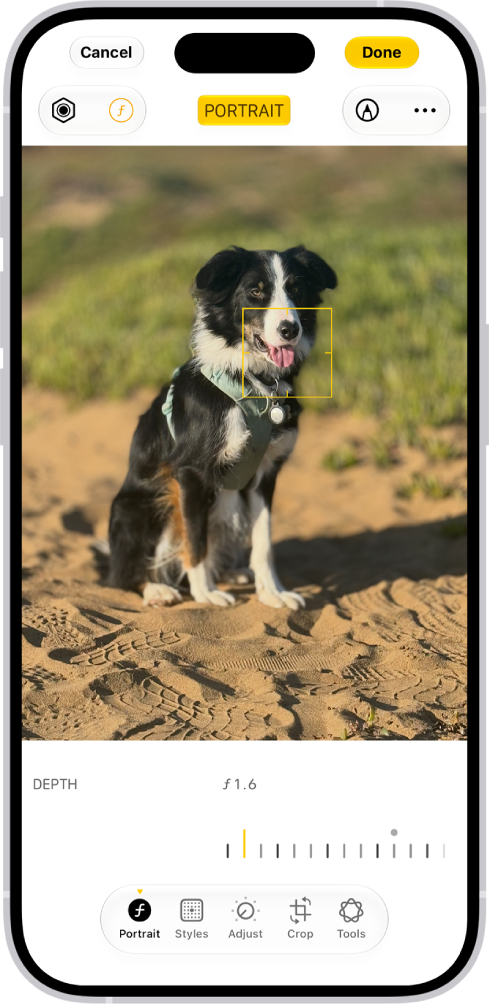
To adjust the level of background blur in your portraits, use the Depth Control slider.
- Start the Photos app on your iPhone.
- Tap any Portrait mode photo to view it in full screen. Then tap the Edit button.
-
Drag the Depth Control slider at the bottom of the screen to increase or decrease the background blur effect.
A black dot marks the original depth value for the photo.
- Tap Done.
Apply portrait effects to photos taken in Photo mode
On supported models, the Photos app can turn photos with a person, dog, or cat taken in Photo mode into portraits.
- Start the Photos app on your iPhone.
- Tap any photo taken in Photo mode to view it in full screen and tap the Edit button.
- If portrait effects are available, select Portrait at the bottom of the screen.
- Tap Portrait at the top of the screen to turn on portrait effects.
- Tap the Lighting Intensity Off button or the Depth button to adjust the portrait lighting or background blur.
- Tap Done.
To undo edits after you save, open the photo, tap the Edit button, tap Revert, then tap Revert to Original.
Note: Live Photo effects aren’t available on a Live Photo taken in Photo mode while the portrait effect is applied. Tap Live when you want to view the Live Photo, or to apply a Live Photo effect without the portrait effect.
Change the Portrait Lighting effect
In portraits, you can apply the Portrait Lighting effects, change them, or remove them.
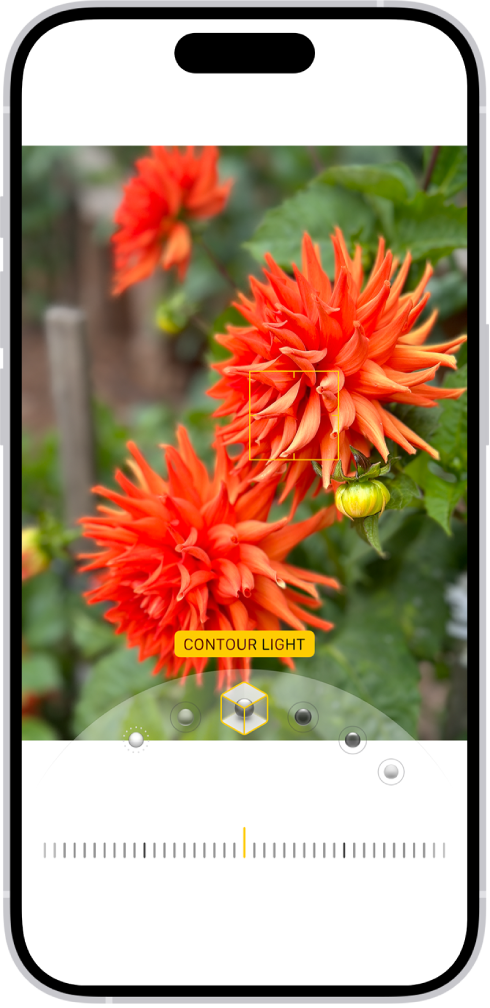
- Start the Photos app on your iPhone.
- Tap a Portrait mode photo to open it, then tap the Edit button.
-
Tap the Lighting Intensity Off button at the top of the screen.
The Portrait Lighting effects appear at the bottom of the screen.
-
Touch the Portrait Lighting control. Slide your finger left or right to choose a lighting effect:
- Natural Light: The face is in sharp focus against a blurred background.
- Studio Light: The face is brightly lit, and the photo has an overall clean look.
- Contour Light: The face has dramatic shadows with highlights and lowlights.
- Stage Light: The face is spotlit against a deep black background.
- Stage Light Mono: The effect is like Stage Light, but the photo is in classic black and white.
- High-Key Light Mono: The effect creates a grayscale subject on a white background.
- Drag the slider below the lighting effects left or right to adjust the intensity of the lighting effect.
- Tap Done.
To undo edits after you save, tap the Edit button, tap Revert, then tap Revert to Original.
Change the focus point of a portrait
On iPhone 13 or later, you can change the subject, or focus point, of a portrait. Select a new subject, and the background blur automatically adjusts so the new subject looks sharp and in focus. But make sure the new subject isn’t blurred or too far in the distance.
- Start the Photos app on your iPhone.
- Tap any Portrait mode photo to view it in full screen. Then tap the Edit button.
- Tap a new subject or focus point in the photo.
- Tap Done.
Remove the portrait effect
If a photo was taken in Portrait mode, you can remove the portrait effect.
- Start the Photos app on your iPhone.
- Tap any Portrait mode photo to view it in full screen.
- Tap Portrait in the top-left corner of the screen. Tap Portrait Off.