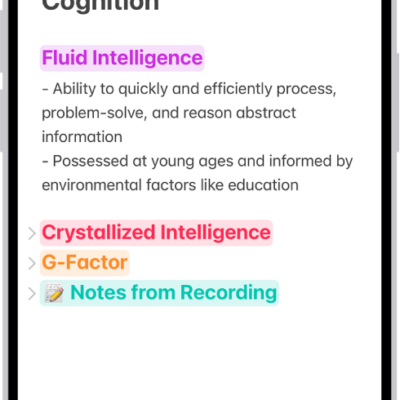
In the Notes app, you can open a note in the Pages app and continue working. You can also export the note as a PDF or print the note.
Not everything carries over to Pages. You can’t edit drawings there, scanned documents and PDFs appear as thumbnail images, and tags, mentions, checklists, and links to notes aren’t active items. A locked note also has to be unlocked first.
Here’s how to export or print notes on iPhone.
Open a note in Pages
- Make sure your iPhone has the latest version of Pages.
- Open the Notes app on your iPhone.
- Open the note you want to export.
- Tap the Share button and then tap Open in Pages. Note: If the note is locked, you must unlock it before exporting the contents of the note to Pages. You can’t edit drawings in Pages. Content such as scanned documents and PDFs appear as thumbnail images in Pages. Tags, mentions, checklists, and links to notes aren’t active items in Pages. If a note is shared, the resulting Pages document isn’t shared.
Export a note as a PDF
When you create a PDF of a note, it uses the note’s current view settings for its attachments. If the note has a multipage PDF or scanned document, though, the exported PDF contains only the first page of the original.
- Open the Notes app on your iPhone.
- Open the note you want to export.
- Tap the Share button, then tap Markup.
- If you don’t see the Markup option, first tap the View More button.
- Mark up the pages in the exported PDF as needed and tap the Done button to save the PDF.
Export a note as a Markdown file
You can export your notes as Markdown files to use them in writing, content, and other workflows that support Markdown.
- Open the Notes app on your iPhone.
- Open the note you want to export.
- Tap the Share button and then tap Export as Markdown.
- If you don’t see the Markdown option, first tap the View More button.
- Choose how to send or save your note.
Print a note
- Open the Notes app on your iPhone.
- Open the note you want to print.
- Tap the Share button, then tap Print.
- If you don’t see the Print option, first tap the View More button.
- Choose the printer and other options, then tap Print.