You can export selected data from Safari, and then import that data into another browser. Below History and Website Data in Safari’s settings, you select the data to export. And if you use Safari profiles, you can choose the profile you want to export data from.
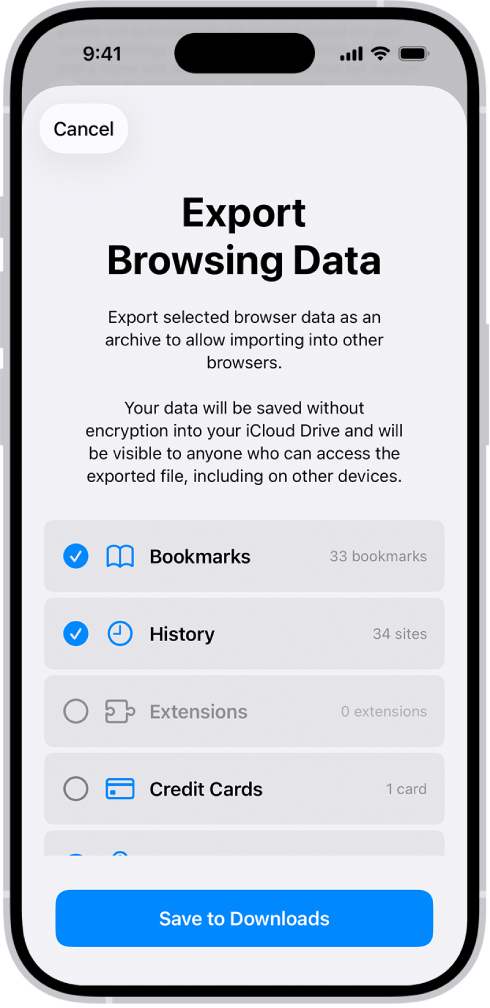
From Safari, you can export these kinds of data:
- Bookmarks
- History
- Extensions
- Credit cards
- Passwords
WARNING: Your exported data is not encrypted and is visible to anyone who can access the file. After you import the data into another browser, delete the file you exported.
- Open the Settings app on your iPhone.
- Tap Apps, then tap Safari.
- Below History and Website Data, tap Export.
-
Select the data to export.
If you created profiles for your browsing in Safari, choose the profile you want to export data from, or choose All Profiles. Each profile has its own history and extensions data. The data for bookmarks, credit cards, and passwords is the same across all profiles.
- Tap Save to Downloads.
- Tap Done.
You’ll find the exported data in your Downloads folder, saved as a .zip file.