With Visual Look Up on your iPhone, you can identify and learn about architectural landmarks, popular statues, famous art, plants, pets, books, and more that appear in photos and images. It can also identify food and suggest related recipes, and you can use it in Photos, Safari, Quick Look, and more.
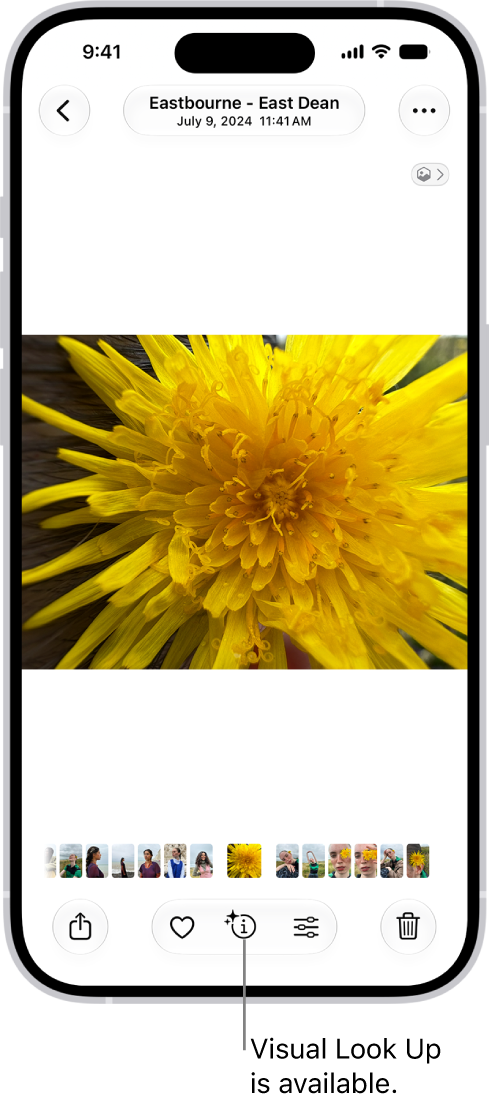
A starred Info button tells you Visual Look Up has something to show you, and it works with a paused video frame, too. It isn’t available in all regions or languages, though.
-
On your iPhone, open a photo or image in full screen, or pause a video on any frame.
If the Info button displays a symbol with stars such as the Detected Food Info button or the Detected Dog Info button, Visual Look Up is available. - Tap the starred Info button and then tap Look Up at the top of the photo information to view the Visual Look Up results.
- Tap the Close button to close the Visual Look Up results and swipe down on the photo or video frame to close the photo information.
Visual Look Up isn’t available in all regions or languages, Apple says.
Tag: Photos