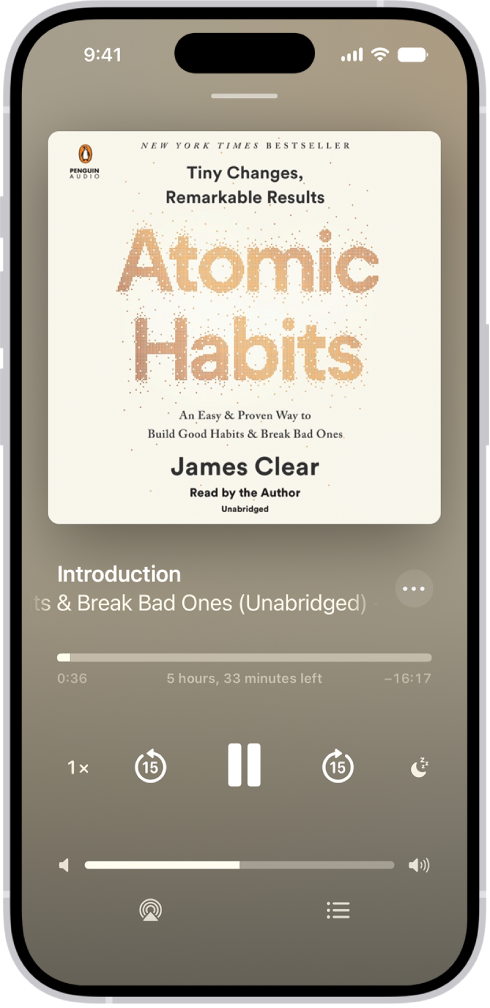
Use the Books app to listen to audiobooks on your iPhone. As an audiobook plays, you can adjust the volume, skip forward or back, go to a specific time or a different chapter, speed it up or slow it down, and set a sleep timer. Some audiobooks come with supplemental PDFs, too.
Note: Apple Books isn’t available in all countries or regions.
Play an audiobook
- Open the Books app on your iPhone.
- Go to an audiobook. Tap the cover to start playing it.
-
While the audiobook is playing, do any of the following:
-
Skip forward or back: Tap or touch and hold the rounded arrows next to the Pause button. Or, use external controls such as headphones or car controls.
Note: To change the number of seconds to skip forward or back, go to Settings > Apps > Books. Below Audiobooks, tap Skip Forward or Skip Back, then tap an option.
- Go to a specific time: Drag the slider below the audiobook cover left or right.
-
Go to a different chapter: Tap the Table of Content Switch button and tap a chapter.
Note: Some audiobooks refer to chapters as tracks, or don’t define chapters.
- Adjust the volume: Drag the slider below the Pause button left or right.
- Speed it up or slow it down: Tap 1x in the lower-left corner and drag the dial up or down to adjust the narration speed. Touch and hold the narration speed to reset it to 1x.
- Set a sleep timer: Tap the Sleep button, then choose a duration.
- Play on a different device: Tap the AirPlay button. Then choose an available device such as HomePod, Apple TV 4K, or Bluetooth® speakers.
- Switch to the audiobook mini-player: Swipe down from anywhere on the screen, or tap the Close button at the top of the screen. Tap the mini-player at the bottom of the screen to go back to full screen.
- Close the audiobook player: Switch to the audiobook mini-player, touch and hold the audiobook mini-player and then tap Close Audio Player.
-
Skip forward or back: Tap or touch and hold the rounded arrows next to the Pause button. Or, use external controls such as headphones or car controls.
If a Wi-Fi connection to the internet isn’t available, audiobooks play over your carrier’s cellular network, which may result in additional fees.
Find supplemental PDFs
Some audiobooks come with supplemental PDFs. To view the PDF as the audiobook plays, tap the Table of Contents has Supplemental Content button, or do the following:
- Open the Books app on your iPhone.
- Tap Library. Then tap the More Info button below an audiobook cover.
- Tap View PDF Content.